The box is open. That tiny computer sits there looking almost too small to be useful. It’s exciting, sure. But what comes next? Plugging it in and hoping for the best isn’t the smartest move. From watching quite a few people go through this process, there’s a clear pattern: those who take twenty minutes to do a few basic steps end up with a much smoother experience. Those who skip them? They run into weird glitches, slow performance, or security headaches later.
So here are five practical things to do right after unboxing any Mini PC. None of it is complicated. But each step makes a real difference.
First Thing: Inspect the Mini PC Physically and Test All Ports
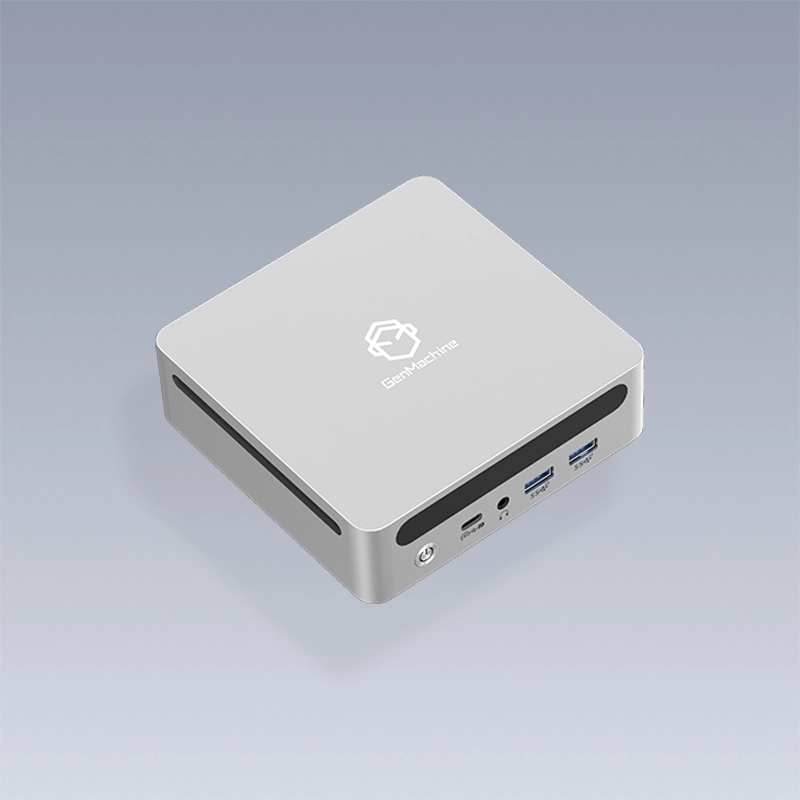
It sounds almost too obvious to mention. But you’d be surprised how many people skip a quick physical check. Sometimes a Mini PC arrives with a slightly bent USB port or a loose power connector. It’s rare, but it happens.
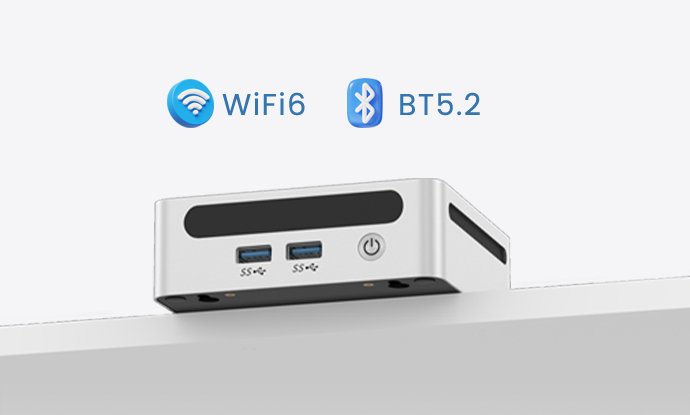
Take a moment to look at the casing. Any cracks? The vents on the sides should be clear. Then flip it over. The rubber feet (if any) should be firmly attached. One thing that’s easy to overlook—the HDMI or DisplayPort sockets. Plug something into each one. Not necessarily a monitor, just a cable to feel the resistance. A loose port is a sign of shipping damage.
Also, check the included accessories. Power adapter, HDMI cable, maybe a VESA mount. Lay them out. If something’s missing, better to know now than a week later.
Second Thing: Boot into BIOS and Verify Hardware Specs
This step is surprisingly useful. A Mini PC might say it has 16GB of RAM and a certain processor on the box. But booting into the BIOS (usually by pressing F2 or Del during startup) tells the real story.
Here’s a quick checklist of what to look for in the BIOS:
Installed RAM size and speed (DDR4 or DDR5?)
Processor model and base clock
Storage drive detected (NVMe or SATA)
Fan curve settings (if available)
One observation: some budget Mini PC units ship with mismatched RAM—one stick of 8GB instead of two 4GB sticks, which hurts dual-channel performance. The BIOS reveals that immediately. It’s not a dealbreaker, but good to know.
If the BIOS looks correct, move on. If something seems off (like 8GB showing instead of 16GB), take a photo. That’s useful for customer support.
Third Thing: Remove Bloatware and Update Windows/Drivers
Here’s where things get a bit tedious but necessary. Many Mini PC manufacturers preload software that nobody asked for. Antivirus trials, random game launchers, driver updater tools that are themselves adware. It’s annoying—and on a 6600H 16G AMD Mini PC, you might also see some AMD-specific tuning utilities that aren’t really needed for everyday use.
From an experiential standpoint, the cleanest approach is to go straight to Settings > Apps and uninstall anything that looks unfamiliar. Be careful not to remove essential drivers (like audio or network). But that random “PC Optimizer” or “Toolbar” can go. Same goes for the extra AMD software if you’re not overclocking or tweaking.
After cleaning, run Windows Update. Let it do its thing. It might restart two or three times. That’s normal. While that runs, head to the manufacturer’s support page for that specific Mini PC model—for the 6600H 16G AMD Mini PC, that means grabbing the latest chipset and GPU drivers directly from AMD or the OEM site. Sometimes Windows Update misses those.
Fourth Thing: Optimize Storage and Memory Settings
Out of the box, a Mini PC often has default power settings that limit performance. It’s not malicious—it’s for energy efficiency. But for a desktop replacement, those settings leave performance on the table.
Here’s what to adjust:
Power plan – Change from “Balanced” to “High performance” (or “Ultimate performance” if available).
Virtual memory – Let Windows manage it automatically unless there’s a specific reason not to.
Startup programs – Open Task Manager (Ctrl+Shift+Esc) and disable anything unnecessary from the Startup tab.
Another thing worth checking is the storage drive’s available space. A Mini PC with a 128GB drive might have only 80GB free after Windows and updates. That’s fine for light use. But installing a few large applications will fill it fast. Consider moving documents or downloads to an external drive or cloud storage.

Fifth Thing: Set Up Basic Security and Backup
It’s easy to forget this step because it’s not exciting. But a Mini PC is still a computer connected to the internet. Basic security matters.
Enable BitLocker (if using Windows Pro) or device encryption on Windows Home. That protects data if the Mini PC is ever lost or stolen. Then set up a local backup—nothing fancy, just a weekly file history to an external USB drive or NAS.
Also, consider changing the default administrator account name if the manufacturer set something generic like “MiniPCUser”. That’s a minor security tweak but an easy one.
One more thing: turn on automatic updates for the antivirus (Windows Defender is fine for most people). Set a reminder to check for driver updates every couple of months. It’s not glamorous, but it keeps the Mini PC running smoothly for years.
FAQ
Does a Mini PC come with an operating system pre-installed?
Most do. The majority of Mini PC units ship with Windows 11 Pro or Home. Some budget models might have Linux or no OS at all (often called “barebone”). Always check the product listing. From experience, getting a barebone model is fine for advanced users, but for everyone else, paying a little extra for a pre-installed OS saves hours of setup.
Can I use a Mini PC without an internet connection for initial setup?
Yes and no. Windows 11 requires an internet connection for the initial setup (Microsoft account login). There are workarounds—like using a local account command during installation—but it’s a hassle. For a hassle-free experience, just connect to Wi-Fi or Ethernet during first boot. After that, offline use is perfectly fine.
How long should the first boot take on a new Mini PC?
First boot often takes longer than expected—sometimes 5 to 10 minutes. That’s normal. The system is initializing hardware, running OOBE (out-of-box experience), and applying updates. If it sits on a black screen for more than 15 minutes, something might be wrong. But in most cases, patience is all that’s needed.