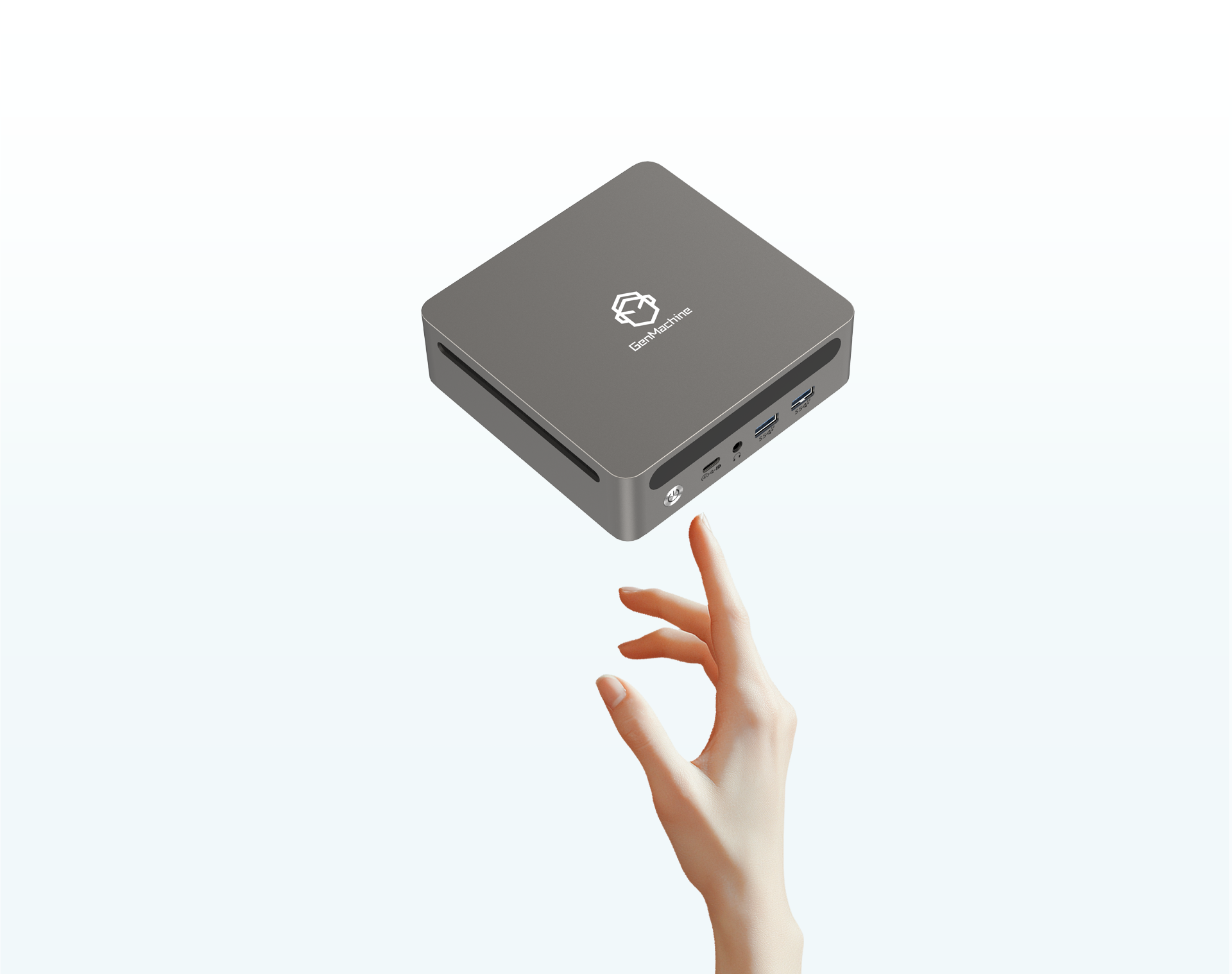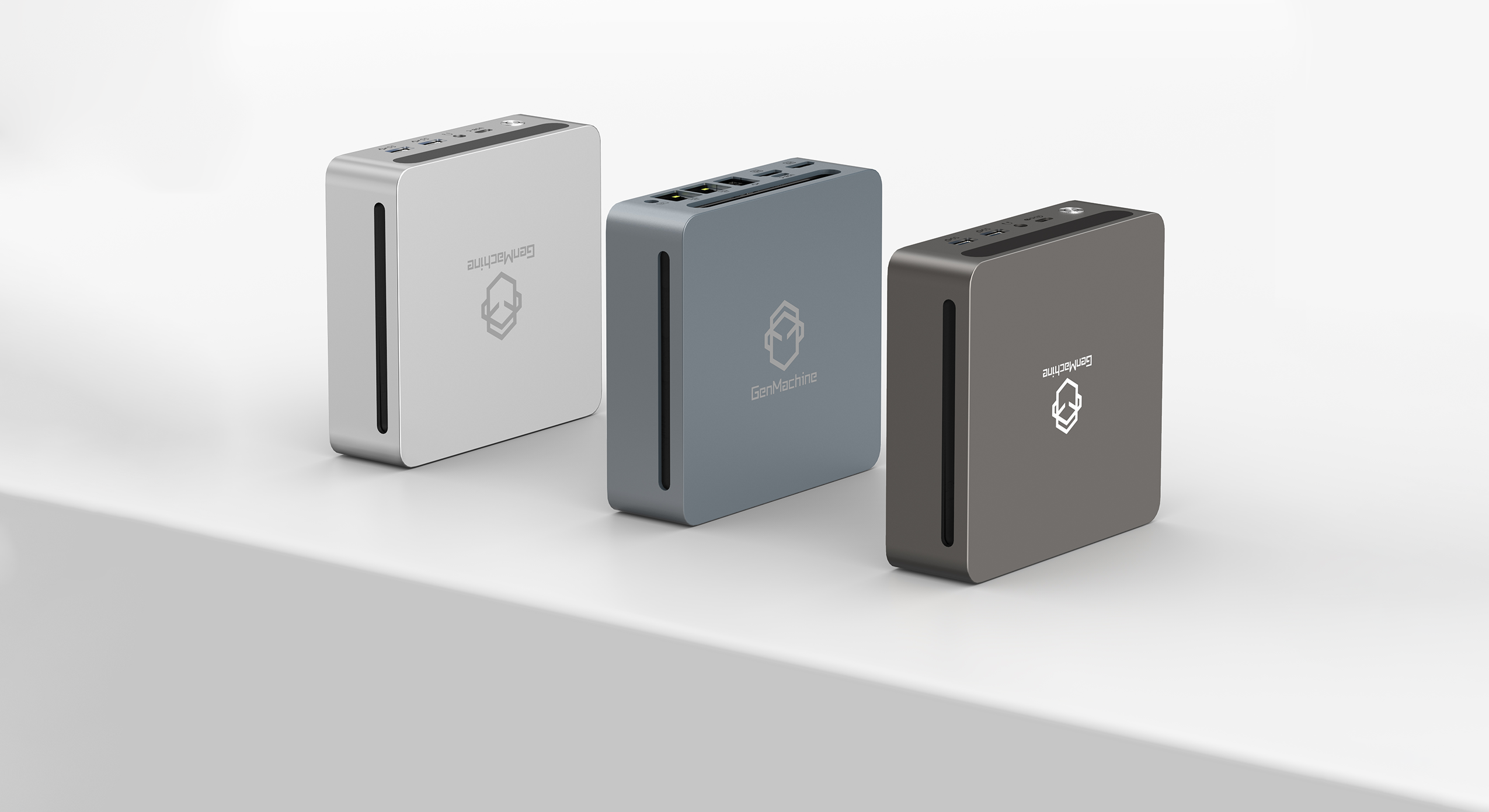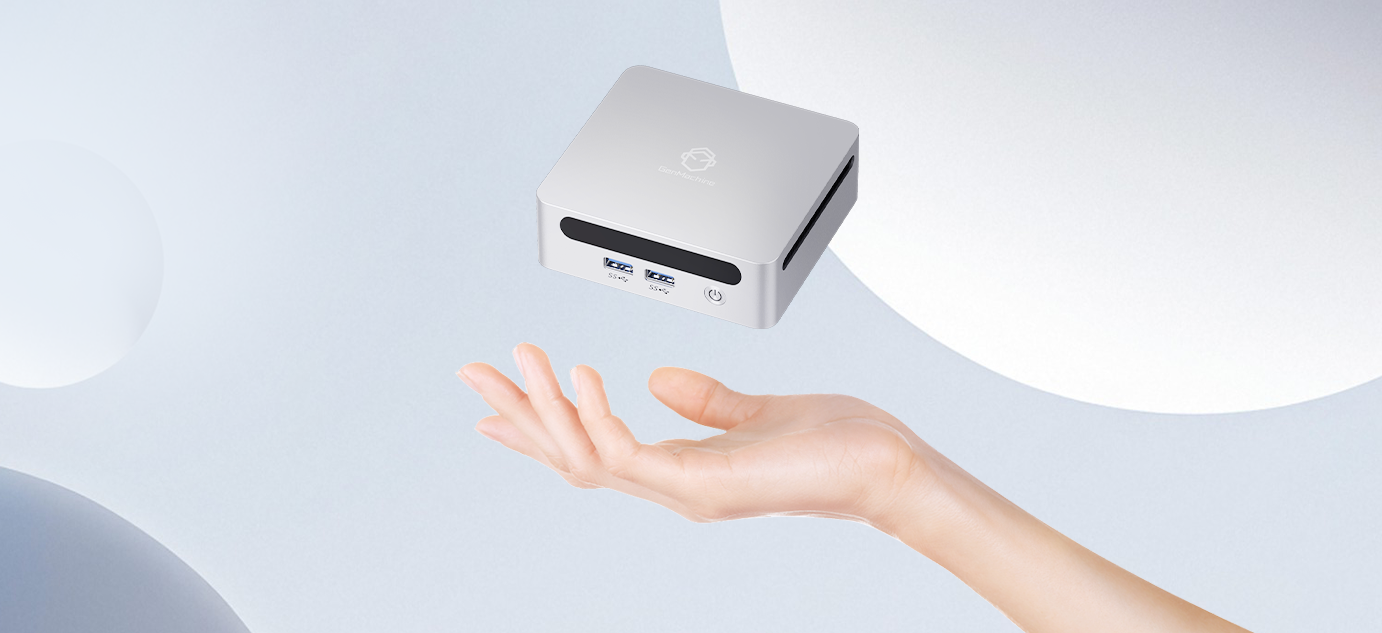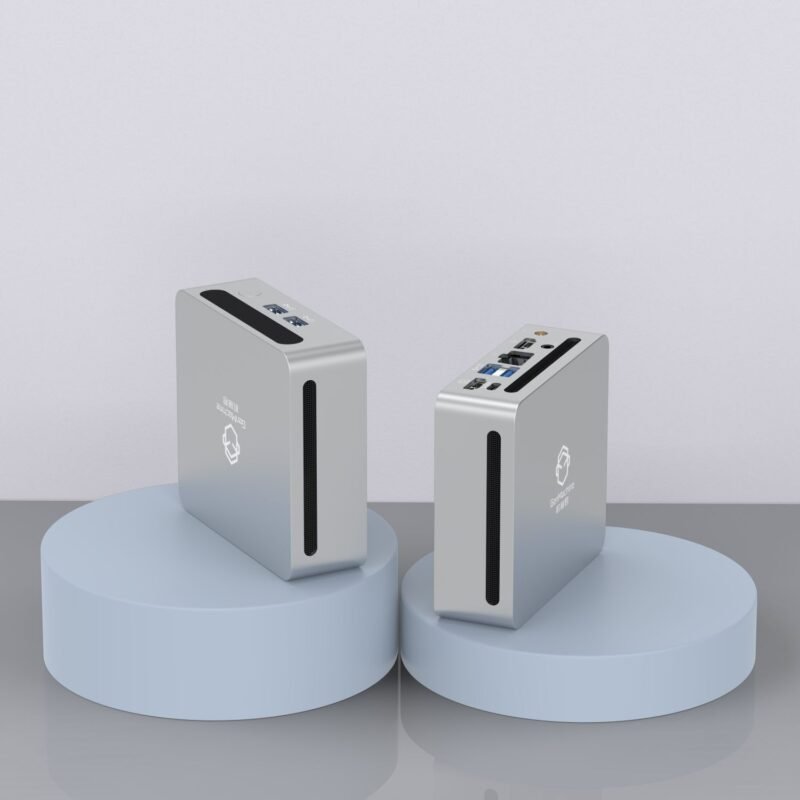
There is something appealing about the idea of editing video on a tiny machine that fits in the palm of your hand. The massive tower PC, with all its fans and cables, suddenly feels like overkill for a lot of people. But here is the thing—video editing is demanding work. It chews through processing power, memory, and storage like nothing else. So can a mini PC actually handle it?
The short answer is yes. But with caveats. Not every mini PC is built the same, and the gap between “it technically runs” and “it runs smoothly” is pretty wide. Knowing the minimum hardware specs before buying saves a lot of frustration down the road.
What Makes a Mini PC Viable for Video Editing
A mini PC is, at its core, just a smaller form factor computer. The internals are often similar to what you find in laptops—mobile processors, compact cooling solutions, and limited upgradeability. This creates constraints. Thermal throttling becomes an issue during long renders. Integrated graphics are common. Expansion options are limited.
That said, the latest generation of these compact machines has gotten surprisingly capable. Modern chips from both Intel and AMD pack serious performance into low-power envelopes. For basic to intermediate video editing—think YouTube content, social media clips, even some light 4K work—a well-specced mini PC does the job without taking up half a desk.

CPU Requirements for a Mini PC Used in Video Editing
The processor is arguably the most important component. Video editing software like DaVinci Resolve, Premiere Pro, and even CapCut relies heavily on CPU performance for timeline scrubbing, effects processing, and encoding.
Intel Options
For Intel-based mini PC units, the baseline should be an i5 processor from the 12th generation or newer. The i5-1240P or i5-12450H are commonly found in mid-range compact systems, and they handle 1080p editing without much complaint. For 4K footage, stepping up to an i7 (like the i7-1260P or i7-12700H) makes a noticeable difference in render times and playback smoothness.
AMD Options
AMD’s Ryzen 5 6600U or Ryzen 7 6800U chips show up in many mini PC models and offer excellent multi-threaded performance. The integrated Radeon graphics on these chips also help with hardware-accelerated encoding, which is a nice bonus. In some benchmarks, the Ryzen options actually edge out Intel in sustained workloads because they manage heat a bit better in cramped enclosures.
RAM Specifications for Video Editing on a Mini PC
Memory matters. A lot. Video editing applications are hungry for RAM, especially when working with multiple tracks, color grading, or applying effects.
Here is a general breakdown of what different editing scenarios demand:
| Editing Type | Minimum RAM | Recommended RAM |
|---|---|---|
| Basic 1080p editing | 8GB | 16GB |
| Complex 1080p with effects | 16GB | 32GB |
| 4K editing | 16GB | 32GB or higher |
| Professional workflows | 32GB | 64GB |
The good news is that many mini PC models allow RAM upgrades. Checking whether the unit has one or two SO-DIMM slots before purchasing is worth the effort. Starting with 16GB and having the option to expand to 32GB or 64GB later provides some future-proofing.
GPU and Graphics Performance in a Mini PC
Graphics processing is where things get tricky. Most compact systems rely on integrated graphics—Intel Iris Xe or AMD Radeon. These are fine for basic editing. They can handle hardware acceleration for H.264 and H.265 codecs, which speeds up exports significantly.
However, for anything involving:
- Heavy color grading
- Motion graphics and 3D elements
- Real-time 4K playback with effects
- Noise reduction or AI-powered tools
Some higher-end mini PC configurations include discrete mobile GPUs (like an RTX 3050 or similar), but these are less common and more expensive. External GPU enclosures via Thunderbolt are another option, though they add cost and complexity.
Storage Speed and Capacity Needs
Video files are large. A single hour of 4K footage can easily exceed 100GB depending on the codec and bitrate. Slow storage creates bottlenecks everywhere—importing, timeline scrubbing, rendering, exporting.
The minimum spec here is straightforward:
- An NVMe SSD for the boot drive and software installation (at least 512GB)
- A secondary drive or external SSD for project files and media
- Read/write speeds of at least 2000 MB/s for smooth 4K editing
Avoid mini PC models that only offer eMMC storage or slow SATA SSDs. The performance difference is dramatic and immediately noticeable when editing video.
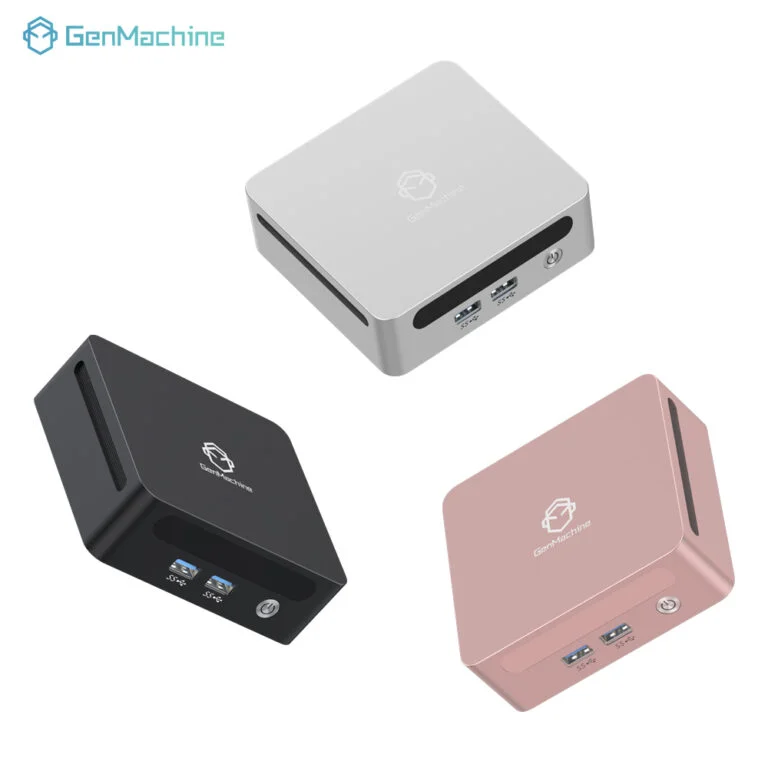
Connectivity and Ports on a Video Editing Mini PC
This point gets overlooked. Video editing often involves external monitors, card readers, audio interfaces, and backup drives. A mini PC with limited ports creates headaches.
Look for:
- At least two USB-A ports (USB 3.0 or higher)
- One or two USB-C ports (ideally Thunderbolt 4)
- HDMI 2.0 or DisplayPort for external monitors
- SD card slot (very useful for camera media)
- Ethernet port for network storage access
Thunderbolt support, in particular, opens up possibilities for external GPU docks and high-speed storage arrays.
If you want to know more about video editing mini pc, please read Are Ryzen 7000 Mini PCs Good for Video Editing?
FAQ
Can a mini PC handle 4K video editing?
Yes, but it depends on the specific configuration. A mini PC with a current-generation i7 or Ryzen 7 processor, 32GB of RAM, and a fast NVMe SSD can manage 4K editing reasonably well. Proxy workflows—where you edit lower-resolution copies and link back to the original files for export—also help significantly on less powerful machines.
Is integrated graphics good enough for video editing?
For basic 1080p editing and straightforward cuts, integrated graphics are acceptable. Intel Iris Xe and AMD Radeon integrated solutions both support hardware encoding. However, for advanced effects, color grading, or working with RAW footage, a dedicated GPU (or an eGPU setup) delivers noticeably better performance.
How much storage does video editing require?
It varies by project, but having at least 1TB of total storage is a reasonable starting point. For active projects, keeping files on a fast NVMe drive is ideal. Archiving completed work to external drives or network storage helps manage space on the compact internal drives found in most mini PC systems.