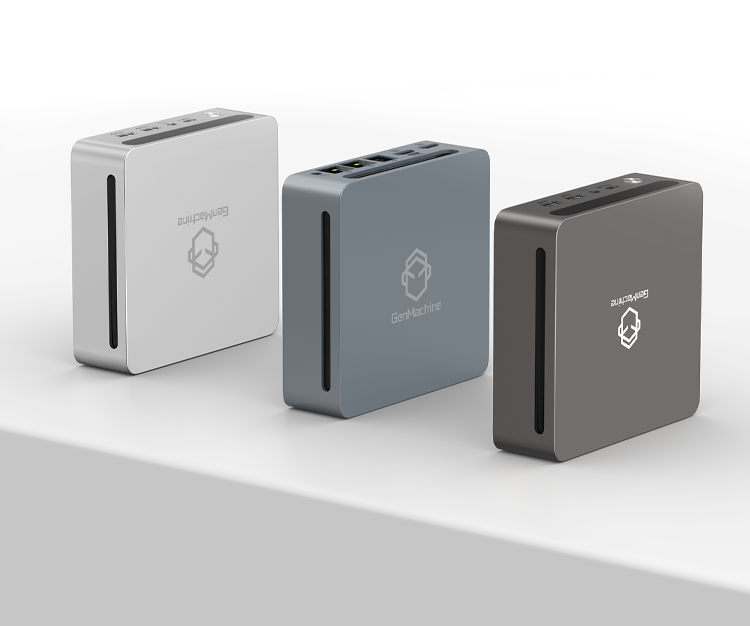
There’s always that moment of hesitation before pressing the BIOS key on a new Mini PC. All those unfamiliar menus and technical options can make anyone second-guess themselves. But honestly, configuring the BIOS on a compact desktop isn’t nearly as intimidating as it first appears.
This guide breaks down the essential BIOS setup steps for Mini PC systems, focusing on what genuinely matters rather than overwhelming with every possible option.
Understanding BIOS and Why It Matters for Mini PC Users
The BIOS — Basic Input Output System — serves as the bridge between your hardware and operating system. It’s firmware that runs before Windows or Linux even begins loading. Modern systems technically use UEFI instead, though plenty of people still call it BIOS out of habit. The distinction rarely matters for practical purposes.
On compact desktop systems, accessing these settings becomes necessary for several reasons:
- Setting up boot priority for operating system installation
- Enabling virtualization for running virtual machines
- Adjusting security features like passwords
- Configuring power management behavior
- Troubleshooting hardware detection problems
Entering the BIOS on Your Mini PC
The trickiest part for many Mini PC owners is simply getting into BIOS in the first place. There’s a narrow timing window after powering on, and different Mini PC manufacturers use different keys.
Common Mini PC Entry Keys by Manufacturer
| Manufacturer | Primary Key | Backup Key |
|---|---|---|
| Intel NUC | F2 | Delete |
| Beelink | Delete | F7 |
| Minisforum | Delete | F2 |
| Geekom | F2 | Delete |
| GMKtec | Delete | Esc |
| ASUS | F2 | Delete |
| Chuwi | Delete | F2 |
Start tapping the appropriate key immediately after pressing power on your Mini PC. Not holding — tapping repeatedly. The window closes quickly, especially on Mini PC systems with fast boot enabled. Missing it just means restarting your Mini PC and trying again.
Using Windows to Access Mini PC BIOS
When fast boot makes the traditional method nearly impossible on your Mini PC, Windows provides an alternative route:
- Navigate to Settings, then System
- Find Recovery options
- Click Restart Now under Advanced startup
- Select Troubleshoot after restart
- Choose Advanced options
- Click UEFI Firmware Settings
- Confirm the restart
Takes longer but works consistently. Particularly useful for compact systems optimized for quick startup times.
Navigating the Mini PC BIOS Interface
BIOS layouts vary somewhat, but most follow a similar organizational structure. Whether graphical or text-based, expect to find these main sections:
- Main — basic information about the system, date and time
- Advanced — processor configuration, storage settings, USB options
- Boot — device priority and boot mode settings
- Security — passwords and Secure Boot configuration
- Exit — save changes, discard, or restore defaults
Arrow keys handle navigation in most cases. Enter selects, Escape backs out. Some newer UEFI implementations support mouse input, which feels more intuitive. A help panel typically appears on the right side explaining each option, though the explanations can be vague sometimes.
Key Mini PC Settings Worth Configuring
The vast majority of BIOS options can stay at default values. These specific areas, however, deserve attention.
Boot Device Priority
Boot order tells the system which storage device to try first. Normally the internal drive sits at the top. When installing an operating system from USB, that needs to change.
To adjust boot priority:
- Navigate to the Boot section
- Find Boot Option Priorities or similar wording
- Move the USB device to first position
- Save changes before exiting BIOS
Virtualization Support
Anyone planning to use VirtualBox, VMware, Hyper-V, or similar software needs hardware virtualization enabled. Modern processors include this capability, but it sometimes ships turned off.
The setting appears under different names:
- Intel systems: VT-x or Intel Virtualization Technology
- AMD systems: AMD-V or SVM Mode
Check under Advanced, then CPU Configuration. Enable the option, save, and restart. Having it on doesn’t cause issues even if virtualization goes unused.
Secure Boot Settings
Secure Boot validates operating system authenticity during startup. Windows 11 requires it enabled. Most Mini PC systems ship this way.
Situations requiring temporary disabling:
- Certain Linux distribution installations
- Older Windows versions
- Specialized boot or recovery tools
The toggle typically lives under Security or Boot tabs. Take note of the original setting — systems configured for Windows 11 won’t boot properly without Secure Boot active.
Power Management Options
Power settings control system behavior in various scenarios:
- Wake on LAN — allows network packets to wake a sleeping system
- AC Power Recovery — determines behavior after power loss (stay off, power on, or restore previous state)
- USB Wake — permits keyboard or mouse to wake from sleep
For compact systems used as home servers or media centers, Wake on LAN proves especially valuable. Standard desktop configurations can usually leave defaults alone.
Recommended Mini PC Settings by Usage Scenario
Media Center or HTPC
- Set AC Power Recovery to “Power On” so the system restarts automatically after outages
- Enable HDMI-CEC if the option exists for TV remote integration
- Reduce unnecessary boot delays
Development and Testing
- Enable virtualization absolutely — VT-x or AMD-V depending on processor
- Enable VT-d for device passthrough capabilities if available
- Consider adjusting shared memory for integrated graphics if relevant
General Productivity
- Keep Secure Boot enabled for security
- Set a supervisor password if the system sits in shared spaces
- Leave most other options at factory defaults
What to Avoid Changing on Your Mini PC
Some BIOS areas are better left alone:
- Overclocking settings — compact systems typically lack cooling for this
- Memory timing adjustments — automatic configuration works well enough
- Chipset options — unless troubleshooting specific hardware
- Anything labeled experimental or advanced without clear purpose
Regarding firmware updates: don’t flash new BIOS versions unless addressing a specific documented problem. Failed updates can permanently damage compact systems, and recovery options on these smaller boards range from difficult to nonexistent.
If you want to know more about how to use MiniPC, please read How to Turn On a Mini PC for the First Time.