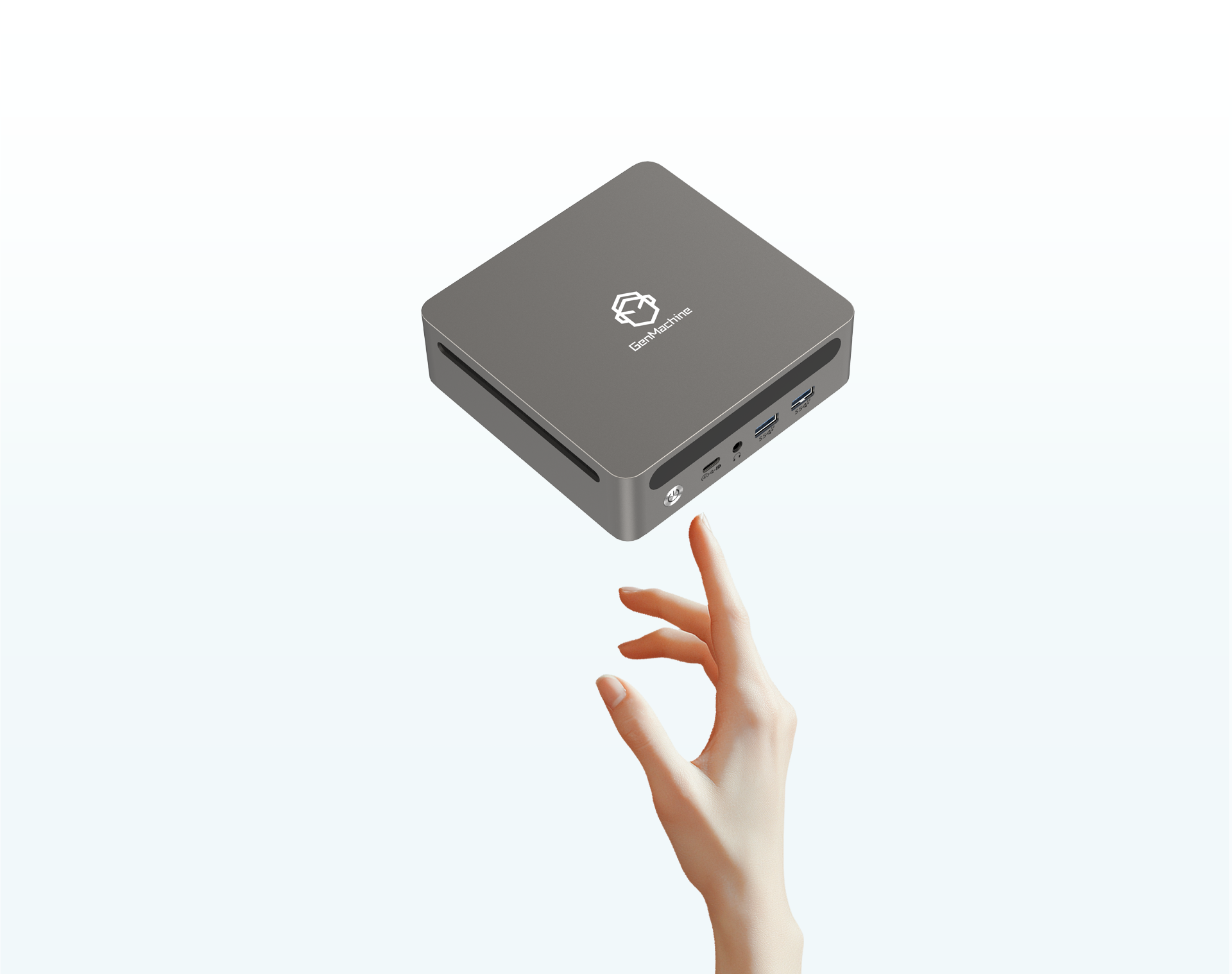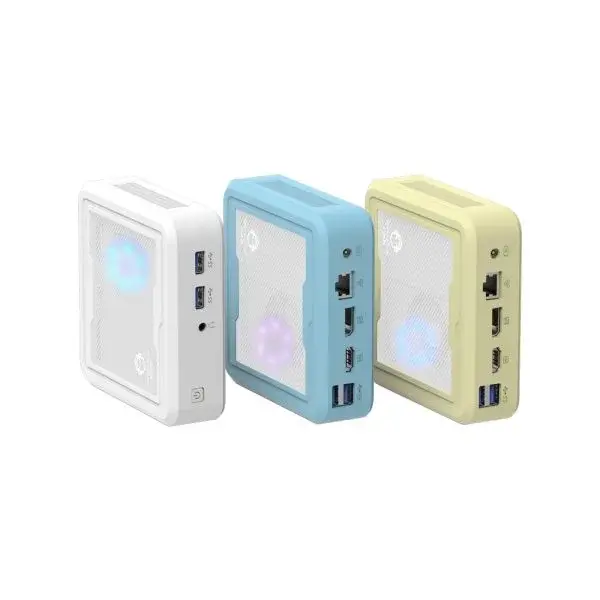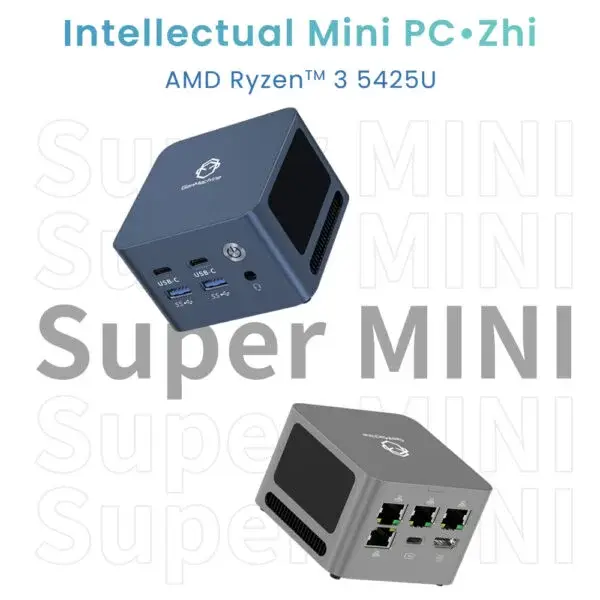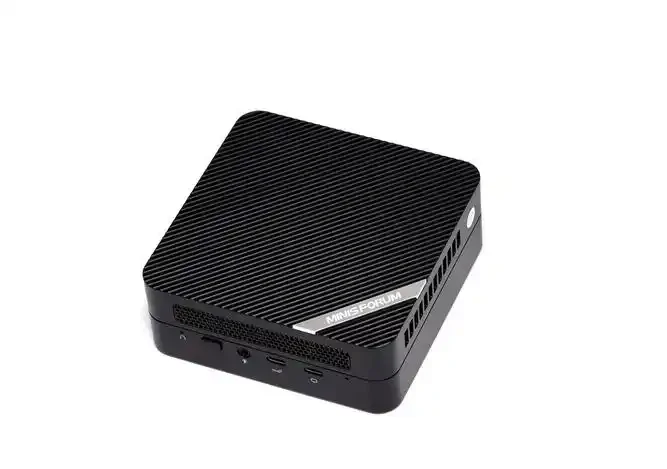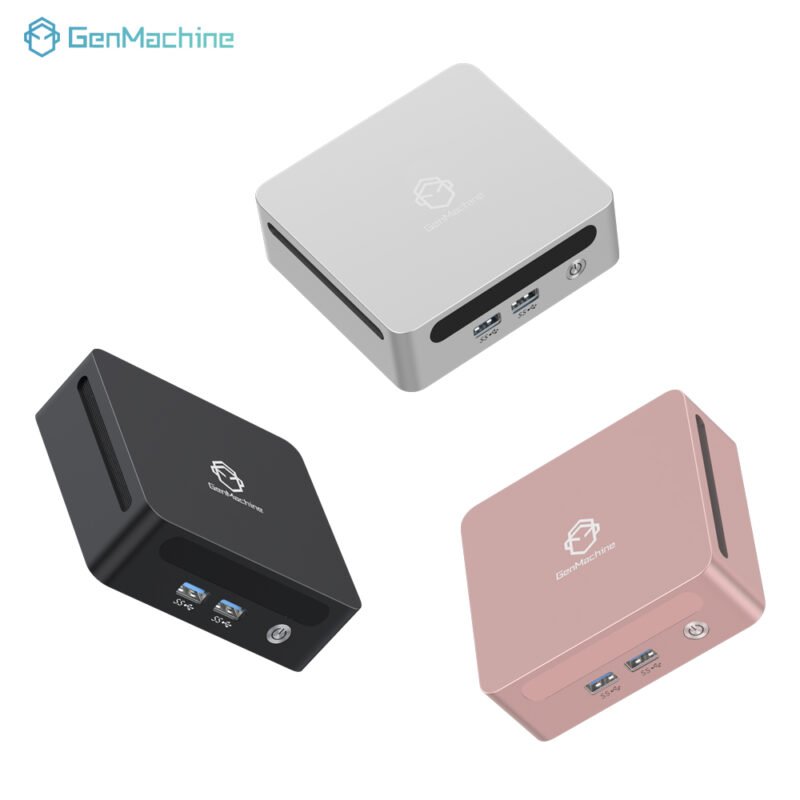
A Mini PC arrives. It’s tiny, sleek, fits almost anywhere. Then the realization hits: it’s just the box. No monitor. No keyboard. No way to mount it behind a screen. The little computer itself is great, but the experience? That depends entirely on what gets paired with it.
Seen this scenario play out more times than can be counted. Someone buys a Mini PC excited about the size, then spends the next week making trips to the store for cables and adapters they didn’t know they needed. So here’s a complete checklist. Not the obvious stuff like a monitor and keyboard—those are givens. But the accessories that actually make a Mini PC setup work well day to day.
Mounting and Placement Accessories
The whole point of a Mini PC is the small footprint. But setting it on a desk? That kind of defeats the purpose. It takes up space, collects dust, and cables snake everywhere.

VESA Mount Bracket
This is arguably the most useful accessory for any Mini PC. Most models have VESA mounting holes on the bottom. A bracket screws into those holes and then attaches to the back of a monitor. The Mini PC literally disappears. Out of sight, out of the way.
One thing worth noting: some Mini PC units include the VESA bracket in the box. Others don’t. Check before buying. Aftermarket brackets are cheap—usually $10 to $15—but make sure the hole pattern matches. 75mm x 75mm and 100mm x 100mm are the common standards.
Under-Desk Mount
Not everyone wants the Mini PC hanging off a monitor. Maybe the monitor is too small, or maybe there’s a dual-screen setup that makes rear mounting awkward. An under-desk mount solves that. The Mini PC clips to the underside of the desk, freeing up the entire work surface.
From an observational standpoint, this is the cleaner look. Cables run straight to the back of the desk. Nothing visible except the keyboard, mouse, and screen. Worth considering if the desk has a solid lip or edge.
Connectivity and Expansion Accessories
A Mini PC is compact by design. That means fewer ports. Sometimes that’s fine. Sometimes it’s a problem.
USB-C Hub or Docking Station
Here’s a common scenario: the Mini PC has one USB-C port. But the monitor uses USB-C for video. Now there’s no port left for charging a phone or connecting a backup drive. A hub fixes that.
What to look for in a hub:
At least three USB-A ports (for keyboard, mouse, flash drive)
HDMI or DisplayPort output (if the Mini PC has limited video outs)
Ethernet port (if Wi-Fi feels flaky)
Power delivery pass-through (so the hub doesn’t need its own power brick)
A full docking station is overkill for most Mini PC setups. But a simple hub with 4-5 extra ports? That’s almost always useful.
Right-Angle Adapters and Short Cables
This is a small thing that makes a big difference. A Mini PC mounted behind a monitor has ports facing sideways or backward. Straight cables stick out, hit the monitor arm, or put stress on the connectors. Right-angle adapters (HDMI, USB-C, Ethernet) let cables run flush against the case.
Short cables—1 to 3 feet—also help. No need for a 6-foot HDMI cable when the Mini PC is 8 inches behind the monitor. Less cable clutter means easier cleaning and better airflow.
Here’s a quick reference for cable lengths by use:
| Accessory | Ideal Length | Why |
|---|---|---|
| HDMI/DisplayPort (monitor mount) | 1–3 ft | Connects directly behind screen |
| USB-C hub cable | 0.5–1 ft | Keeps hub near the Mini PC |
| Power cord | 3–5 ft | Reach outlet without excess slack |
| Ethernet (if wired) | 3–6 ft | Avoid coiled cables near desk |
Storage and Backup Accessories
A Mini PC usually comes with one internal drive. Maybe 256GB or 512GB. That fills up faster than expected—especially if using it for photo editing, media downloads, or running local AI models.
External SSD
An external SSD is the simplest expansion option. Plug it in, move less-used files over, keep the internal drive for OS and apps. Look for USB 3.2 Gen 2 or Thunderbolt if the Mini PC supports it—on a 7330U AMD Mini PC, the USB-C ports usually hit that Gen 2 speed, so external drives run plenty fast. Speeds matter less for document storage, but for video editing or game libraries, faster is better.
One observation: portable SSDs (like the tiny Samsung T-series or Crucial X-series) are perfect for a Mini PC. Pair one with a 7330U AMD Mini PC and it’s almost like having a second internal drive—fast enough for most work, small enough to stick to the side of the case with adhesive magnets or double-sided tape.
NAS or Network-Attached Storage
For those with multiple computers—or just wanting backups that don’t require plugging in a drive—a NAS is worth considering. It sits elsewhere on the network. The Mini PC accesses files over Wi-Fi or Ethernet. Not the cheapest accessory, but for shared storage or automated backups, nothing beats it.

Cooling and Maintenance Accessories
Heat is the enemy of any small computer. A Mini PC has limited airflow by design. Helping it breathe pays off in longevity and consistent performance.
Laptop Cooling Pad
It sounds odd—a cooling pad for a Mini PC? But if the Mini PC sits flat on a desk, a small laptop cooling pad underneath works wonders. The extra fans pull heat away from the bottom vents. Some models even have adjustable stands that tilt the Mini PC for better passive airflow.
Compressed Air and Microfiber Cloths
This is less glamorous but essential. Dust builds up fast in a Mini PC’s tiny vents. A can of compressed air every three months keeps the fan from working overtime. Microfiber cloths clean the case without scratching. Cheap accessories that prevent expensive problems.
From experience, a Mini PC that gets cleaned regularly runs cooler and quieter than one that sits untouched for a year. It’s one of those maintenance tasks that’s easy to skip but always noticeable when finally done.
FAQ
Do I need a VESA mount for my Mini PC?
Not strictly required, but highly recommended. A Mini PC sitting on a desk takes up space and collects dust. Mounted behind a monitor or under a desk, it’s out of the way and looks cleaner.
Can I use any USB-C hub with a Mini PC?
Most work, but check power delivery specs. Some Mini PC models require the hub to support specific wattages if power passes through. Also, video output over USB-C isn’t universal—if using the hub for an external monitor, make sure the Mini PC’s USB-C port supports DisplayPort Alt Mode.
What's the most overlooked Mini PC accessory?
Cable management stuff—velcro ties, adhesive clips, right-angle adapters. A Mini PC setup often lives in visible spaces (on a desk, behind a monitor). Messy cables ruin the clean look.