Buying a compact desktop seems straightforward until the box arrives and reality sets in. That one missing port — the specific connector needed for an existing monitor or external drive — suddenly makes an otherwise perfect system frustrating to use. Adapters help sometimes, but they add cost, clutter, and potential failure points.
The interface selection on any Mini PC deserves careful attention before purchase. Not after. These small systems pack limited physical space, meaning manufacturers make deliberate choices about which ports to include. Understanding those choices and matching them against actual needs prevents disappointment.
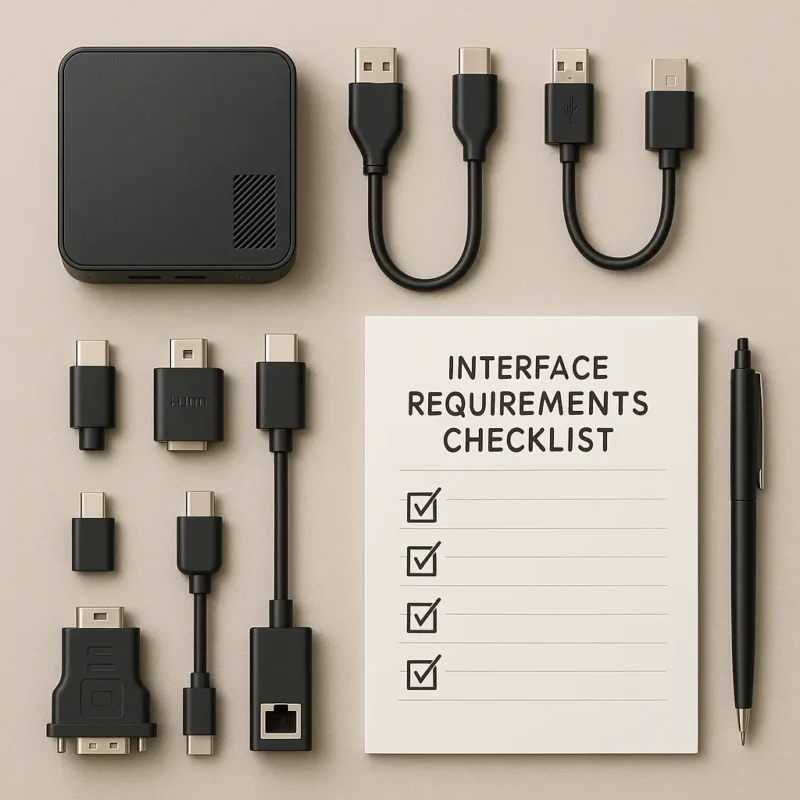
Why Interface Selection Matters on Mini PC Systems
Full-sized desktop towers offer expansion slots, multiple drive bays, and room for add-in cards. Space constraints on Mini PC systems eliminate most of those options. What ships in the box is largely what stays available throughout the system’s useful life.
Some considerations that make port selection particularly important:
- Adding connectivity later often requires USB hubs or docking stations
- Certain professional uses demand specific interface types
- Legacy equipment may need older port standards
- Display requirements vary dramatically between users
A system built for basic office work needs different connectivity than one intended for video editing or software development. The mismatch between available ports and required ports causes more buyer regret than almost any other specification oversight.
Essential Ports of Mini PC to Evaluate
Not every port matters equally. Some appear on virtually every system while others show up inconsistently. Knowing which interfaces to prioritize simplifies comparison shopping.
USB Ports — Quantity and Generation
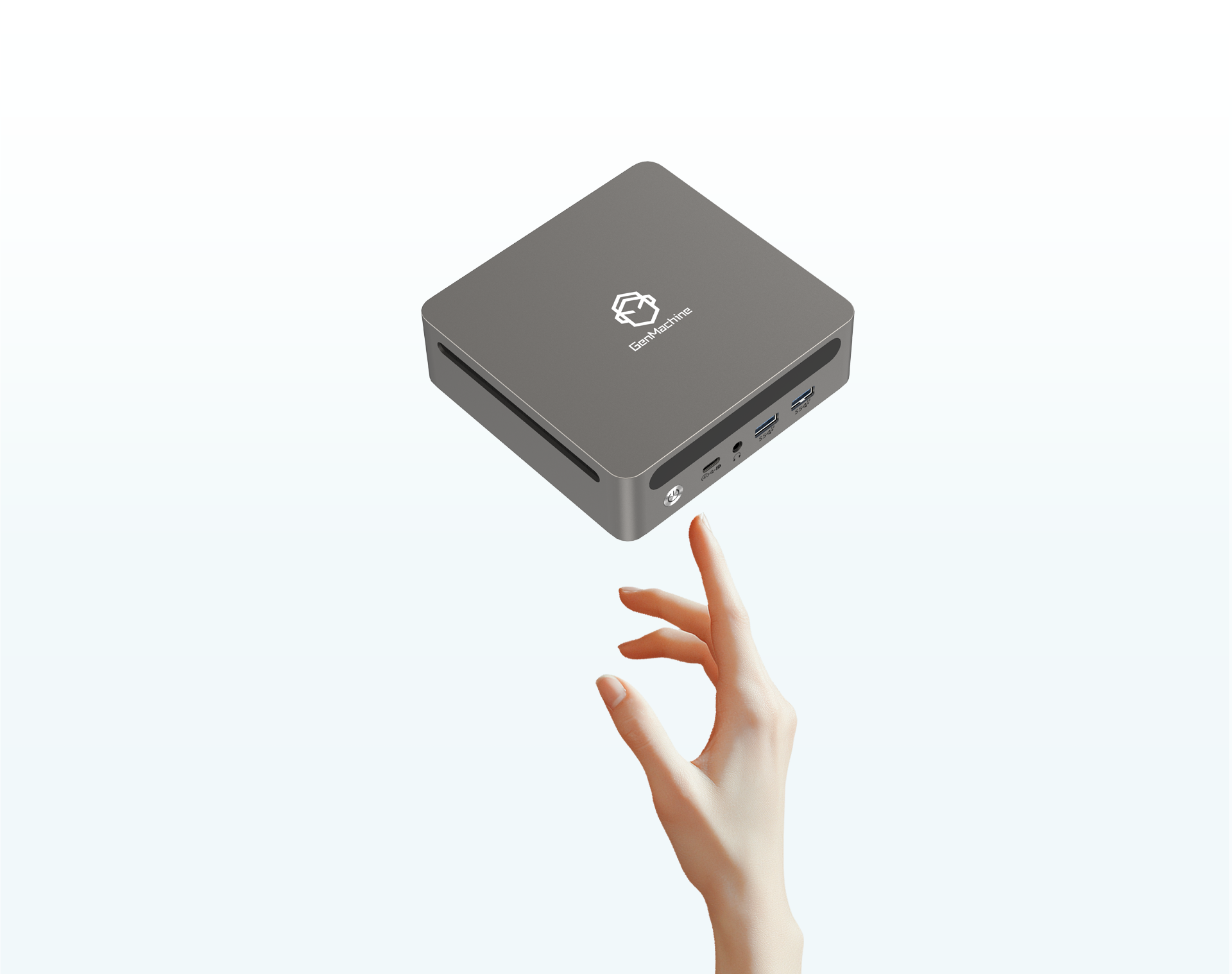
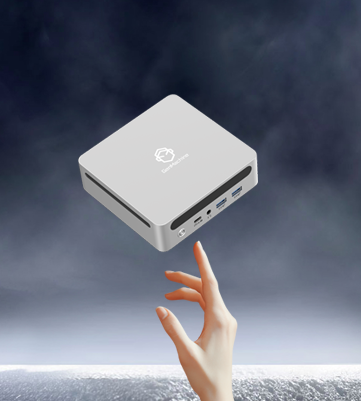
USB connectivity forms the backbone of peripheral attachment. Most Mini PC systems include multiple USB ports, but the details vary considerably.
Key factors worth examining:
- Total number of USB-A ports available
- How many support USB 3.0 or faster speeds
- Whether USB-C ports exist and their capabilities
- Front versus rear placement for accessibility
USB-C deserves particular attention. Some implementations offer only basic USB 2.0 speeds despite the modern connector. Others support Thunderbolt, DisplayPort alternate mode, or power delivery. The connector shape reveals nothing about actual capabilities — checking specifications matters.
A reasonable minimum for most users: four USB-A ports with at least two supporting USB 3.0 speeds, plus one USB-C port with meaningful functionality.
Display Outputs
Monitor connectivity requirements range from simple to complex. Someone using a single 1080p display has vastly different needs than a trader running four screens or a designer requiring color-accurate 4K output.
Common display interfaces on compact systems:
- HDMI — most universal, though version matters for resolution and refresh rate
- DisplayPort — preferred for high refresh gaming monitors
- USB-C with DisplayPort Alt Mode — versatile but requires compatible monitors or adapters
- VGA — legacy option, increasingly rare
The number of simultaneous displays supported doesn’t always match the number of physical ports. Specifications should clarify maximum display count. Integrated graphics on some processors cap out at two or three monitors regardless of available connectors.
Network Connectivity
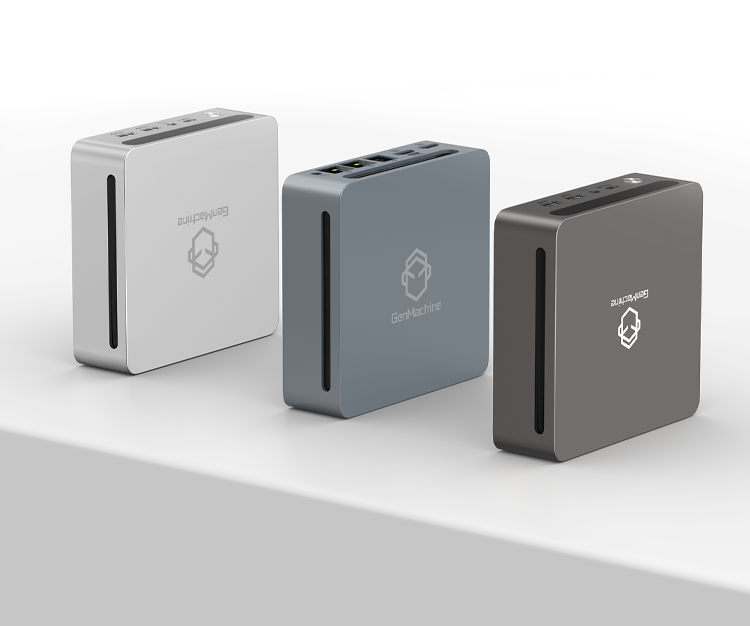
Wired ethernet remains valuable despite wireless improvements. Network-attached storage, local servers, and situations demanding maximum reliability all benefit from physical connections.
Ethernet specifications to verify:
- Gigabit (1 GbE) minimum for reasonable performance
- 2.5 GbE increasingly common and worthwhile
- Dual ethernet ports useful for router or firewall applications
Wireless capabilities matter equally. Wi-Fi 6 or 6E support provides better performance in congested environments. Bluetooth version affects peripheral compatibility — older Bluetooth may struggle with newer wireless headphones or keyboards.
Audio Connections
Compact Mini PC handle audio differently. Some include dedicated line-out and microphone jacks. Others combine everything into a single combo jack. A few rely entirely on USB or HDMI audio output.
For users with dedicated speakers, amplifiers, or microphones, verifying compatible audio interfaces prevents awkward adapter situations later.
Interface Comparison by Common Use Cases
| Use Case | Priority Interfaces | Nice to Have |
|---|---|---|
| Office Productivity | 2+ USB-A, 1 HDMI, Gigabit Ethernet | USB-C, Card Reader |
| Media Center / HTPC | HDMI 2.0+, Optical Audio, USB 3.0 | IR Receiver, CEC Support |
| Software Development | 4+ USB, Multiple Displays, Fast Ethernet | Thunderbolt, USB-C |
| Light Gaming | DisplayPort or HDMI 2.1, USB 3.0 | Bluetooth 5.0+ |
| Home Server | Dual Ethernet, Multiple USB 3.0 | Serial Port, IPMI |
| Content Creation | Thunderbolt, USB-C, SD Card Slot | Dual DisplayPort |
Matching the intended purpose against available interfaces early in the shopping process eliminates unsuitable options quickly.
Often Overlooked Interface Details Of Mini PC
Port Placement and Accessibility
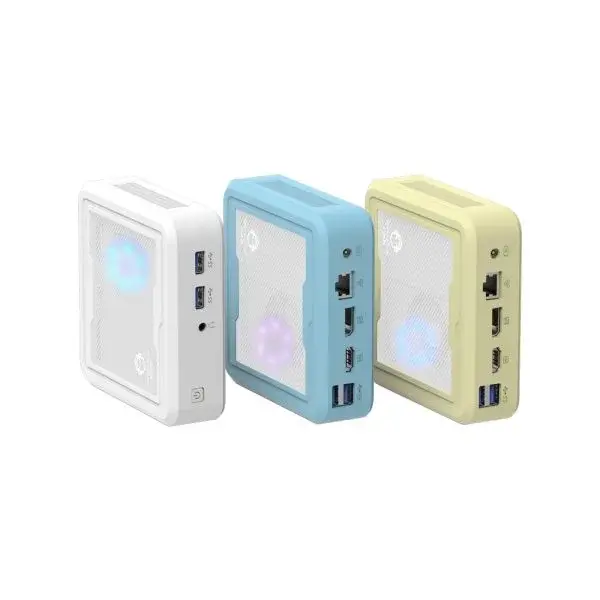
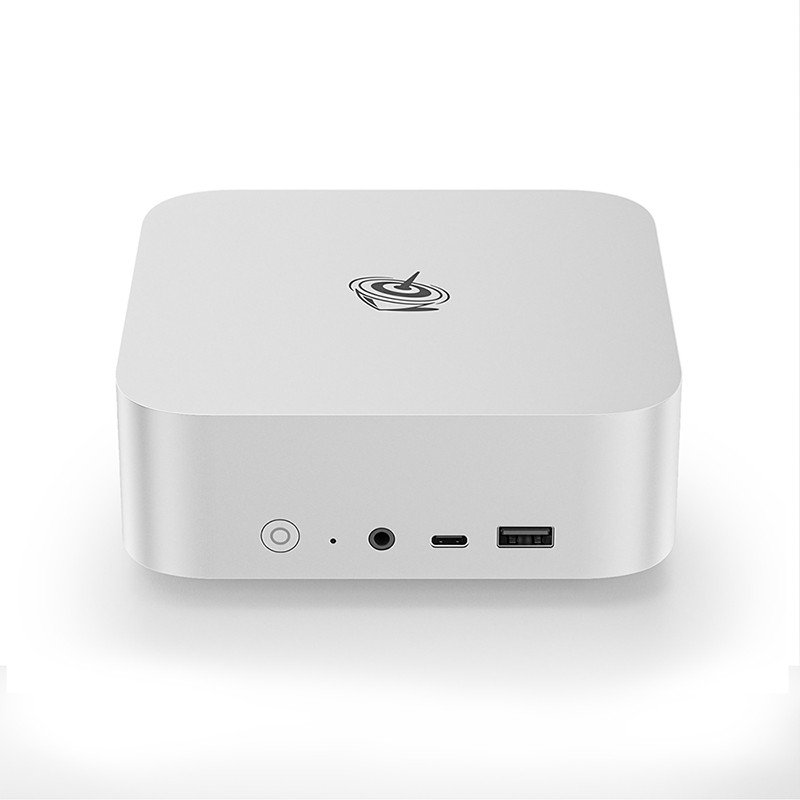
Where ports physically sit affects daily usability more than many expect. Frequently used USB ports benefit from front placement. Display outputs work better on the rear for cable management. A system with all ports clustered on one side may complicate certain desk arrangements.
VESA mounting — attaching the Mini PC behind a monitor — changes accessibility calculations entirely. Ports that seemed convenient become difficult to reach.
Power Delivery Capabilities
Some USB-C ports deliver enough power to charge phones or tablets while connected. Others provide minimal power output. For setups involving phone integration or portable device charging, these details matter.
Similarly, whether the system itself can charge via USB-C power delivery affects laptop-style portability for certain use cases.

Expansion Slot Availability
A few compact systems include internal expansion options:
- M.2 slots for additional storage
- SO-DIMM slots for memory upgrades
- Mini PCIe for wireless cards or specialized hardware
These internal interfaces don’t appear in basic specifications listings. Product manuals or detailed reviews typically reveal expansion possibilities. Systems with upgrade paths retain usefulness longer than sealed units.