Buying a compact machine for an always-on role usually starts with the processor and ends with storage, while memory gets one line in the decision: take the largest option the budget allows. That shortcut is where most builds go wrong, because memory is the one specification a server cannot share, compress or borrow from another device.
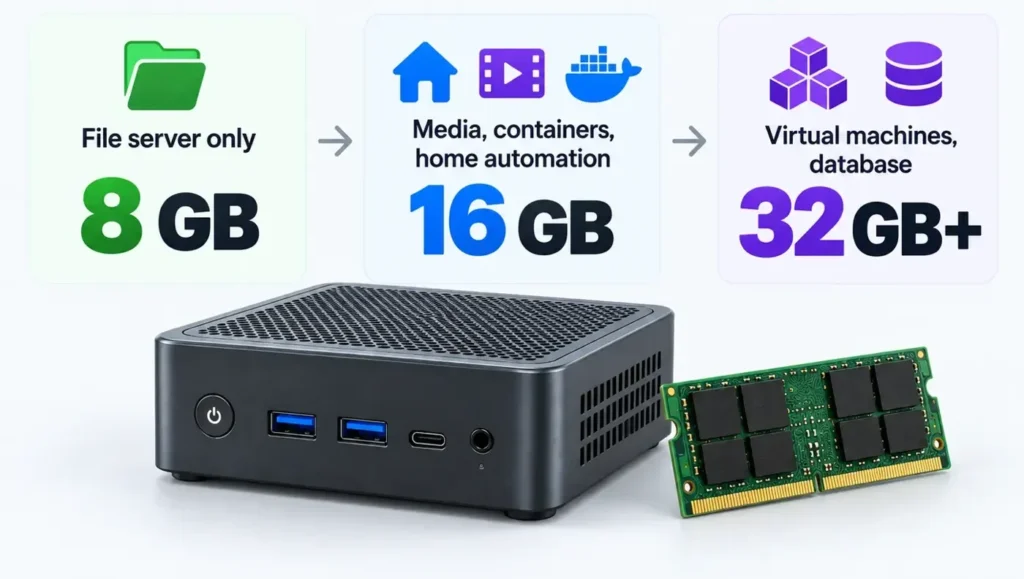
For most mini PC home servers, 16 GB of RAM is the practical starting point; 32 GB becomes worthwhile when the machine runs several containers, one or more virtual machines, a database or memory-heavy applications, and 8 GB is enough only for a pure file host or an early learning setup with two or three light services. The right amount follows the workloads that will be online at the same time, not the processor tier you can afford.
The sections below cover what memory does on an always-on compact host, what each common workload consumes, and where the platform itself caps your options.
Why Memory Is the Specification Buyers Most Often Get Wrong
Memory is misjudged because it fails quietly: an under-sized server keeps running while services are evicted, response times stretch and the machine feels slow for reasons that never appear in a storage or processor report.
Storage and memory both run out, yet they fail in opposite ways. A full disk produces an immediate error, because writes stop and backups fail. Insufficient memory produces none at all: the system simply works harder, and the symptoms arrive as latency, dropped connections and unexplained restarts. That is why so many owners upgrade storage they did not need long before they consider memory they did.
What Happens When a Mini PC Home Server Runs Out of RAM
When free memory disappears, an operating system has four options, and all of them degrade the experience. It shrinks the file system cache, turning instant reads into disk reads. It compresses pages, spending processor cycles to buy back space. It swaps inactive pages to the system drive, the largest source of overnight slowdowns. And it terminates processes, which is why a container or virtual machine can vanish while the host stays online.
Why High Memory Usage Is Normal, Not a Warning
Most operating systems treat unused memory as wasted memory and fill it with cache. A dashboard showing 85 to 90 percent utilisation, a large cache figure and an idle swap file describes a healthy machine. The signals worth watching are the ones that show demand cannot be met: sustained swap activity, process terminations reported by the kernel, and a file system cache that keeps shrinking under steady load. Those markers, not a percentage on a graph, are the ones that matter.
How Much RAM Does a Home Server Typically Require?
A household server running a file share, a media library, a handful of always-on services and occasional experiments typically needs 16 GB. For any specific machine, add the workloads that overlap in time, roughly 2 GB to 4 GB of host overhead, and a growth margin of about 30 percent.
| RAM | Suitable for | Typical workloads | Upgrade signal |
| 8 GB | A single-purpose file host or a first learning machine | Network shares, backups, local DNS or DHCP, one or two light containers | Swap activity during backups, or a second service that refuses to start |
| 16 GB | Most households with mixed light services | File share, media library, several containers, home automation | Guest allocations squeeze the host, or one virtual machine must stop before another is tested |
| 32 GB | Virtualisation and data services on one box | Several persistent containers, one or two virtual machines, a database | Reservations leave no headroom for the next workload |
| 64 GB | Advanced labs and multi-role hosts | Multiple concurrent virtual machines, desktop-class guests, nested labs | Rarely reached at home; storage or networking usually delivers more |
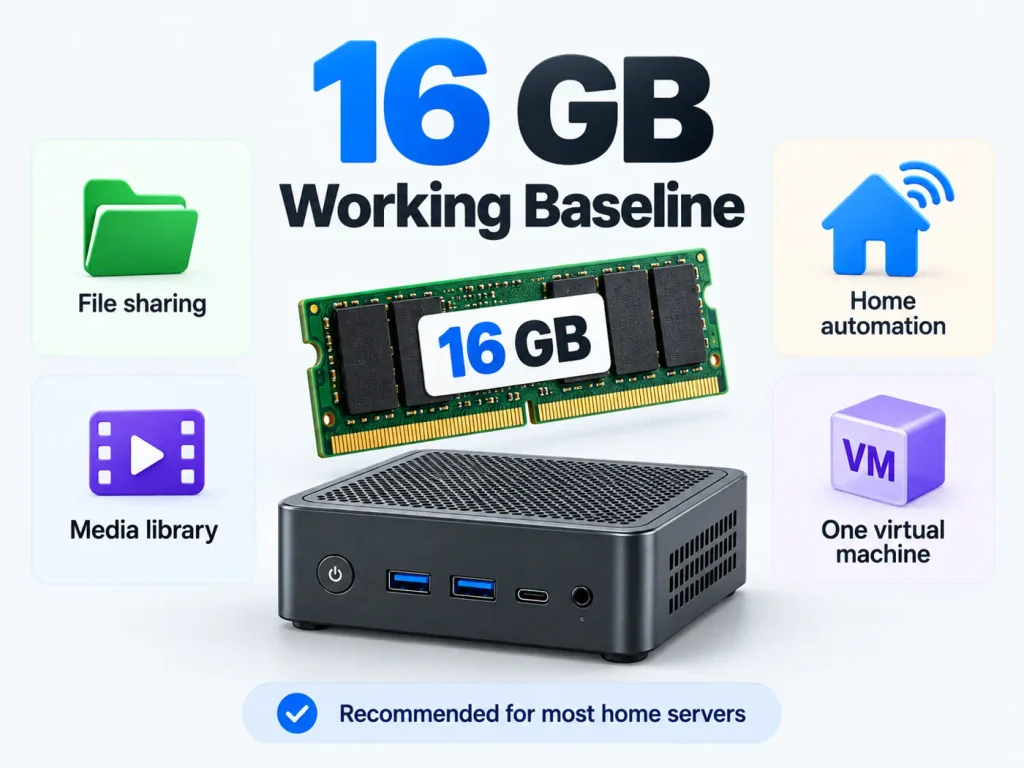
The 16 GB Working Baseline
16 GB is the point at which owners stop adjusting allocations before every experiment: the host keeps its overhead, several services run uncounted, and one modest virtual machine fits without forcing another service offline. For most home server workloads, the performance improvement from moving beyond 16 GB depends heavily on workload type. A single-purpose file host gains almost nothing, because its demand barely changes as it ages. A host running ten containers plus a database gains a great deal, because every service carries its own working set.
Matching RAM Capacity to the Workloads You Actually Run
Capacity should be sized for the workloads that overlap in time, not the heaviest one you can imagine running, because two services that never run together need no budget for both.
File Storage, Network Shares, and Backups
A pure file server is one of the lightest roles a compact machine can take on. 8 GB covers shares, scheduled backups and the services around them, and 16 GB adds cache and comfort rather than capability. Memory matters most when the file system keeps large metadata structures or a block cache in memory; outside those cases the network link and drives decide performance long before memory does. A balanced mini PC with 16 GB and one solid state drive handles this class of workload for years, and the honest upgrade path tends towards storage redundancy rather than memory.
Media Streaming and Transcoding
Transcoding performance is usually limited by processor or graphics resources, while RAM mainly affects concurrent services, metadata libraries and caching. A client receiving a compatible stream puts almost no pressure on the host. Demand grows with the number of simultaneous viewers, the size of the library being scanned, and whatever else shares the machine. Two or three viewers usually need no more than 8 GB to 16 GB for this role alone, so a home entertainment mini PC is best judged on total system memory rather than on streaming claims.
Containers Versus Virtual Machines
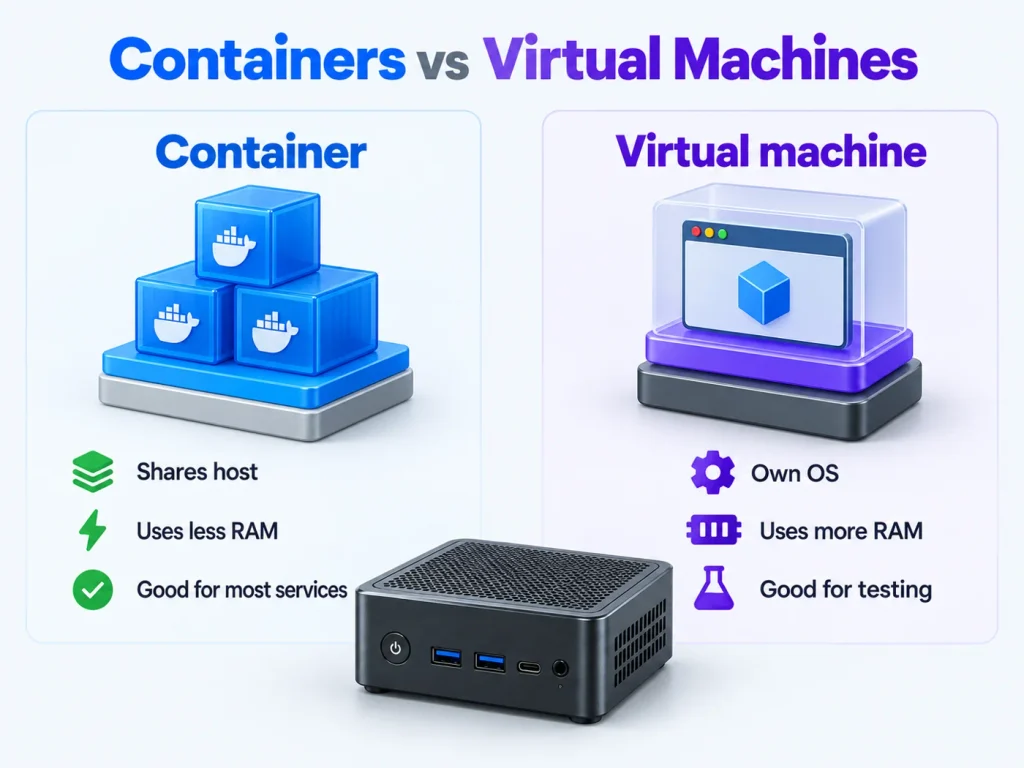
Containers and virtual machines behave so differently that the same workload can require two very different capacities. Containers share the host kernel and draw memory as they work, so a dozen light services fit in a few gigabytes. Virtual machines reserve memory in advance, and an idle guest keeps holding what it was assigned while the hypervisor layer consumes memory of its own. The documented hypervisor system requirements make that overhead visible: about 2 GB for the host operating system and platform services, every guest counted separately, and roughly 1 GB per terabyte of managed storage for a copy-on-write file system.
Home Automation, Databases, and Small Game Servers
Automation platforms are among the lightest services on the machine, often staying under 1 GB even with dozens of devices and a history database. Databases are the opposite: their appetite is set by the portion of data that must stay in cache for queries to feel fast, not by the size of the dataset, so the same database can be comfortable in 2 GB or starved in 16 GB. Game servers grow as worlds, entities and player state accumulate, which makes them poor candidates for an exactly-sized machine.
What Limits a Mini PC Home Server?
A compact machine can serve as a home server, but its ceiling comes from the platform, not the operating system: supported capacity, memory channels, module form factor and soldered memory decide how far the machine can grow before it must be replaced.
Platform Limits That Set Your Memory Ceiling
At the entry end of the market, popular low-power mobile processors are documented with a maximum memory size of 16 GB, a single memory channel and no support for error-correcting memory. Those limits belong to the platform, not the operating system, and no firmware update raises them. The official processor specification describes the silicon rather than the finished machine, because a manufacturer can solder memory, fit one slot, or set a lower firmware limit, so the manual decides what the box you buy can actually take.
Why Mini PCs Work Well as Always-On Servers
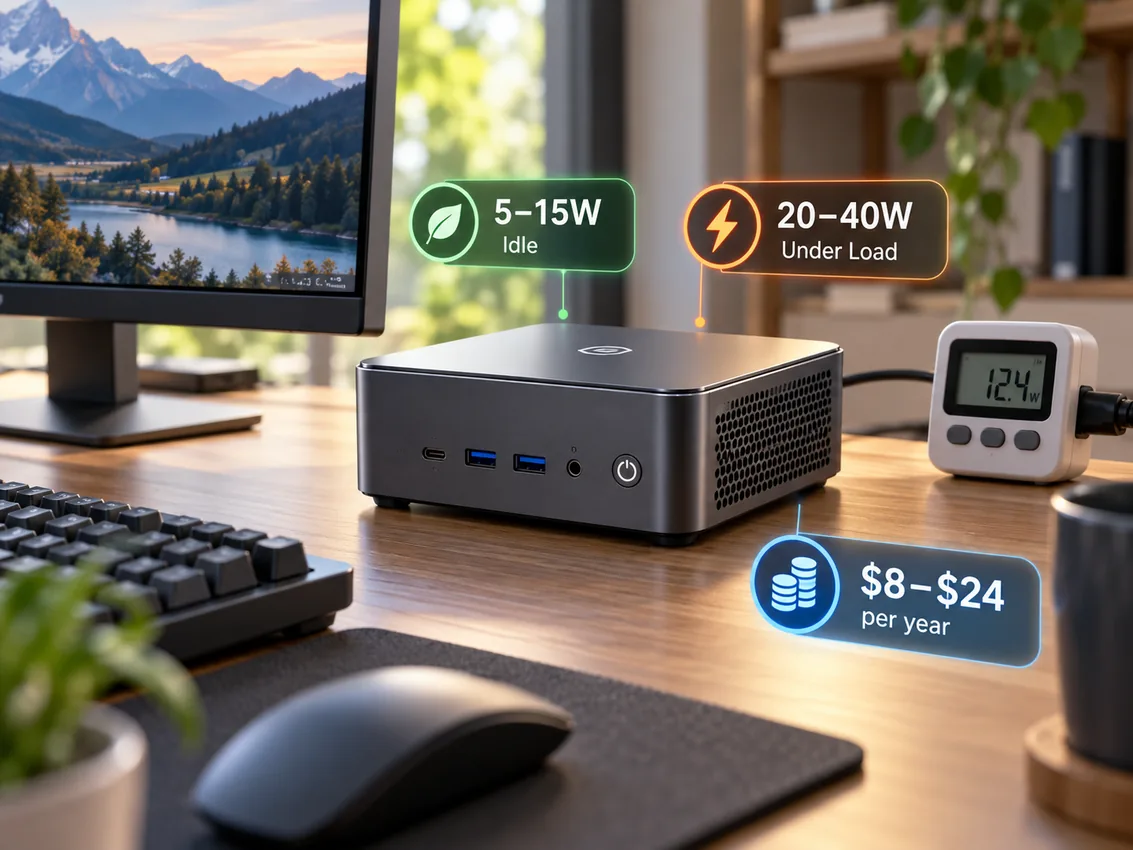
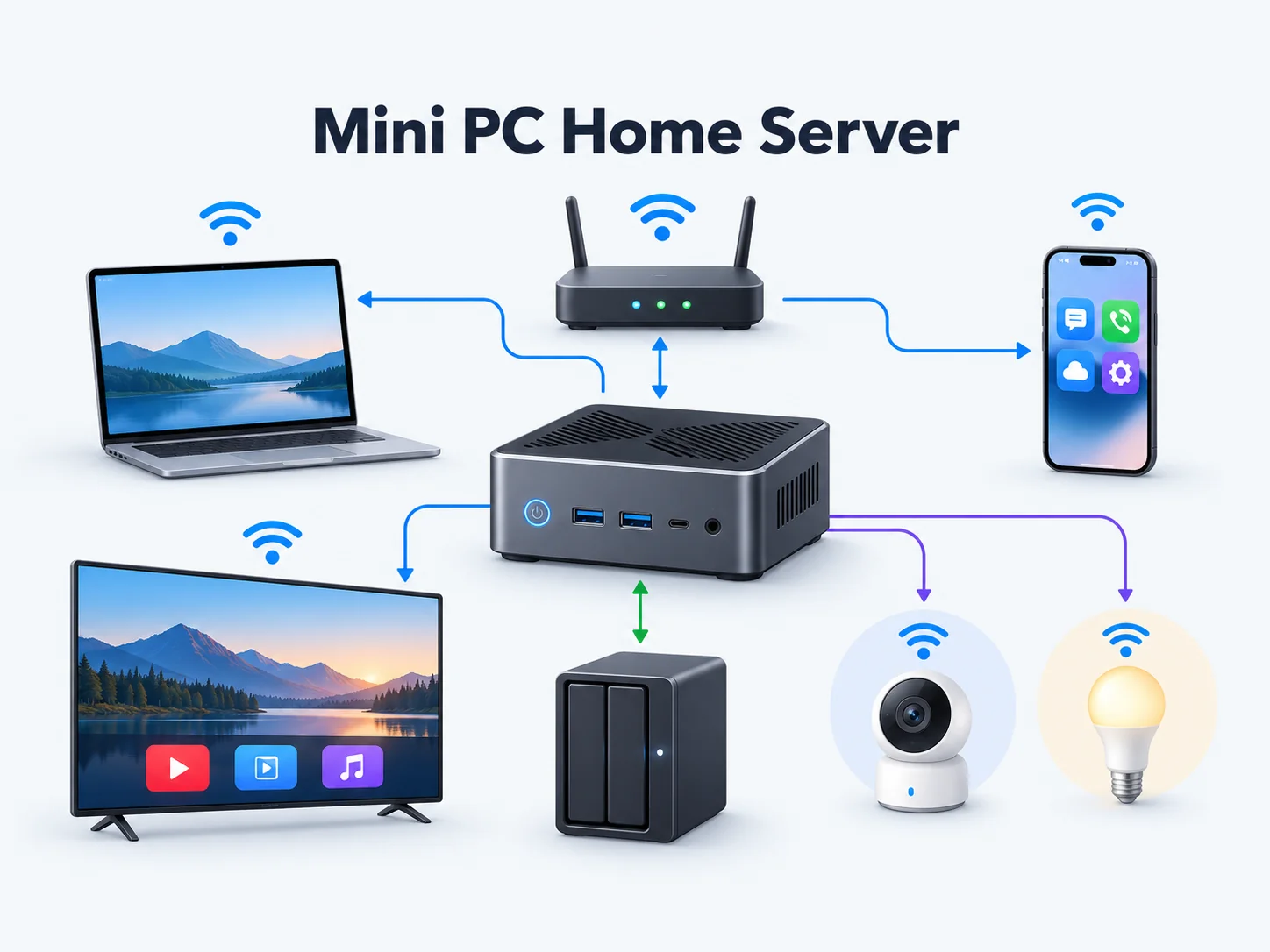
These compromises rarely matter here, because the workloads are light and bursty. What matters is what a compact machine does well: it draws little power at idle, runs quietly enough to live in a cupboard, occupies almost no space, and tolerates an inexpensive uninterruptible supply. A high-performance mini PC with expandable memory covers shares, media, automation and light virtualisation without the noise and standing draw of a tower. Readers who ask are mini PCs good for servers usually mean something narrower: whether a low-power box can stay online for years unattended, and for these roles it can.
Is 32 GB of RAM Overkill for a Home Server?
For a household running shares, streaming and a few containers, 32 GB is more memory than the workload can use. It stops being overkill as soon as virtual machines, a database or a memory-hungry file system enter the picture, because those workloads hold memory whether or not anyone is using them.
When 32 GB Earns Its Place
Any one of three conditions justifies the larger capacity. Several virtual machines run at the same time, and because each reserves its memory in advance, three or four concurrent guests consume 12 GB to 20 GB before the host does any work of its own. A database or development environment lives on the host, since both hold working sets in cache by design. A copy-on-write file system or another memory-intensive application claims a large fixed share, at roughly 1 GB per terabyte managed. Outside those cases, the machine will run exactly as well with 16 GB.
Where 64 GB and Beyond Stops Paying Off
Very large configurations belong to enterprise-style lab work: replicating production topologies, running many desktop-class guests, simulating workloads no household hosts. For anything else the money is better placed in storage, a second network interface or a backup target, and many low-power compact platforms cap memory far below 64 GB anyway.
Buying and Upgrading: Slots, Memory Type, and ECC
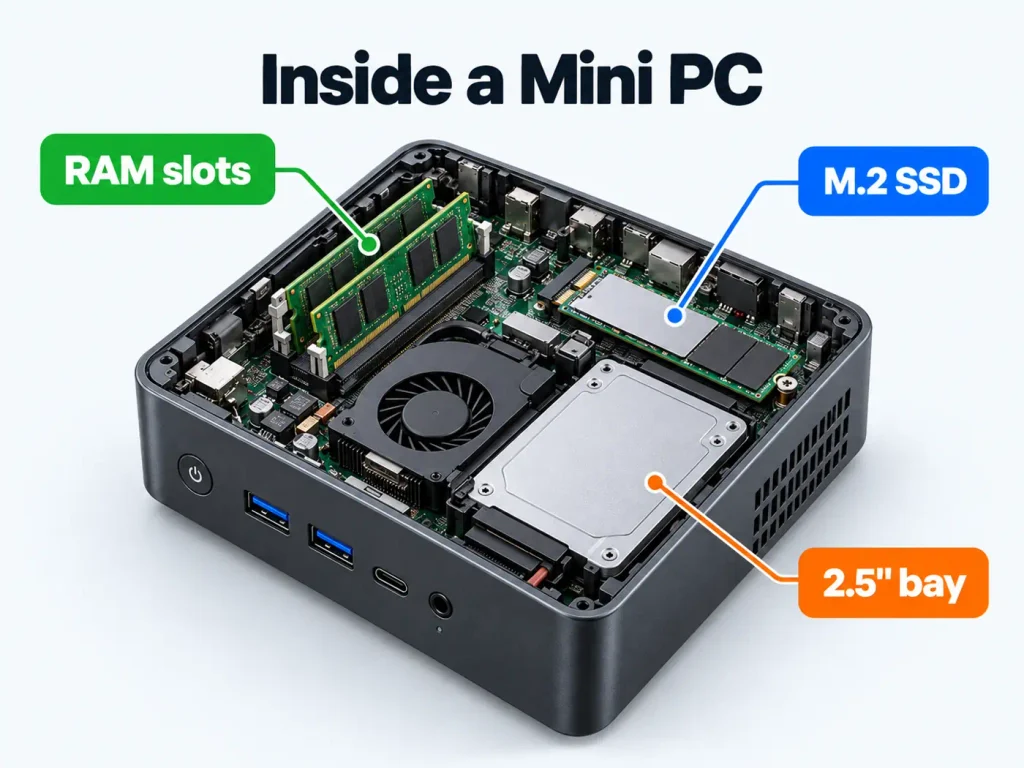
Before comparing capacities, confirm four things: the maximum memory the platform supports, its slot count, which generation and form factor those slots accept, and whether any memory is soldered in place.
Slots, Memory Type, and Upgrade Headroom
Slot count decides whether memory is a purchase decision or a permanent one. Soldered memory cannot be changed, so the first configuration has to cover the next few years. A single slot is a replacement path rather than an expansion path, since the existing module must come out before capacity can grow. Two slots allow a matched pair now, or a larger pair later. A mini PC RAM upgrade is one of the simplest procedures on these machines, though it is worth confirming that opening the chassis does not affect the warranty.
Memory generations and form factors are not interchangeable either, because laptop-sized and desktop-sized modules differ mechanically, as do successive generations. Once the manual confirms the supported type, capacity matters more than frequency, with one exception: two populated channels give integrated graphics and bandwidth-bound services more to work with than a single channel does.
Does a Home Server Need ECC Memory?
Error-correcting memory detects and repairs certain memory errors without interrupting the system, which is why unsupervised servers use it. The practical value at home is modest, and the more important question is whether the platform can use it at all. Error correction is a platform capability: the processor, the chipset and the firmware all have to support it, and many low-power compact platforms support none of the three. It is worth understanding what ECC memory actually corrects before budgeting for it, because a module that fits the slot but not the platform delivers no protection at all.
Where Most Buyers Should Land
Pick the row matching what will be online this year, then round up one step only if a second condition is planned.
- File shares and scheduled backups only: 8 GB to 16 GB
- Shares, media library, containers and automation together: 16 GB
- Containers plus virtual machines or a development environment: 32 GB
- Several concurrent virtual machines or a permanent lab: 64 GB, where the platform supports it
Capacity beats frequency for these workloads, and a machine that can be expanded later is worth more than a sealed one that reaches an impressive number on the day of purchase.
Frequently Asked Questions
Most questions about memory in a mini PC home server come down to three points: whether speed matters, how much the host reserves, and how memory compares with storage.
Does faster RAM speed improve mini PC home server performance?
Rarely on its own. File serving, streaming and containerised services are not bandwidth-hungry, so differences between nominal speeds are hard to notice. The number of populated channels changes behaviour more than the speed rating does, and capacity changes it more still: a machine that is short of memory will not benefit from faster modules.
How much RAM should the host operating system reserve on a mini PC home server?
Around 2 GB for the host and its platform services, a little more for the agents that watch, log and back up, and roughly 1 GB per terabyte of managed storage if a copy-on-write file system is in use. Leave 10 to 15 percent of memory unallocated rather than assigning every byte to guests, because the host needs room to reclaim memory under load.
Is it better to spend the budget on more RAM or faster storage?
Storage usually produces the larger improvement, especially when the system drive is mechanical or slow. Moving the operating system, virtual machine disks and container volumes onto fast solid state storage removes latency a shortage merely exposed. Memory comes next, and only if the machine is genuinely evicting or swapping; sufficient capacity with fast storage beats excessive memory with slow drives.