A home server once meant a rack in a spare room and an electricity bill that showed up in the household budget. Small, quiet computers changed that: a balanced Mini PC now keeps a family’s files, media and automation running around the clock, and the differences between models matter far less than the order in which everything is set up.
A mini PC home server is a small, low-power computer that stays on and serves the rest of the house: it keeps files and photographs in one place, streams media to every screen, backs up phones and laptops, and runs a handful of self-hosted services. Almost any current model can do this without a rack or a networking qualification.
What follows is the whole path in order, from the decisions that cannot be undone after purchase to the routine that keeps the machine healthy a year later.
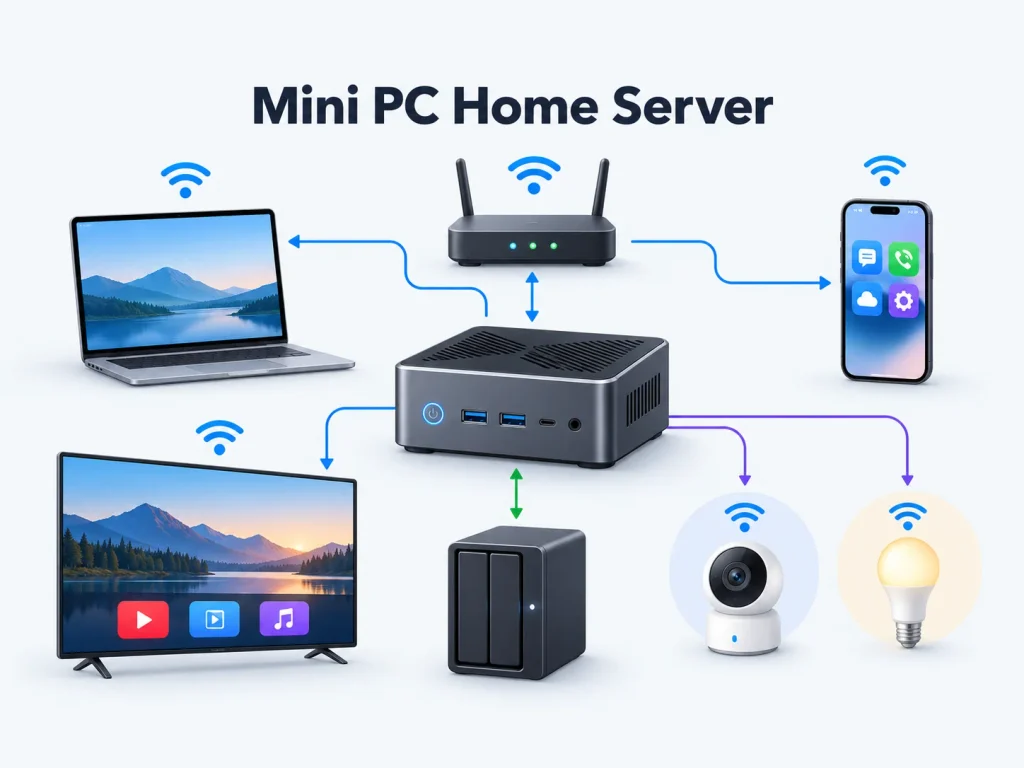
What Can a Mini PC Home Server Do for a Household?
Most households start for one reason and end up using the machine for five: centralized backup, a media library, home automation, downloads and a small set of self-hosted applications. All of them run comfortably on a miniature computer, and none of them needs enterprise hardware.
Centralized storage, media serving and home automation are the three categories that have defined the home server since the term entered general use, and a typical first year adds them one at a time.
Which Services to Add First, and in What Order
The order below avoids rework. Each step assumes the previous service is stable.
- Shared folders and device backup. Why most people start: it uses the least memory and forces an early decision about where data lives.
- A media library. The step that adds real storage pressure, and the usual reason a home entertainment mini PC is bought alongside it.
- Home automation. An appliance becomes infrastructure: once lights and sensors depend on it, downtime stops being an inconvenience.
- Network-wide filtering and one or two small self-hosted applications. Low in resources, high in daily value.
- Virtual machines and a test environment. Leave this until everything above has run for a month.
Adding two services in one evening is how people lose track of what broke.
Privacy and Local Control
When photographs, documents and household data live on a machine in your own home, no lapsed subscription locks you out and access is governed by accounts you create. That control has a price: backups, updates and uptime become your responsibility, and a server with no working copy of its data is a single point of failure.
What Does a Beginner Actually Need Before Starting?
You need the machine, enough memory, a system drive separate from your data, a wired network connection, and a keyboard, mouse and monitor for one afternoon. Extra drives, an enclosure and a battery backup can wait until the workload tells you what to buy.
Deferring spending is the point of a minimum list: a server that shares files and plays media will never need the memory or drive positions a virtualisation host does, and the first and last rows below are the two that must be settled before ordering.
The Decisions That Are Expensive to Get Wrong Later
Five decisions are locked in at purchase, and all of them constrain next year’s setup.
| Decision | Why It Matters Later | A Safe Beginner Default |
| Replaceable memory | Caps the machine for life | Two accessible slots, or one swappable module |
| System and data separated | One drive for everything risks data on any reinstall | Small system drive, separate data drive |
| Drive positions | Storage is the most common upgrade and needs a home | At least two internal positions |
| Wired network port | Wireless drops under load and cannot hold one address | One gigabit port; a second is a bonus |
| Power-on after an interruption | A server that stays off after a power cut is not a server | A firmware option restoring the previous power state |
If a listing does not answer one of these, ask before ordering rather than after: Mini PC Memory and SSD capacity is the part of the specification you live with longest.
How Do You Set Up a Mini PC Home Server, Stage by Stage?
Setup runs in five stages, each with a condition that says it is finished: preparation, operating system, network, first service, and backup with maintenance. Most beginner problems come from skipping a confirmation step rather than from doing the work wrong.
The stages are ordered by what breaks when rearranged.
| Stage | What Done Looks Like | How to Confirm It |
| Hardware preparation | Memory and drives fitted | Cut power, restore it, watch the machine start unaided |
| Operating system | A working system with an administrator account | Connect from another device on the network |
| Network | A fixed address and a reachable name | Reach it by address and by name from two devices |
| First service | One service running, limited to the right people | Open it from a device that never connected before |
| Backup and maintenance | A scheduled copy, restored at least once | Restore one file and open it |
Choosing the Operating System
Three families cover almost every beginner case. A ready-made storage system gives shared folders, a web interface and monitoring without any command line, which suits a house that wants files and media. A lightweight server system used as a container host runs more services on the same hardware, at the cost of occasional text-based configuration. A virtualisation platform runs several systems side by side. Memory and drive count decide which is realistic; the specification side is set out in how to choose a mini PC for your homelab needs.
Getting the Network Right the First Time
Give the machine a fixed local address, on the machine or reserved on the router, so every service added later points at something that does not move. Connect it by cable: most models ship with a wireless module and a few fanless ones have none, but wireless is the wrong transport for a machine other devices depend on. For outside access, use the router’s remote access feature or a virtual private network rather than forwarding service ports to the internet. The same settings decide whether the machine stays a local file store or grows into a personal cloud center for the household.
Deploying Your First Service
Start with something that shares files or plays media: both are easy to verify and neither hides a failure. In the first month, avoid orchestration tools, multi-container stacks and anything described as a cluster: they multiply failure modes faster than they add capability. One service, one week, then the next.
After the First Week: The Maintenance Routine
Four tasks, once a month, take twenty minutes. Apply updates. Read the drive health figures the system already reports. Check remaining space, because a full data drive takes services down in ways that look like network faults. Restore one file from the backup, since an untested copy is a hopeful guess.
Where Should the Files Actually Live?
On a mini PC home server the system drive and the data drive should be separate, and files should sit on storage that could move to another machine without reinstalling anything. Internal storage is fastest and cheapest, a direct-attached enclosure adds capacity in one cable, and a network enclosure serves several machines at once.
The three routes differ less in speed than in how they fail.
Internal Drive, Direct-Attached Storage, or a Network Enclosure
| Option | Best For | Advantages | Limitations |
| Internal drive | One machine needing fastest access | Cheapest per unit, no extra box | Tied to the machine and its positions |
| Direct-attached enclosure | Capacity beyond the internal positions | Moves between machines, simple to add | Shares the computer’s power and uptime |
| Network enclosure | Several machines needing constant access | Independent of any one computer | Higher cost and its own storage plan |
Match the drives to the workload. Drives built for continuous operation tolerate heat and vibration better than desktop models, and the recording method matters: shingled recording overlaps the tracks, which lowers cost per unit while making sustained writes and rebuilds slower. Redundancy is not backup. A mirrored or parity array survives a failed drive, which is one of several ways to lose data, and does nothing about accidental deletion or damage to the attached machine. Configurations listed under database mini PC are specified for this always-on role.
Three ideas get confused here:
| Strategy | What It Is For | Where It Stops |
| Redundant array | Files staying reachable when a drive fails | Deletion, corruption and theft |
| Backup | Recovering files you deleted or damaged | A copy that has never been restored |
| The 3-2-1 rule | Surviving the loss of any one copy or place | A baseline, not a guarantee |
When storage starts to dominate the job, the machine is closer to a Mini PC NAS than to a general-purpose server.
What Hardware Does a Mini PC Home Server Need?
Buy on memory ceiling, drive positions and network port rather than processor model. A current four- to eight-core chip is ample for every workload here, and the specifications that decide whether the machine still fits in two years are the ones that cannot be changed afterwards.
The useful answer is a specification profile, not a product name. A machine with sixteen gigabytes of replaceable memory, two drive positions, a gigabit wired port and a low thermal design power will run everything described here quietly and cheaply. Thirty-two gigabytes and more cores pay for themselves only if you run several virtual machines at once.
If you are choosing a Mini PC for server use rather than for a desk, put upgradeability and drive positions above benchmark scores, and let a Powerful Mini PC earn its price only when several systems run at once.
The Spec Sheet Items That Decide Whether It Works
Six lines on a specification sheet carry almost all of the risk.
- Processor cores. Anything recent with four or more is enough; above that, core count matters more than generation.
- Memory. How much is fitted, how much the machine accepts, and whether you can change it.
- Drive positions. How many exist, and which drive heights they take.
- Network ports. Speed first, quantity second; a second port is optional at home but useful for a firewall later.
- Cooling. A low-power processor with a fan stays quieter under sustained load than a sealed design that must slow itself down.
- Firmware power behaviour. Whether the machine can return to its previous state after an interruption.
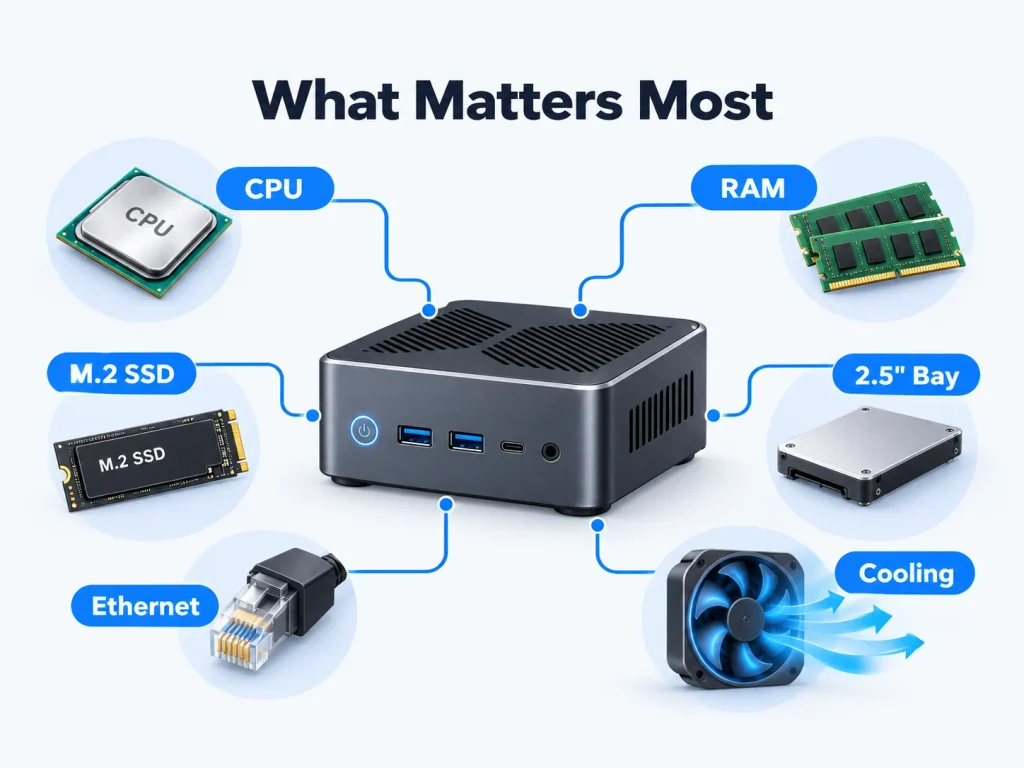
Two of these are usually answered by a support question rather than by the listing, and extra memory headroom is what the high-performance mini PC tier is built around.
What Are the Downsides of Using a Mini PC as a Server?
The trade-offs are narrow but real: few drive positions, no remote management hardware, usually one network port, memory that is sometimes soldered, and a ceiling on simultaneous video conversion. In one household these are constraints rather than blockers, and each has a workaround that costs less than moving to larger hardware.
None of these limits stops a household server from working; they harden only when several people depend on the machine at once, or when the data outgrows a small enclosure.
| What You Give Up | How It Shows Up at Home | The Practical Workaround |
| Full-size drive bays | Large drives cannot be fitted inside | Move bulk data to an external enclosure |
| Remote management | A hung machine needs a physical visit | Keep it reachable for a remote restart |
| Extra network ports | No firewall or standby link on the same box | A managed switch, or a second machine |
| Soldered memory | The machine cannot be upgraded later | Confirm memory is modular before ordering |
| Conversion capacity | Simultaneous conversions stall the server | Serve formats the client devices already play |
Frequently Asked Questions
These six questions come up most often from people setting up a first server at home, and each answer assumes the beginner setup described above rather than a data-centre deployment.
Does a Home Server Need to Be Left On All the Time?
No. Leave it running if other people depend on it, because media playback, home automation and overnight backups all assume the machine is awake. If it only stores files, a scheduled startup and shutdown is a reasonable way to cut power draw and noise. Predictability matters more than the schedule itself.
What Happens to a Home Server During a Power Cut?
Usually no more than an unclean shutdown, as long as the file system journals its writes, which modern systems do by default. The two real risks are a machine that stays off when power returns, which the firmware setting above fixes, and a copy of your data that exists only on the machine that lost power.
Can a Beginner Run a Home Server Without Command-Line Experience?
Yes. Ready-made storage systems and desktop-based server software cover file sharing, media libraries and backups entirely through a web interface. Expect to look up instructions eventually, since permissions and network settings are where beginners get stuck, but nothing here requires typed commands on day one.
How Much RAM Does a Mini PC Home Server Need?
Sixteen gigabytes covers file sharing, a media library, home automation and a few small services with room to spare. Eight gigabytes is workable for one or two light services, and thirty-two becomes worthwhile only once you run virtual machines. Buy for the ability to add memory rather than for the amount fitted today.
Can a Mini PC Replace a NAS?
For most households, yes. A small computer with attached storage does the same job and runs services a storage appliance cannot. A dedicated network enclosure still makes sense when several people need continuous access to large volumes, or when storage must keep working while the computer restarts. What decides it is how much data you hold and how many people depend on it.
Is a Mini PC Better Than a Single-Board Computer for a Home Server?
Usually, yes. A miniature computer accepts full-size drives, swappable memory and a wired port without adapters, and it converts video for more than one viewer without help. A single-board computer wins on power draw and price for one small always-on service, but its storage and network ports are usually add-ons. Decide by whether the machine has to hold your data.