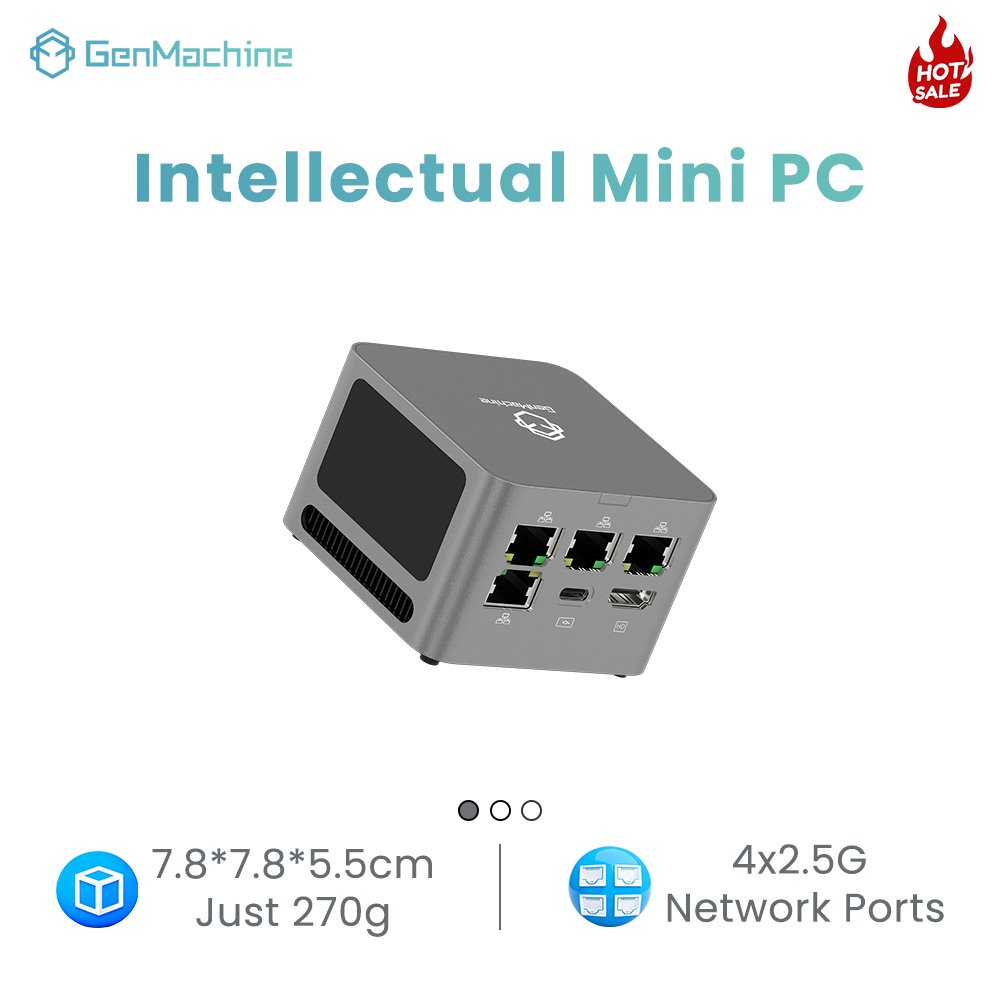
A mini PC bolted behind a menu board or a check-in counter has one job: show the same screen, every day, with nobody touching a keyboard. Windows 11 can do that with a settings change, which is why so many rollouts start with a five-minute wizard and end three weeks later with a sleeping display or an update that restarted the machine mid-shift.
Windows 11 kiosk mode runs on a feature called Assigned Access. You create a dedicated standard account, assign it one application, and that account can only ever run that application in full screen. The wizard takes a few minutes on a compatible device that is already set up. Making the terminal survive a year unattended takes four more steps: confirm the edition supports Assigned Access, keep the device awake and signed in, make the hardware recover from power loss, and close the escape routes users will find.
The rest of this guide works through those layers in deployment order.
What Windows 11 Kiosk Mode Really Is
Kiosk mode is not a separate Windows build or a firmware switch. It is Assigned Access, a built-in policy layer that binds a user account to a restricted experience, and it ships in three forms that are not interchangeable.
| Form | What the user sees | What it can run | Edition requirement |
| Single-app kiosk | One app full screen, above the lock screen | Packaged apps and Microsoft Edge | Pro, Enterprise, Education, IoT Enterprise |
| Restricted multi-app | A desktop with a trimmed Start menu and taskbar | A defined allowlist, including classic programs | Pro, Enterprise, Education, IoT Enterprise |
| Shell Launcher | Your program replaces the Windows shell | A classic desktop program as the shell | Enterprise, Education, IoT Enterprise |
Microsoft documents the three kiosk configuration options separately because each answers a different question: how many apps, whether a desktop should exist, and whether the program is packaged.
Three prerequisites trip up more deployments than any other detail. User Account Control must stay enabled, and configuration and testing must happen at the physical console, because the kiosk experience does not render inside a Remote Desktop session. Policy and management agents still reach the machine; the locked shell will not appear in a remote window. Home is not a supported edition for any of the three.
Check the Hardware and Windows Edition Before Setup
Two checks come first: whether the edition supports Assigned Access, and whether the firmware can bring the machine back after a power cut. Both are cheap to verify and expensive to discover during commissioning.
Do Mini PCs Have Windows 11?
Most current mini PCs do, but the answer depends on three hardware conditions rather than on the form factor. The device needs TPM 2.0, Secure Boot, and a processor on the supported list, plus storage for the system and the kiosk application. Compact desktops built around recent low-power processors meet all three routinely.
The practical question is which edition ships with the unit. Many commercial mini PCs leave the factory with Windows 11 Pro preinstalled, which is what a kiosk needs. Consumer units sometimes ship with Home, which cannot run Assigned Access at all. Confirm the edition in Settings before planning, because an upgrade changes the licence cost of every unit.
What Kiosk Duty Actually Demands From the Hardware
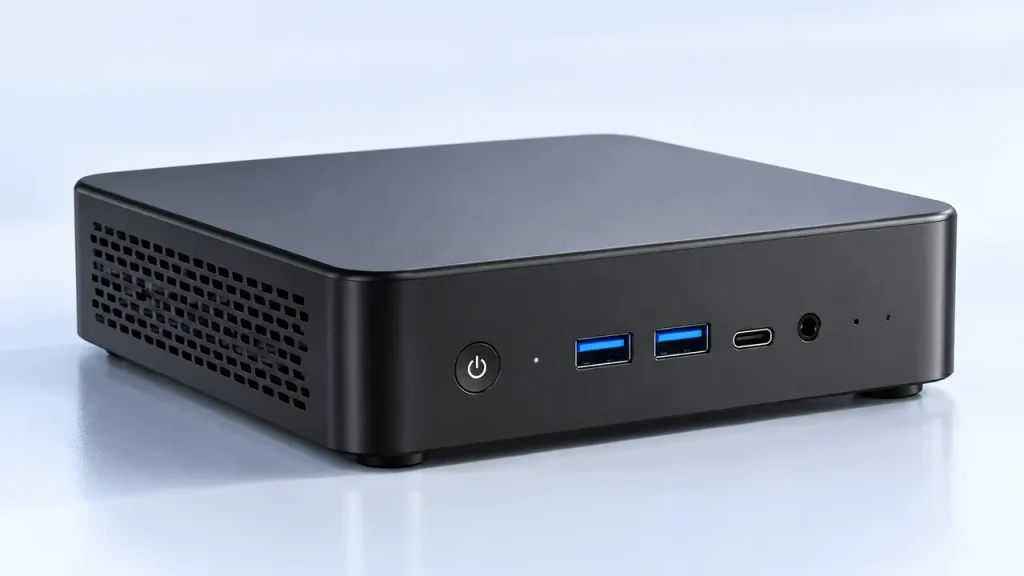
Kiosk workloads are light but continuous, and the failures are thermal and mechanical rather than computational. A browser-based menu board needs less power than a phone, yet it runs sixteen hours a day in a sealed enclosure.
That gap is why a cost-effective mini PC with 8 GB of memory and a small SSD covers most signage and check-in deployments comfortably.
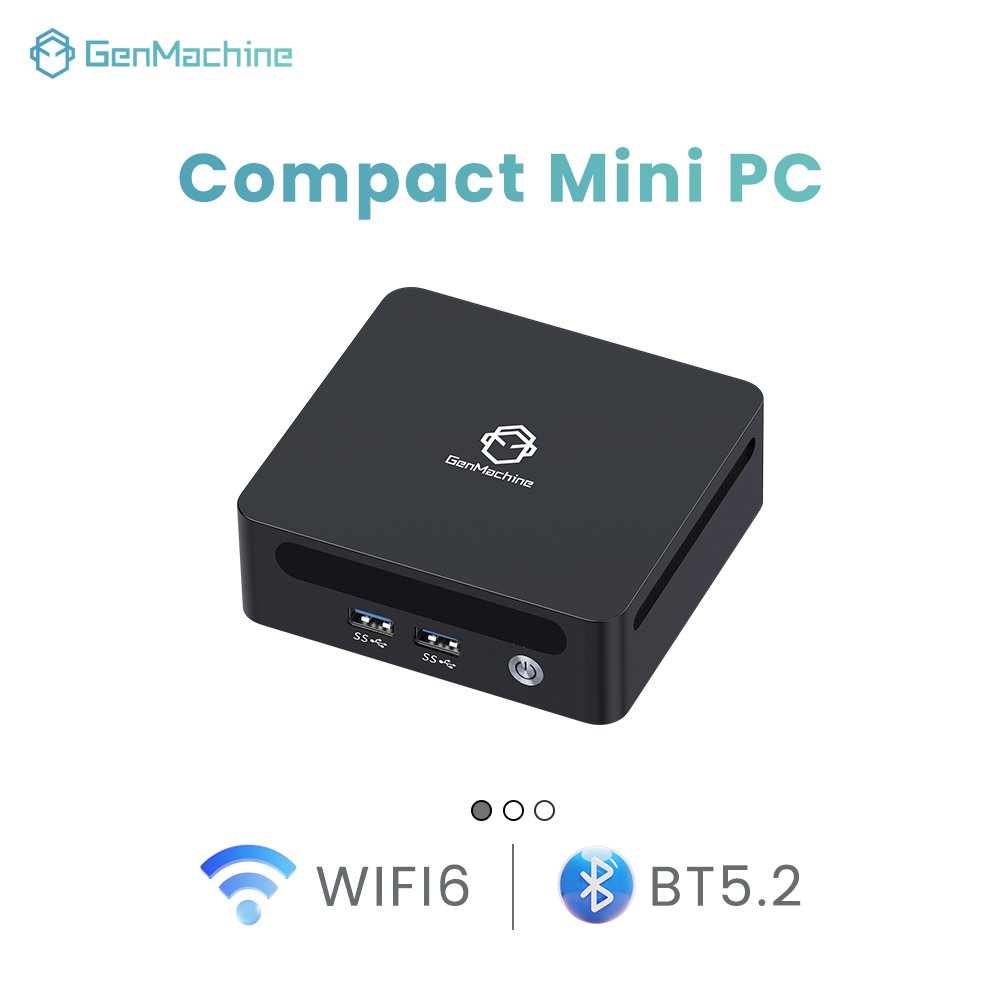
Interactive content and video walls need more graphics headroom, and an AMD Ryzen mini PC handles those without a discrete card.
The same pattern appears across retail terminals, reception desks, and catalogue stations: modest compute, long hours, no tolerance for a black screen.
| Factor | Fanless | Fan-cooled |
| Moving parts | None | A bearing that wears out |
| Dust inside an enclosure | Tolerates it | Clogs and needs cleaning |
| Sustained load | Lower ceiling, throttles earlier | Higher ceiling |
| Noise | Silent | Audible in quiet rooms |
| Best fit | Signage, check-in, light 24/7 duty | Interactive content, video walls |
Mounting and I/O decide the rest. A VESA pattern lets the unit hang behind the display, out of reach and out of the dust path. Two independent video outputs cover dual-screen menus, and wired Ethernet is worth insisting on where the enclosure allows it.
Matching Configuration to Kiosk Type
| Kiosk scenario | Sensible starting point | What to prioritise |
| Digital signage | 8 GB RAM, 128 GB or larger SSD | Video output, sustained runtime, airflow |
| Self-service terminal | 8 to 16 GB RAM, 128 GB or larger SSD | USB for touch, scanner, and printer |
| Retail POS kiosk | 8 to 16 GB RAM, 256 GB SSD | Peripheral compatibility, storage endurance |
| Multi-screen display | 8 to 16 GB RAM, 256 GB SSD | Independent outputs and resolution support |
These figures are deployment guidance, not Microsoft’s minimum hardware requirements. Real load depends on the content, the application, and the peripherals attached.
How to Set Up a Single-App Kiosk in Windows 11
On a compatible device with Windows activated and the target app installed, single-app setup takes a few minutes. You need an administrator account, a separate standard account for the kiosk, and physical access to the machine.
- Sign in with an administrator account.
- Open Settings, then go to Accounts and Other users.
- Under Set up a kiosk, select Get started.
- Enter a name for the kiosk account, or choose an existing standard account.
- Select the application the account should run. The list contains packaged apps and Microsoft Edge.
- Complete the application-specific fields. For Edge, that means the URL and the kiosk mode.
- Select Close, sign out of the administrator account, then sign in as the kiosk account.
- Confirm the app fills the screen, restart the device, and confirm again.
Four details decide whether that holds. The kiosk account is a standard user, so it cannot install software; keep the administrator account separate and documented. Assigning an app to an account already signed in takes effect only at the next sign-in. And the wizard lists only applications Windows recognises as assignable, which is why a classic desktop program often does not appear.
Choose Digital Signage or Public Browsing in Edge
Edge kiosk mode is two behaviours sharing one name, and choosing badly yields a terminal that resets mid-interaction or never clears the last visitor’s session.
| Behaviour | Digital or interactive signage | Public browsing |
| Tabs | Single site, no tabs | Limited multi-tab |
| Idle reset, default | Off, zero minutes | 5 minutes |
| Address bar | Hidden | Read-only |
| End session button | Not available | Available in single-app mode |
| Downloads | Removed on exit when policy is set | Removed on exit when policy is set |
| Printing | Controlled by policy | Controlled by policy |
| Typical use | Menu boards, directories, dashboards | Catalogue lookups, lobby self-service |
Both modes run an InPrivate session with autofill disabled, so form entries and passwords are not retained. Neither hard-blocks downloads or printing by default; those behaviours come from policy, worth testing rather than assuming. The Microsoft Edge kiosk mode documentation confirms the idle timeout is configurable and that a reset closes the browser rather than restarting it. In a single-app kiosk, that restart belongs to Assigned Access.
How to Run a Traditional Desktop App in Kiosk Mode
The Settings wizard covers packaged apps and Edge only. A classic executable needs one of two other paths, and they are not equivalent:
- Restricted multi-app experience. A configuration file lists approved applications, including classic programs by executable path. The desktop still exists, trimmed and controlled, so this suits stations that need two or three tools.
- Shell Launcher. Your program replaces Explorer as the shell, so the machine boots straight into it with no desktop behind it. This is the closest thing to a true single-application appliance, and it requires Enterprise, Education, or IoT Enterprise.
Shell Launcher and Assigned Access cannot coexist, so the choice is architectural rather than cosmetic. Decide before imaging.
Keep Your Mini PC Kiosk Running After Reboots and Power Cuts
A kiosk that needs a person after every reboot is not a kiosk. The target is a device that returns to the same screen by itself after a power cut, an update, or an application crash.
Start with sign-in. When the device is not joined to a domain or to Entra ID, the kiosk wizard normally configures the kiosk account to sign in automatically, so the terminal reaches its app without a keyboard. In managed environments, handle sign-in through policy rather than editing registry values by hand.
Then remove every path to a dark screen:
- Set sleep and hibernation to never, and keep the display on.
- Turn off fast startup, which also stops a write filter from clearing its overlay on shutdown.
- Disable the lock screen timeout and the screen saver.
- In firmware, enable restore on AC power loss and, where available, the watchdog timer that reboots a hung system.
- Disable booting from USB so a restart cannot be redirected.
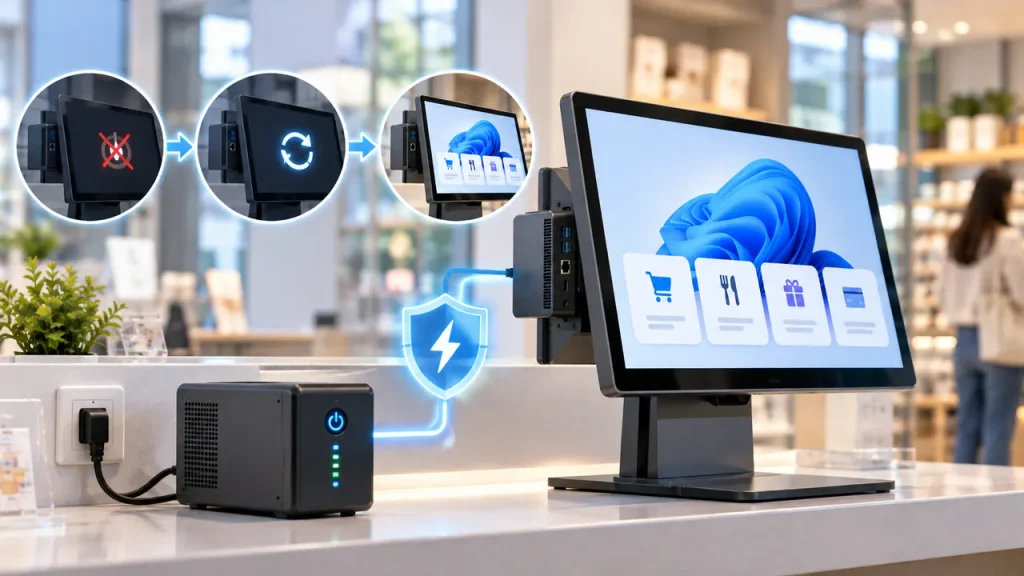
Write protection is the next layer, and availability depends on the edition. Windows includes Unified Write Filter in Enterprise, Education, and IoT Enterprise, but not in Home or Pro, so a Pro device can run a kiosk without it. Where it exists, the filter redirects writes to an overlay and discards them at reboot, keeping the image identical and reducing SSD wear. It is not free: servicing needs a dedicated mode, fast startup must stay off, and it does not protect data during a power loss. Keep a UPS where power is unreliable.
Finally, control restarts. Set active hours to cover trading hours, defer feature updates, and schedule a maintenance window. An unplanned restart mid-shift looks like a crash to whoever is standing there.
Secure and Lock Down Your Windows 11 Kiosk
Assigned Access is a usability boundary before it is a security boundary. It stops ordinary users from wandering, and it stops nothing at all if the account, the firmware, and the network are left open.
The exit path matters more than most guides admit. Assigned Access leaves a breakout sequence, Ctrl+Alt+Del by default, so a technician can leave the kiosk session, and that sequence can be customised. That is a configuration setting, not a keyboard filter. Blocking system keys at driver level is a separate feature, Keyboard Filter, and it is not available on Pro, so do not promise that every shortcut is dead; test what a visitor can still reach.
The rest is standard hardening, applied in order:
- Kiosk account stays a standard user with no cached credentials
- USB mass storage blocked by policy, autorun disabled
- Application allowlist enforced in multi-app deployments
- BitLocker with TPM so a stolen unit yields nothing
- Device on a segmented network, outbound access limited to endpoints the app needs
- Administrative access through a management channel, never a shared local password
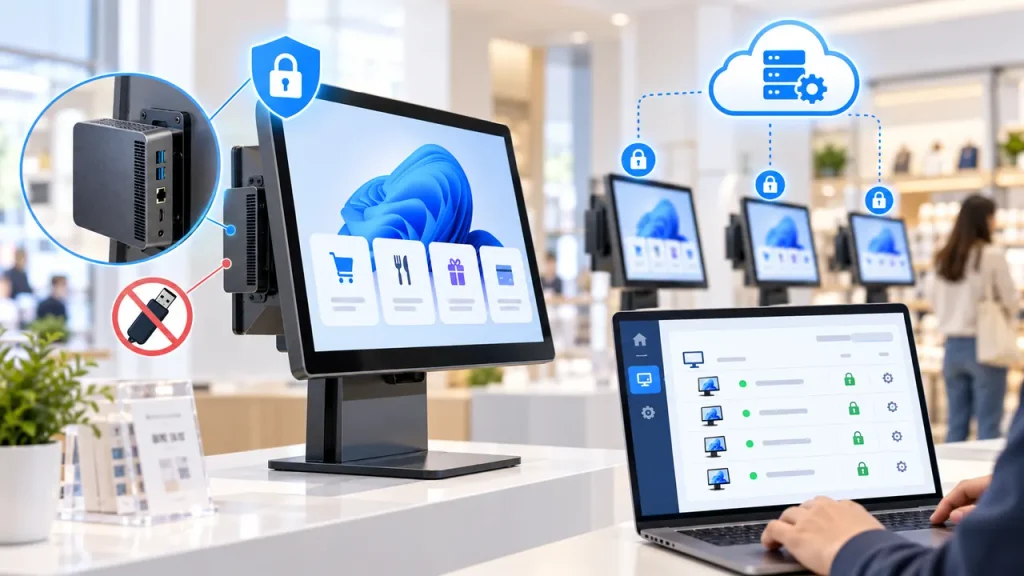
Set Up Multi-App Kiosks and Manage Multiple Devices
When a station needs two or three programs, single-app kiosk stops fitting and you move to a restricted multi-app experience, configured by policy rather than by the Settings wizard.
Configure a Restricted Multi-App Experience
A multi-app configuration file defines the accounts, the allowed applications, and the Start layout. Windows 11 builds the pinned area from JSON data, so layouts written for older Windows 10 deployments do not carry over, and a mismatched identifier produces an icon that fails silently. Allowlist rules are generated alongside, blocking anything not named.
Deployment runs through a management service, a provisioning package applied at first boot, or PowerShell calling the same configuration provider locally. For a few sites the package is fastest; for dozens, policy is the only approach that stays consistent.
Free Kiosk Software vs Built-In Windows Tools
Free options fall into three groups. The built-in Assigned Access layer costs nothing and needs no agent, but it has no content scheduling, no proof-of-play reporting, and no health monitoring. Lightweight browser-shell utilities add a locked full-screen wrapper, usually behind a paid tier for remote features. Open-source signage platforms handle scheduling properly, at the cost of running a server yourself.
Every free route leaves the same gap: knowing that a screen in another city went dark an hour ago.
Managing a Fleet of Mini PC Kiosks
Fleet work is mostly discipline. Build one image, apply the same baseline to every unit, label the hardware, and keep one spare per site. Standardising the model simplifies drivers, spare parts, and firmware across the estate, and planning a wholesale mini PC order with identical firmware avoids sites behaving differently because the units arrived in different batches.
Common Windows 11 Kiosk Problems and Fixes
Almost every field failure traces back to configuration or environment rather than to the application.
| Symptom | Likely cause | Fix |
| The app is missing from the kiosk list | It is a classic desktop program, or it is not installed for that user | Use a restricted multi-app configuration or Shell Launcher |
| Blank screen after sign-in | App path invalid, or the app is waiting on a licence prompt | Test as the kiosk account, verify the executable and licence state |
| User reaches the desktop | Configuration applied to the wrong account, or UAC disabled | Reassign to the correct standard account, keep UAC on |
| Display sleeps during the day | Power plan defaults, or a policy reapplied them | Set sleep to never, check for conflicting policy |
| Restart interrupts trading | Update window ignores active hours | Defer feature updates, define a maintenance window |
| Remote session shows no kiosk | The kiosk experience does not render in a remote desktop session | Manage the device remotely, test the kiosk at the console |
FAQ
Can one mini PC drive two kiosk screens with different content? Yes, if the machine has two independent video outputs and the application can address separate displays. Extending the desktop and placing one window per screen is the flexible version; mirrored output needs no configuration. Check the supported resolution per output first, because a 4K panel paired with a 1080p panel can pull the refresh rate down.
How do I restart or update a kiosk with no keyboard attached? Use a management channel: a device agent, a scheduled task that reboots outside trading hours, or wake-on-LAN with a remote command. None require signing in to the kiosk session, which is the point. Remote viewing of that session is a different capability and generally unavailable.
Can kiosk mode be removed without reinstalling Windows? For a single-app kiosk, yes. Open Settings, go to Accounts and Other users, select the kiosk entry, and remove it. The account remains and can be reused or deleted. Multi-app configurations leave more behind, particularly Start menu and taskbar customisation, so plan to reset the layout during decommissioning.