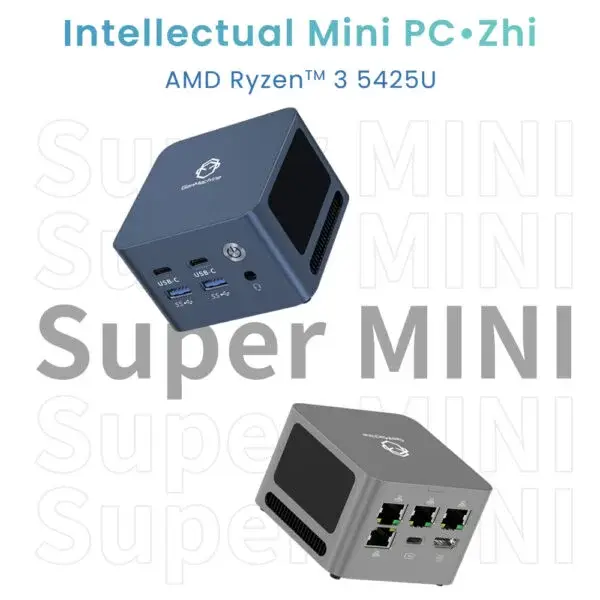
Most people eventually hit a wall with standard smart TVs. They work pretty perfectly right out of the box, but after a year or two, the menus start to get noticeably sluggish. The built-in apps take forever to load. And worst of all, high-bitrate 4k movies start to stutter right in the middle of a really good scene. It is just incredibly frustrating to sit down for a movie night and end up watching a spinning loading wheel instead. Bypassing all that built-in television software by hooking up a dedicated mini pc for streaming is basically the easiest way to fix the problem permanently. It turns a laggy screen into a massively overpowered media center without having to spend a fortune on high-end theater gear.

Why a Mini PC for Streaming Beats a Smart TV
Televisions are designed primarily to display images, not process heavy data. The little processor chips inside them are usually incredibly cheap and underpowered. When you use a mini pc for streaming, you are bringing actual desktop-grade processing power straight to the living room. This means the menus load instantly. Fast-forwarding a massive video file doesn’t instantly crash the app. You can even run a heavy network ad-blocker in the background, which is something standard streaming sticks just sort of struggle to do on their own.
The Problem with Wi-Fi Limits
Streaming dongles usually rely entirely on wireless connections. If the home router is on the other side of the house, getting a stable 4k signal through three walls is a nightmare. A proper mini pc for streaming almost always comes equipped with a gigabit ethernet port. Plugging a physical network cable directly into the machine practically eliminates that dreaded buffering wheel forever.
Specs to Look For in a Mini PC for Streaming
You really do not need an expensive gaming rig to just play movies smoothly. Video playback mostly relies on specific hardware decoding blocks found inside modern processors. If the chip has the right media engine built into it, it will smoothly play huge 4k files while barely using any actual processing power.
Here is a general breakdown of what specs to actually look for depending on how the media setup is going to be used at home:
| Setup Goal | Recommended Processor | Needed RAM | Ideal Network Connection |
|---|---|---|---|
Basic Netflix & YouTube | Intel N100 or N95 | 8GB | Strong Wi-Fi or Ethernet |
Heavy Local 4K Plex Files | Core i3 (12th Gen+) | 16GB | Gigabit Ethernet |
Emulation + 4K Media | AMD Ryzen 5 or 7 | 16GB+ | Gigabit Ethernet |
Making Sense of RAM and Storage
For a pure home theater setup, massive local storage drives aren’t strictly necessary. A 256GB SSD is usually more than enough space to hold Windows (or a lightweight Linux distribution) and a few essential media applications. RAM, however, is a slightly different story. Trying to run a mini pc for streaming with only 4GB of memory usually leads to annoying micro-stutters when Windows inevitably decides to run background updates. Bumping that capacity up to 8GB or 16GB makes everything feel so much snappier day to day.
Setting Up a Mini PC for Streaming Without the Headaches
Getting everything working flawlessly takes a tiny bit of initial effort. It isn’t quite as simple as just plugging in a cheap little dongle and pressing play right away. But taking a few extra minutes during the initial configuration saves a massive amount of troubleshooting later on.
Here are a few logical steps to get things running properly:
Connect the power supply and run a high-speed HDMI 2.0 or 2.1 cable from the computer directly to the TV.
Go into the television’s picture settings and turn on “PC Mode” or “Game Mode” (this essentially stops the TV from applying weird artificial smoothing effects to the computer’s video output).
Install a dedicated media player interface like Kodi or the Plex desktop app, which is way easier to navigate from a couch than clicking around a standard web browser.
Configure the operating system to automatically bypass the lock screen on boot, so pulling out a keyboard isn’t required every single time the device turns on.

Fixing Common Hiccups with a Mini PC for Streaming
Sometimes, out of nowhere, a movie will just look entirely washed out. Or maybe the shadows seem weirdly green. This almost always comes down to Windows HDR (High Dynamic Range) settings. Windows can be incredibly clunky when trying to trigger HDR on a television automatically. If the hardware is a bit older, forcing an HDR signal through budget streaming devices like the 5300U AMD Mini PC can sometimes cause more visual glitches than it actually solves. Simply turning off Windows HDR and letting the local media player handle the color mapping is often the absolute best workaround for weird color issues.
FAQ
Does a mini pc for streaming use a lot of electricity compared to an Apple TV or Roku?
It uses slightly more power, but honestly not by much. Modern low-power chips usually pull maybe 10 to 15 watts while playing a heavy 4k video. It is a tiny fraction of what a full-sized desktop uses, so the impact on a monthly power bill is barely even noticeable.
Can you control these computers with a standard TV remote?
Sometimes it works right out of the box. If the device fully supports HDMI-CEC (which allows devices to talk to each other over the HDMI cable), the television remote can handle basic pause and play commands. Otherwise, picking up a cheap USB remote adapter online is usually the easiest solution.
Do you need a dedicated graphics card for smooth 4k video playback?
Not at all. Almost every single modern integrated graphics chip released in the last four or five years has built-in hardware decoding specifically for 4k video. Dedicated graphics cards are really only necessary for heavy gaming or intensive 3D rendering tasks.