Why a Mini PC Makes Sense for a Homelab
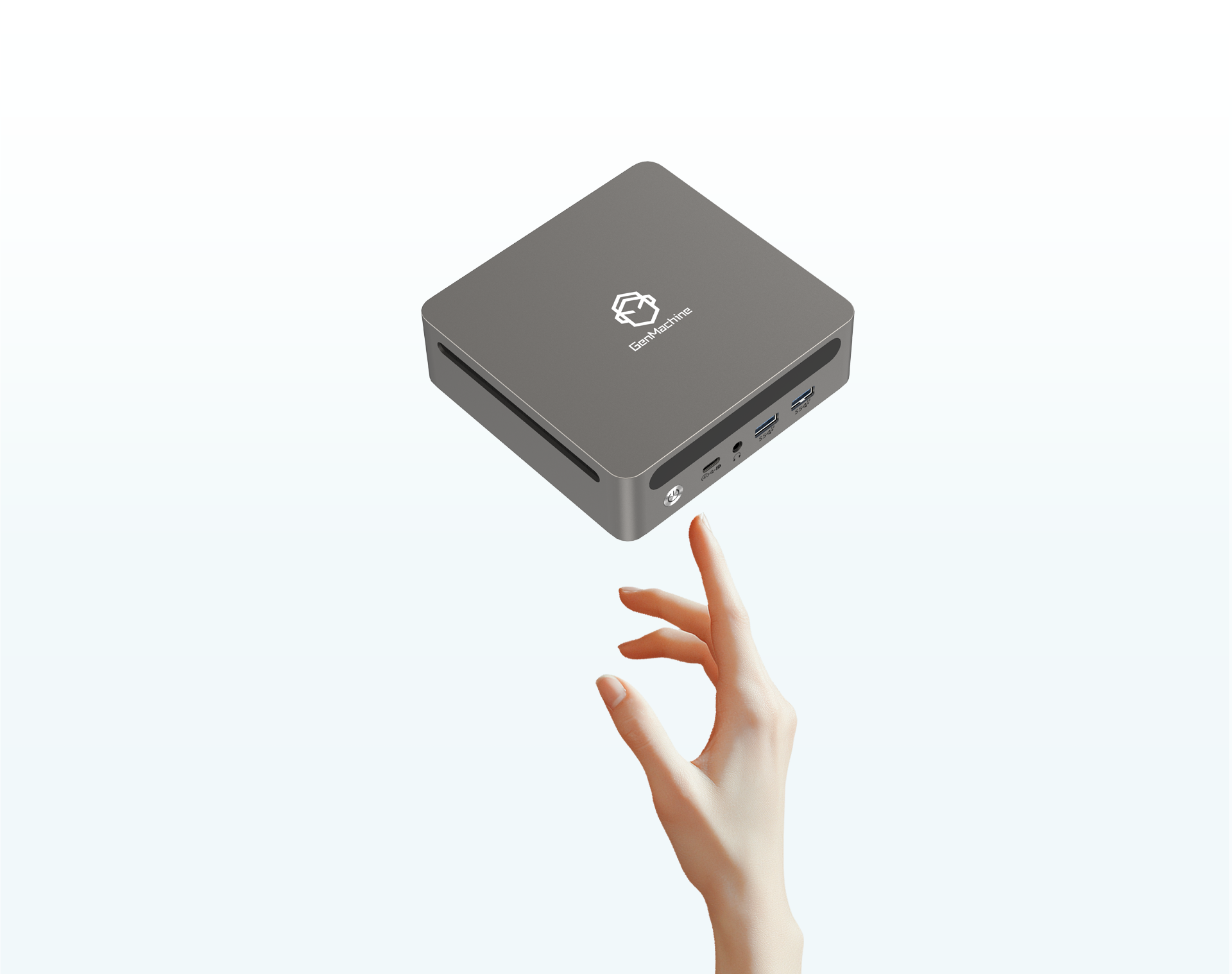
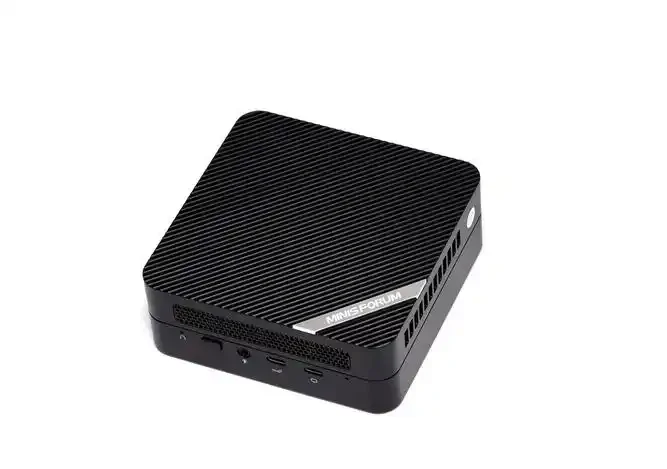
There’s a reason homelabbers have been gravitating toward compact hardware in recent years. A mini PC takes up barely any desk or shelf space, runs quietly enough to sit in a living room, and sips power compared to a full tower server. For anyone building out a homelab — whether it’s for learning virtualization, running containers, or self-hosting services — these little machines hit a sweet spot between capability and convenience.
That said, not every mini PC is created equal. Some are glorified media players. Others pack enough punch to run a modest Proxmox cluster. The trick is knowing what to look for based on what you actually plan to do with it.
Key Specs to Consider When Picking a Mini PC
Processor
The CPU matters more than people sometimes think. For lightweight tasks like Pi-hole, a basic file server, or a few Docker containers, an Intel N100 or similar low-power chip does the job fine. But if virtualization is on the table — running multiple VMs simultaneously, for instance — something like an Intel i5 or AMD Ryzen 5 starts to make a lot more sense.
RAM and Expandability
Most homelab workloads are memory-hungry. Running Proxmox with a handful of VMs can eat through 16GB quickly. Look for models that support at least 32GB, or better yet, have two SO-DIMM slots so there’s room to grow. Some cheaper units come with soldered RAM, which is a dealbreaker for a lot of people in this space.
Storage Options
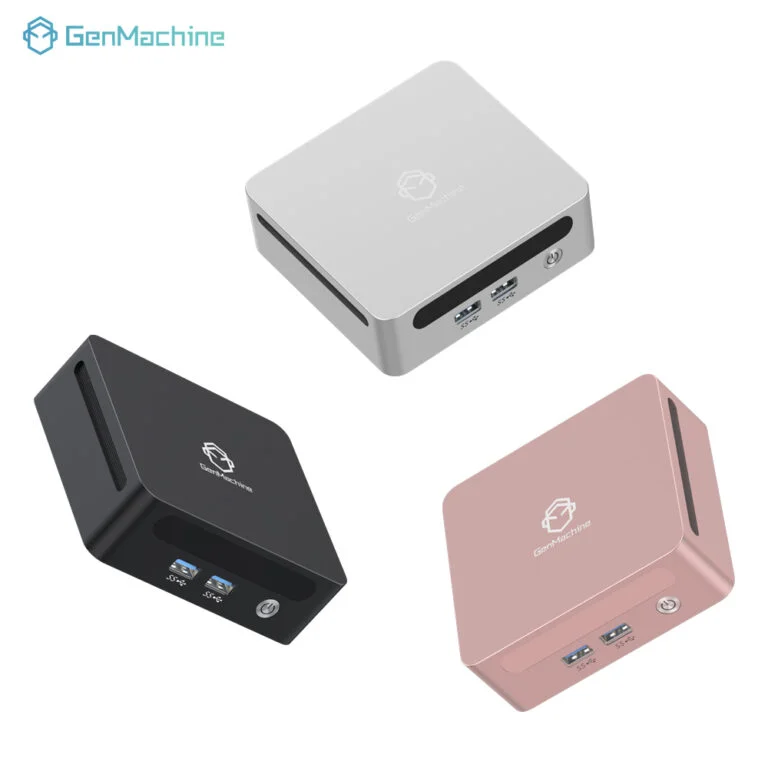
On a ren4000 series mini PC, NVMe support is pretty much standard now, but check how many M.2 slots are available. A single slot works for a basic setup, though having two (or an additional 2.5″ SATA bay) opens up options for separating the OS drive from data storage. It’s a small thing that makes life easier down the road with your ren4000 series mini PC.
Networking
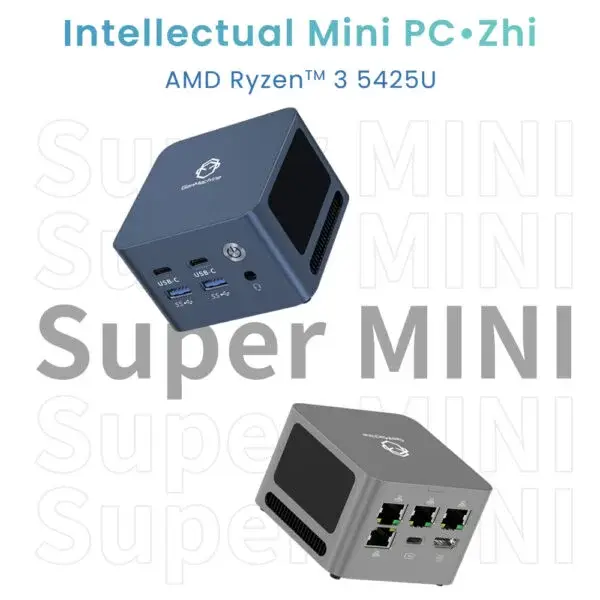
For a homelab, at least one gigabit Ethernet port is the bare minimum. Dual NICs are a nice bonus — they allow for things like pfSense/OPNsense setups or dedicated management interfaces. Some models even offer 2.5GbE, which is worth considering if the rest of the network supports it.
Matching a Mini PC to Common Homelab Use Cases
| Use Case | Recommended CPU Tier | Minimum RAM | Storage Notes |
|---|---|---|---|
| DNS/Ad blocking (Pi-hole) | Intel N95/N100 | 4GB | Any small SSD |
| Docker host (10-15 containers) | Intel i3 / Ryzen 3 | 16GB | 256GB NVMe |
| Virtualization (Proxmox/ESXi) | Intel i5 / Ryzen 5 | 32GB+ | Dual NVMe preferred |
| NAS / Media server | Intel N100+ | 8-16GB | SATA bay helpful |
| Firewall (pfSense/OPNsense) | Intel N100 | 8GB | Dual NIC required |
Things That Are Easy to Overlook
A few factors that don’t always make it onto spec sheets but matter in practice:
Thermal design — fanless models run silent but may throttle under sustained load. A small fan with good airflow tends to be the better compromise for always-on use.
BIOS/UEFI flexibility — some mini PC models lock down boot options or don’t play well with Linux. Checking community forums before buying saves headaches.
Power consumption — a unit drawing 10-15W idle versus 40-50W adds up over months of 24/7 operation. The electricity cost is real.
USB port count — seems trivial until you need to pass through devices to VMs or attach external storage.

A Practical Approach to Choosing
For anyone feeling overwhelmed by options, a simple decision process helps:
Define the primary workload (virtualization, containers, networking, storage).
Set a power budget — both electrical and thermal.
Decide on RAM and storage requirements based on the workload.
Check for dual NIC if networking tasks are involved.
Read community feedback on Linux/Proxmox compatibility for the specific model.
Starting with a clear use case prevents overspending on hardware that sits underutilized. At the same time, buying something with zero upgrade path often leads to replacing the whole unit within a year. There’s a balance somewhere in the middle, and it’s different for everyone.
FAQ
Can a mini PC really handle virtualization?
Yes, many can — particularly models with Intel i5/Ryzen 5 processors and 32GB or more of RAM. The key is making sure the CPU supports hardware virtualization (VT-x/AMD-V) and that the BIOS doesn’t restrict it. Plenty of homelabbers run Proxmox clusters on mini PCs without issues.
How many mini PCs are needed for a homelab cluster?
There’s no fixed number. Some people start with a single node and expand later. A common setup is three nodes for high availability in Proxmox, but that’s more of an ideal than a requirement. One capable mini PC can handle a surprising amount on its own.
Is it better to buy a barebones mini PC or a pre-configured one?
Barebones models (no RAM or storage included) usually offer more flexibility and better component choices. Pre-configured units save time but sometimes come with slower RAM or smaller drives that end up getting replaced anyway. For a homelab specifically, barebones tends to be the more practical route.