Most mini PCs run one desktop operating system and leave their hardware half idle. Virtualisation turns one small box into a host for several independent machines, and Proxmox VE is the usual platform for the job: free, installed from one image, managed from a browser. Guides for rack servers assume out-of-band management, and older guides point at menus that no longer exist. This walkthrough uses Proxmox VE 9.2 on Debian 13 Trixie; older releases differ in menu names and repository paths.
You install Proxmox on a mini PC exactly as on any x86 server: enable hardware virtualisation in the firmware, write the Proxmox VE 9.2 ISO to an 8GB USB drive as a raw image, boot the installer, choose the target NVMe disk and storage layout, assign the host a static IP address, then finish the repository, storage and backup settings from the web interface on port 8006. The form factor changes nothing in the procedure; it only fixes two decisions taken beforehand, the memory installed and the number of M.2 slots.
The sections below follow that order, naming each screen as it appears.
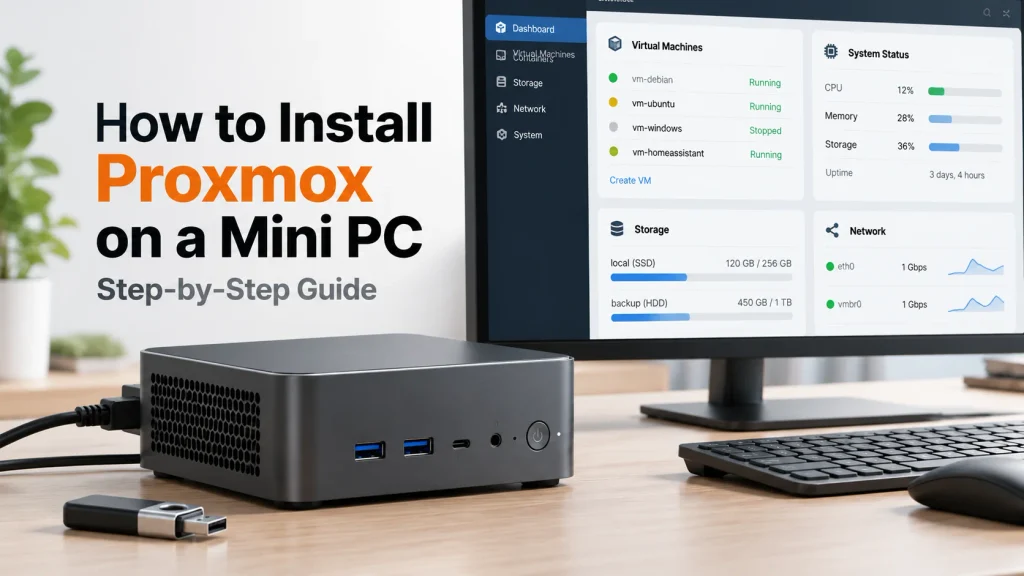
Can a Mini PC Run Proxmox?
Yes, on an x86-64 mini PC. Proxmox VE needs hardware virtualisation, 2GB of memory for the host plus memory for guests, and a disk. An Arm64 build has shipped since August 2026; this guide stays with x86-64.
What a mini PC gives up is redundancy and expansion: no second power supply, no error-correcting memory, no hot-swap bays, no remote management chip. For a lab that is a fair trade; for a workload that cannot lose an hour it is not.
| Factor | Mini PC | Rack server |
| Idle power draw | Single-digit to low double-digit watts | Varies widely, typically far higher |
| Noise | Silent or near silent | Needs a separate room |
| Redundancy | None by default | Dual supplies, ECC memory, RAID |
| Expansion | One or two M.2 slots | PCIe slots, many drive bays |
| Best fit | Lab, edge node, small office | Production clusters |
An entry-level machine is enough to learn on: a Cost-Effective Mini PC with 16GB runs the host, two or three containers and a small Linux guest without strain.
Which Mini PC Specifications Matter for Proxmox?
Four specifications decide how useful a mini PC will be: hardware virtualisation support, memory, the number and type of M.2 slots, and the wired network ports. Core count limits how many guests run at once, but memory runs out first.
CPU: Cores, Threads, and Virtualization Support
Check the processor specification rather than assuming. Many current x86 chips list VT-x or AMD-V, but some low-power parts omit it, and firmware often ships with the feature off; software cannot compensate afterwards. Density comes next: eight cores and sixteen threads carry four to six guests with modest loads, and overcommitting processor time is routine. Overcommitting memory is not. An 8-core Mini PC is a sensible ceiling for one node.
RAM: The Real Bottleneck
The official Proxmox VE system requirements give an evaluation minimum of 1GB plus guest memory, a recommended 2GB for the system and Proxmox services plus guest memory, and roughly 1GB per terabyte of used storage with ZFS or Ceph. That figure is an estimate. Assigned guest memory is committed, and ballooning is a safety valve rather than a planning tool.
| Installed memory | Realistic guest load | Watch out for |
| 16GB | Host, two or three containers, one small VM | A single Windows guest eats the headroom |
| 32GB | Four to six mixed guests with ZFS | The balance point for one node |
| 64GB | Eight or more guests, database or build work | Only if the processor keeps up |
For most single-node labs, a Balanced Mini PC with 32GB and a mid-range eight-core processor is where cost and capacity line up.
Storage: Why SSDs Beat Hard Drives for Virtual Machines
Guests generate small random writes: logs, databases, container layers, snapshots. A mechanical drive can stream large files and still make a five-guest host feel slow, because every guest queues for one actuator. Two M.2 slots beat one large drive, since the host sits on the first and virtual disks on the second. Consumer drives are fine in a lab, but check endurance for database guests. A node that also serves files needs more expansion, which is why a Database Mini PC with extra drive support can justify its cost.
Network Ports: One Is Enough, Two Is Better
One gigabit port covers installation and daily management. A second separates management from guest traffic, gives backup its own path, or feeds a virtual router; 2.5GbE matters mainly when moving backups between nodes.
What You Need Before Installing Proxmox
Gather the mini PC with virtualisation available, an 8GB or larger USB drive, the Proxmox VE 9.2 ISO, a wired Ethernet connection, a monitor and keyboard, a second computer with a browser, and a backup of anything on the target disk, because the installer does not preserve it.
| Often overlooked | Why it is needed |
| USB drive, 8GB or larger | Written with the image, and wiped in the process |
| Wired Ethernet connection | The installer configures the network and expects a link |
| Monitor and keyboard | Firmware settings and the installer console |
| Backup of the target disk | The installer repartitions the selected disk |
Step 1: Prepare the BIOS and the Installation USB
Enable hardware virtualisation, keep UEFI boot, leave Secure Boot on unless the installer refuses to start, then write the ISO as a raw image rather than copying it onto a formatted stick.
Ten minutes here prevents most failures: a host that boots but cannot start a guest almost always had virtualisation off.
BIOS and UEFI Settings to Change First
- Hardware virtualisation. Set VT-x, SVM Mode or Virtualization Technology to enabled. Without it, guests fail with an error about KVM not being available.
- IOMMU. Enable it if you may pass a device through to a guest; firmware may list it as VT-d or simply IOMMU.
- Boot mode. Choose UEFI rather than legacy or CSM.
- Secure Boot. Since 8.1 the boot chain is signed, so the official ISO installs and boots with it active. Disable it only if the firmware rejects the loader.
- Power behaviour. Set restore-on-power-loss to Power On, so the host returns after an outage.
- Boot order. Put the USB drive first, then restore the internal disk afterwards.
Write the ISO to a USB Drive
Download the image from the official Proxmox VE ISO images page. Copying the file onto a formatted stick produces a drive the firmware will not boot, the most common cause of a failed first attempt.
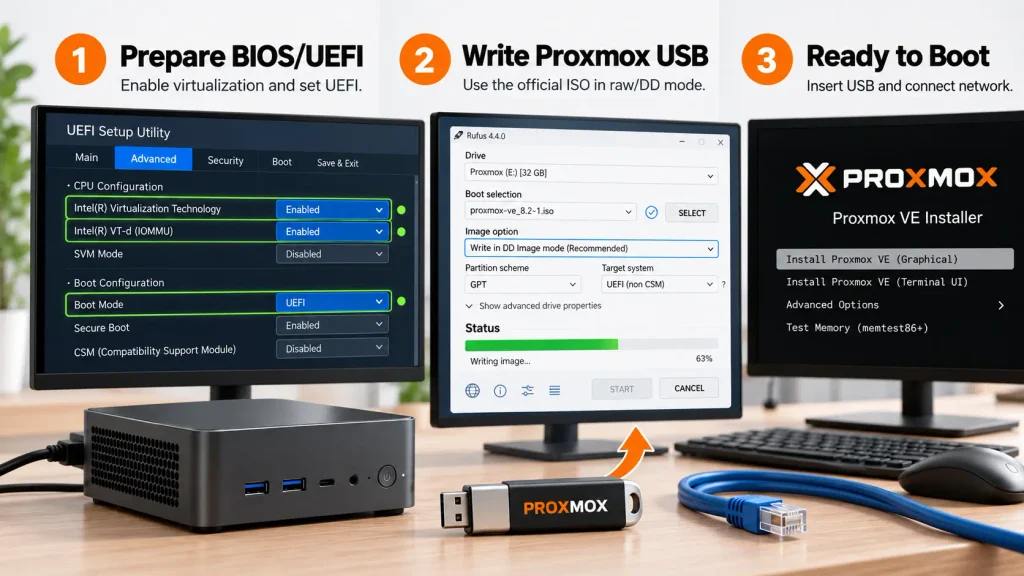
| Tool | Mode to use | Note |
| Rufus | DD image mode | ISO mode can produce an unbootable stick |
| balenaEtcher | Defaults already write raw | Simplest on macOS |
| Ventoy or UNetbootin | Not recommended | The installer may fail to detect disks |
Verify the Image Before You Boot
The download page publishes a checksum beside the image. Run sha256sum on Linux, shasum -a 256 on macOS, or certutil on Windows, and compare; a truncated download shows up as an installer that hangs or reports no disks.
Step 2: Run Through the Proxmox Installer
Boot from the USB drive, accept the licence, select the target disk and storage layout, set the location and a root password, give the host a static address on your local network, and confirm. The installer repartitions and wipes the disk you select.
That warning is literal: existing partitions, including a previous operating system on the same drive, are removed. A ZFS mirror needs two disks, so two M.2 slots do not by themselves guarantee that option.
The installer asks for six things, in this order:
- Licence agreement, accepted at the bottom of the first screen.
- Target disk, chosen with the Options button beside it.
- Country, time zone and keyboard layout.
- A root password, entered twice, and a notification email address.
- Host name, address, gateway and name server for the management interface.
- A summary screen, then the installation, which runs unattended.
Choose the Target Disk, Filesystem, and Storage Layout
The Options button opens three separate decisions. The filesystem is ext4 or XFS. The storage backend is plain LVM, LVM-thin or ZFS. The layout is the redundancy arrangement, none on one disk and a mirror on two.
| Option | Snapshots | Memory cost | Disks | Best fit |
| ext4 on LVM-thin | Yes | Low | One | Single-disk lab, modest memory |
| ext4 on a directory, qcow2 disks | Yes | Low | One | Snapshots without thin provisioning |
| ext4 on a directory, raw image | No | Low | One | Setups that never snapshot |
| ZFS mirror | Yes, plus checksums | High, via the cache | Two | Data integrity, NAS-style guests |
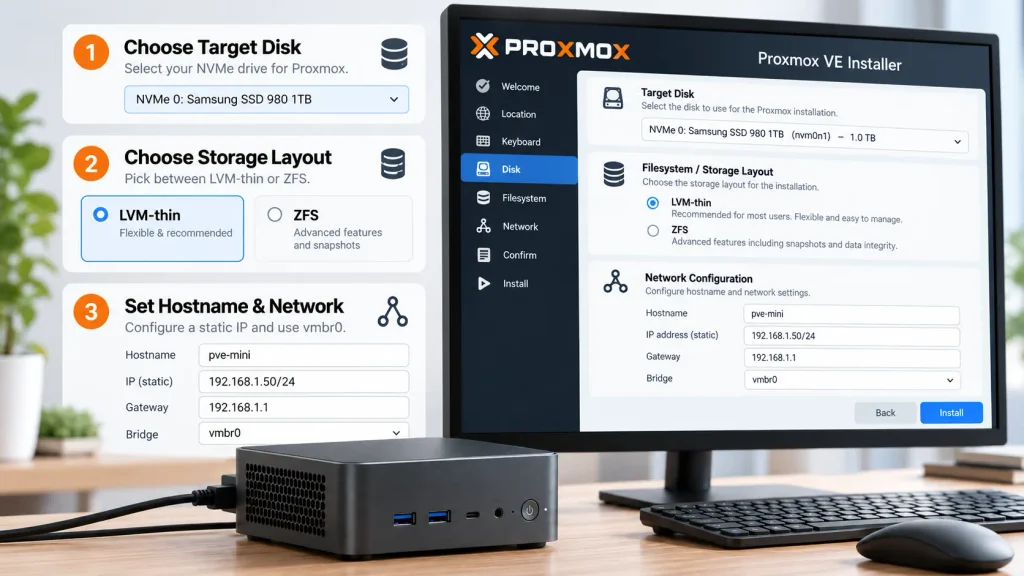
LVM-thin is the pragmatic default: snapshots work, memory stays free for guests, and one drive is enough. Snapshots are not exclusive to it, since a directory storage holding qcow2 disks supports them while a raw image does not. ZFS adds checksums and compression at the cost of cache memory. A mirror survives a drive failure but not a deleted guest.
Set the Hostname and the Static IP
Use a fully qualified host name, because clustering and certificates both expect that form, and place the address outside the range your router hands out by DHCP. The installer builds a bridge named vmbr0 over the port you choose, and every guest attaches to it.
| Setting | Example value |
| Host name | pve1.home.arpa |
| Address | 192.168.1.50/24 |
| Gateway and name server | 192.168.1.1 |
| Bridge | vmbr0 over the selected port |
Finish the Install and Reboot
The installer finishes in a few minutes. Remove the USB drive when prompted, or the machine boots into it again.
Step 3: First Login and Post-Install Setup
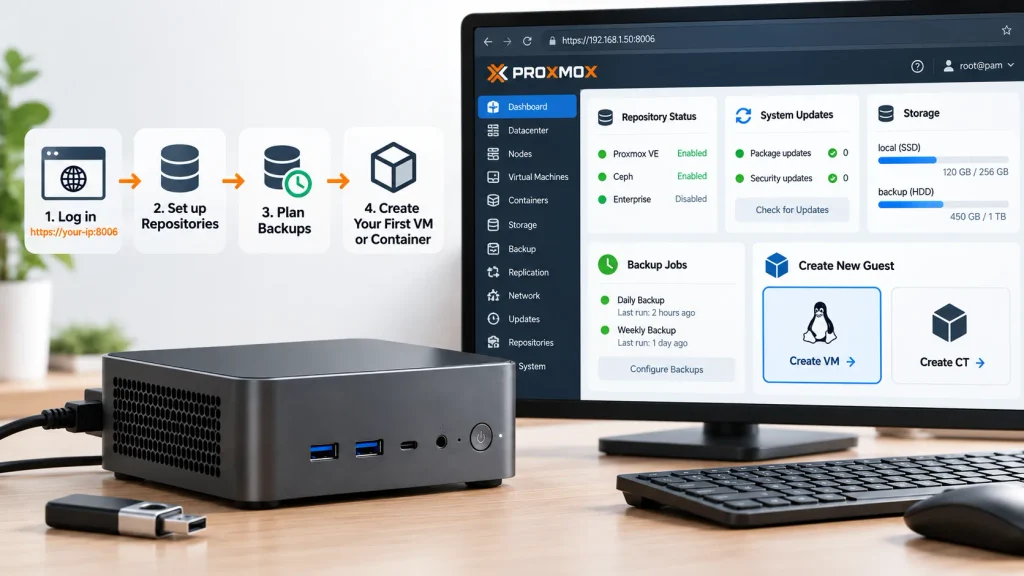
Open https://your-host-address:8006, accept the certificate warning, log in as root with the password you set, then disable the enterprise repository, add the no-subscription one, update the host, and create a backup job before installing any guest.
The warning is expected. A fresh installation signs its own certificate, so the browser cannot verify it.
Open the Web Interface
The interface listens on port 8006 over HTTPS only. The login screen offers PAM for system accounts such as root and PVE for users created inside Proxmox. Do not forward that port to the internet.
Fix the Repositories on Proxmox VE 9.2
A fresh installation enables the enterprise repository, which needs a subscription. Without one, updating returns an authorisation error and no packages arrive. In the interface, select the node, open Updates, then Repositories, where entries can be added or disabled without a shell. Since version 9 the files use the multi-line deb822 format.
- Disable the enterprise entry by adding Enabled: no to /etc/apt/sources.list.d/pve-enterprise.sources.
- Create /etc/apt/sources.list.d/proxmox.sources with Types: deb, URIs: http://download.proxmox.com/debian/pve, Suites: trixie, Components: pve-no-subscription and Signed-By: /usr/share/keyrings/proxmox-archive-keyring.gpg, one field per line.
- Run apt update, then apt full-upgrade, and reboot if the kernel changed.
| Repository file | Component | Intended use |
| pve-enterprise.sources | pve-enterprise | Production nodes with a subscription |
| proxmox.sources | pve-no-subscription | Testing and lab nodes |
Upstream positions the no-subscription repository for testing, since its packages get less validation; business services belong on the enterprise one.
Plan Storage and a Backup Job Early
Two storage entries appear automatically: local for images, templates and backups, plus local-lvm on an LVM-thin install or local-zfs on a ZFS one for virtual disks. Under Datacenter, then Backup, schedule a job before the first guest exists, then restore one backup to a spare guest. A backup never restored is a hypothesis, and a mirror copies deletions as faithfully as it copies data.
Step 4: Create Your First VM or Container
Create one small Linux virtual machine first. A virtual machine exercises the whole stack, including KVM, the vmbr0 bridge and the storage backend, so if it boots and reaches the network, the installation is sound.
A container proves less, because it shares the host kernel and can start even when virtualisation is misconfigured.
A Baseline VM Configuration
Upload the image: select the node, open local, choose ISO Images, then Upload. Click Create VM, name the machine on the General tab, and point OS at that image. Then work through System, Disks, CPU, Memory and Network, confirming each tab before Finish.
| Setting | Value | Reason |
| Image | Distribution ISO in local storage | Source for the guest installer |
| BIOS | OVMF, UEFI | Needed for UEFI guests; some distributions still boot under SeaBIOS |
| Disk | 32GB on local-lvm, discard on | Thin allocation reclaims freed blocks |
| Processor | 2 cores, type host | Exposes the host instruction set |
| Memory | 2048 to 4096MB with ballooning | Returns unused pages to the host |
| Network | VirtIO, bridge vmbr0 | Shares the host bridge |
| QEMU agent | Enabled | Reports addresses, allows clean shutdown |
Start the machine, finish the guest installation in its console, then install the guest agent inside the guest, since the option only works once that package runs.
VM or LXC: Which One Fits the Workload
| Aspect | Virtual machine | Container |
| Isolation | Full, with its own kernel | Shares the host kernel |
| Memory overhead | Higher, includes a kernel | Low |
| Startup | Seconds to tens of seconds | Near instant |
| Best fit | Windows, appliances, untrusted code | Web services, DNS, monitoring |
Containers deploy faster and cost less memory; virtual machines buy isolation and their own kernel. Most labs run both.
Common Mistakes When Running Proxmox on a Mini PC
The four mistakes that cost the most time are buying on core count instead of memory, running every guest from one drive, installing container engines on the Proxmox host, and treating a mirror as a backup.
Memory cannot be added to a machine with soldered modules, a saturated drive appears as latency across every guest, and a container engine on the host blurs the boundary Proxmox exists to provide. Most of these begin at purchase: the checklist in this guide to choosing a mini PC for your homelab covers memory, drive bays and ports from the buying side.
Frequently Asked Questions
Can You Cluster Two or Three Mini PCs?
Yes, and three nodes is the better number. A cluster needs a majority of nodes for quorum, so a two-node cluster loses configuration write access when one fails unless a lightweight quorum device is added. Cluster traffic wants low latency, which a local network provides.
Can Proxmox Share a Drive With Windows?
Not through the standard installer, which claims the whole selected disk and repartitions it, removing any existing installation. It offers no option to keep a Windows partition, so sharing a drive means a separate disk for Proxmox. Running Windows as a guest is the practical answer.
Is a Fanless Mini PC Suitable for 24/7 Proxmox Use?
It can be, if sustained load stays modest. A fanless chassis dissipates heat through its case, so a host that idles most of the day stays within limits, while one compiling for hours will throttle. Watch temperatures during the first guest install, and prefer active cooling for continuous heavy work.