Compact desktops now sit behind retail displays, on clinic desks, in classrooms and under home theatre televisions, and they fail in one specific way: the machine keeps running while the screen goes black. There is no tower to open and no card to reseat, so a monitor reporting no signal sends most users toward a warranty claim they do not need.
A mini PC showing no signal is usually working. In most cases the display never received a stream that both ends agree on, and the fault sits in one of four places: the wrong input selected on the monitor, a cable that cannot carry the requested mode, an output that failed to initialize at boot, or a driver that crashed after the system loaded. Physical path first, software path second.
This guide follows that order, from the handshake that precedes the first pixel to the firmware setting that decides which port wakes at power-on.
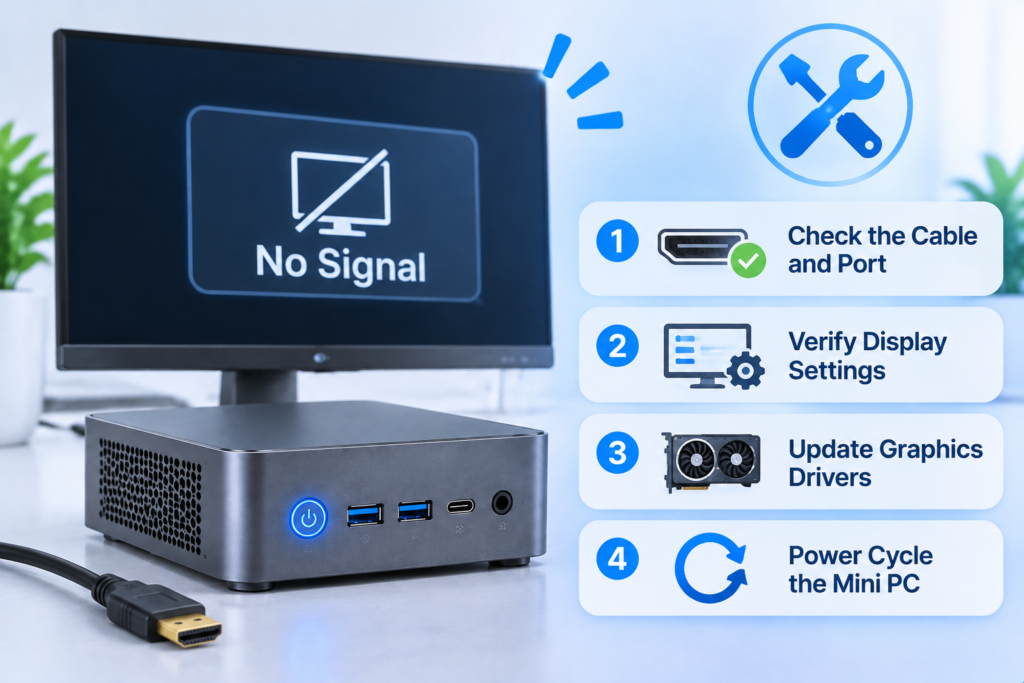
What “No Signal” Actually Means on a Mini PC
The message comes from the display, not the computer. The monitor has power, its scaler is running, and it detects no valid stream on the selected input, so the break lies between the graphics output and the panel.
A healthy machine can sit behind that message for hours, and a failing cable can produce a perfect desktop one mode below its limit. Mini PCs narrow the options: graphics are soldered, outputs are fixed at one or two ports, and USB-C connectors that look identical may not all carry video. A first new mini PC setup is checked with the same tools as a unit three years old.
The Four Checkpoints in a Display Chain
The signal must survive four links:
- Source: the graphics output and its driver.
- Port: condition and firmware configuration.
- Cable: bandwidth rating, direction, adapters.
- Input: selected source and reported capabilities.
Isolating a fault means proving which link fails, because a dead port, a marginal cable and an unsupported mode are indistinguishable on screen.
What the Handshake Does Before the First Pixel
A digital link is a negotiation. The display pulls hot plug detect to announce itself, and the source reads its extended display identification data over the display data channel, a record listing supported resolutions, refresh rates, colour formats and timings. DisplayPort repeats this over an auxiliary channel, then trains the link to a rate both ends sustain.
Four failures follow: hot plug detection that never fires, an unreadable identification record, link training that collapses before data moves, and a content protection handshake that fails on a link which is technically up.
How to Fix No Signal on HDMI: The Diagnostic Sequence
Work backward from the display, change one variable per test, and stop when a picture appears. That discipline resolves most HDMI black screens and prevents conclusions drawn from three simultaneous changes.
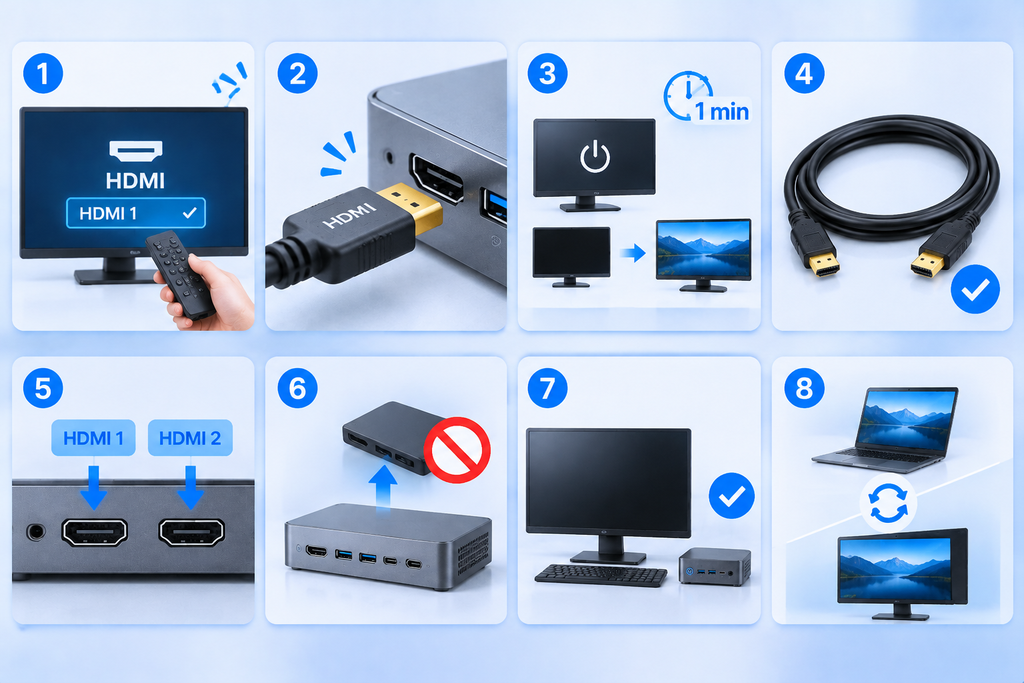
- Confirm the display is awake and select its exact input manually.
- Reseat both ends and listen for a click at the chassis.
- Power the display off, unplug it for a minute, then start it before the computer.
- Swap in a cable known to work elsewhere, rated for the target mode.
- Try another output on the machine and another input on the display.
- Remove adapters, docks, switches and extenders, and connect directly.
- Disconnect other peripherals, leaving the display, a keyboard and the adapter.
- Test the display on a second computer and the machine on a second display.
Steps four and eight decide the case. A known cable that fixes it condemns the cable, and a known display that fixes it condemns the panel. If neither helps and no logo ever appears, the fault is inside the machine.
What Each Result Tells You
| Observation | Likely cause | Next test |
| No image, no logo, no beep | Cable, port, memory or power | Alternate port, then memory |
| Logo appears, then black as the system loads | Unsupported mode or driver | Conservative mode, driver rollback |
| Picture only after several minutes | Marginal cable or adapter | Replace cable, remove adapter |
| One port works, the other never does | Port initialization or firmware | Check output priority |
| Works on one display, fails on another | Panel capability or input selection | Reset the failing display |
Log each step with its result. Four untracked changes erase the evidence a technician needs.
Why Is My Monitor Plugged Into HDMI but No Signal?
A connector that seats firmly proves fit and nothing else. The monitor may be listening on another input, the cable may lack bandwidth for the requested mode, or the link may have dropped when the machine slept.
Switching the Input Source
Automatic detection misses a source that is asleep or mid-boot, and it can latch onto another powered port. Select the input manually first. The projection shortcut using the Windows key plus P then shows whether the computer is sending an image anywhere at all, and the official external monitor troubleshooting guidance follows the same order: detach accessories, verify the cable, test the display elsewhere, try another port.
Mode Mismatch: Resolution, Refresh Rate and HDR
A digital link carries the requested mode or produces nothing. Ask for a timing the panel does not list, or more bandwidth than the cable can deliver, and the result looks exactly like a dead port.
Dynamic range, deep colour and rates above 60 Hz all consume bandwidth, which is why a cable that works at 1080p fails on a 4K panel. The organisation behind the DisplayPort standard publishes the link training model that governs how each connection settles on a speed. A second panel raises the same risk, since an extended display setup changes what both ends must agree on. Drop to 1920 by 1080 at 60 Hz, then step back up one variable at a time.
Sleep, Fast Startup and Dropped Links
A link that worked all morning can fail after sleep, because both ends must renegotiate on resume and some combinations never finish. Disable fast startup, and disable the monitor’s own power saving during testing so it cannot hide the timing of the failure.
Why Are Both HDMI and DisplayPort Not Working?
When two independent outputs fail together, the ports are rarely responsible. The shared factors are memory that blocks the self-test, corrupted firmware, an inadequate supply, or a boot configuration that initializes only one output.
When Every Output Fails at Once
Graphics share memory with the processor and the same board level power delivery. If memory fails to train, the fan still spins while no port produces video. If the embedded controller firmware is corrupted, the board powers up without ever handing control to graphics.
Remove one memory module at a time where access allows, since a single faulty module blocks the self-test on every output. Clearing the CMOS memory restores firmware defaults.
Boot Display Priority and Single-Output Initialization
Some designs initialize one output before the system loads its graphics driver, so a display on the secondary port stays dark until the login screen. If the system never gets there, that port never activates and looks broken. Confirm the primary output in firmware rather than assuming it is the first connector in the row.
Memory, Firmware and Power
Check that the adapter matches the printed rating and seats fully. Reseat memory and test a single module. Reset firmware to defaults, and update it only after a picture returns, because a failed update on a blind machine leaves no recovery path.
Why Is the Mini PC On but Showing No Display?
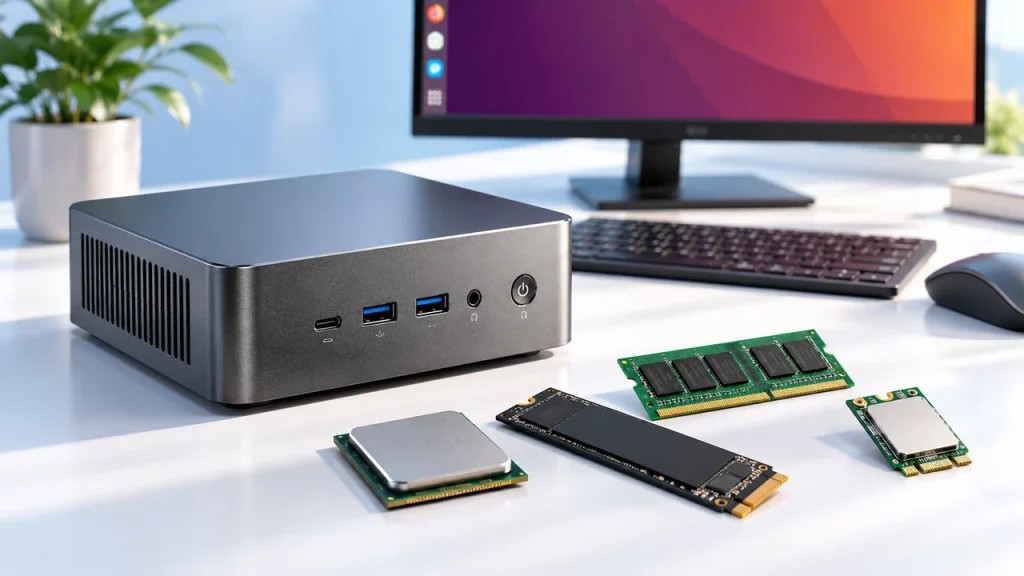
A lit indicator and a spinning fan confirm only that the board has power. They say nothing about whether the self-test completed, whether memory trained, or whether any output initialized.
Read the Boot Stage
A logo that flashes and disappears points downstream, toward a driver, a mode change or a failed system load. A screen that never shows anything on any cable points upstream, toward power, memory, firmware or graphics hardware. A monitor that never leaves standby is not detecting a source at all.
POST, Beep Codes and Diagnostic LEDs
Many compact machines have no internal speaker, so silence proves nothing. Where a buzzer exists, a repeating pattern usually indicates a memory or graphics initialization failure, documented by the vendor rather than standardised. Without either, read behaviour: a machine that restarts every twenty seconds is failing the self-test repeatedly.
How to Restart a Mini PC When You Cannot See the Screen
You do not need a picture to restart safely. A graphics driver reset, a keyboard-only shutdown path and a controlled power cycle cover almost every case, and they should be tried in that order of risk.
Unattended signage and kiosk terminals often lose their display while remaining reachable by keyboard.
Keyboard-Only Restart Paths
Begin with the graphics driver reset, a four key combination starting with the Windows key, Ctrl, Shift and the letter B, which reloads the display stack without closing applications. If nothing happens, Ctrl, Alt and Delete tests responsiveness: a display that wakes proves the machine was running and only the output was lost. The power user menu, opened with the Windows key and X, reaches restart in two more keystrokes.
The Forced Power Cycle
If the keyboard is dead, hold the power button for ten seconds, unplug the adapter and wait a minute for residual charge to drain from the board. Use this last, since hard power-offs during a storage write can corrupt the file system, and never interrupt a firmware update.
Display Settings, Drivers and Supported Modes
Once the system loads, the problem shifts from the physical layer to configuration. A mode the panel cannot display, a driver that failed mid-change, or a projection setting that sends the image nowhere all produce the same black screen.
Reset the Output to 1080p at 60 Hz
Attach a known display and set 1920 by 1080 at 60 Hz with standard colour depth and dynamic range off. Confirm stability, then raise resolution, refresh rate, colour depth and dynamic range in that order, stopping at the first loss of signal. Where no display can be attached, a remote session can change these settings, which is worth arranging in advance for kiosks.
Driver Rollback and Clean Install
If the black screen began after a graphics driver update, roll it back rather than layering a newer version over a broken one. With no rollback point, remove the driver, restart, and let the basic display driver return a low resolution picture. Then download the latest drivers for the exact model, since generic packages often omit the output configuration used by compact boards.
Cables, Ports and Firmware: Ruling Out the Physical Layer
Most intermittent faults that survive a cable swap are bandwidth limits, directional adapters, or a port that is physically worn rather than electrically dead.
Treat the cable as a rated component, not an accessory.
Matching Cable Bandwidth to the Mode
| Interface | Maximum raw bandwidth | Typical modes |
| HDMI 1.4 | 10.2 Gbps | 4K at 30 Hz, 1080p at 120 Hz |
| HDMI 2.0 | 18 Gbps | 4K at 60 Hz, 8 bit, 4:4:4 |
| HDMI 2.1 | 48 Gbps | 4K at 120 Hz, 8K at 60 Hz |
| DisplayPort 1.2 | 21.6 Gbps | 4K at 60 Hz |
| DisplayPort 1.4 | 32.4 Gbps | 4K at 120 Hz compressed, 8K at 30 Hz |
| DisplayPort 2.1 | up to 80 Gbps | 8K at 60 Hz and above |
The certification programmes run by the HDMI specification body exist because a cable can pass at one mode and fail at the next, and unmarked cables give buyers no way to predict which.
Adapters, Docks and USB-C Alt Mode
A DisplayPort to HDMI cable is directional and will not work in reverse. Passive adapters need the source to support dual mode output, and active ones add power and compatibility rules. USB-C deserves separate suspicion: video requires an alternate mode that reassigns pins, so a port that charges a phone may carry none. Test the dock elsewhere before blaming the computer.
Port Inspection and Firmware
Look for bent contacts, a cracked shell, movement when the cable is flexed, or debris blocking insertion, and clean with dry compressed air rather than metal tools. A port that grips loosely has lost its retention springs. Confirm the port is enabled in the mini PC BIOS setup, since firmware updates can change which output initializes first.
When to Repair, Replace or Escalate
Three findings justify escalation: no logo on any known-good display and cable, no response after a memory reseat and firmware reset, and a physically damaged port. Anything less is still a configuration problem.
Assemble the model and serial number, adapter rating, display model and native resolution, cables tested, ports tried, whether a logo appeared, and each step with its result. That record removes the questions a technician would otherwise ask. Where downtime is expensive, keep one tested cable and one known display per site.

Frequently Asked Questions
Three questions come up repeatedly once the basics are covered: whether a mini PC can run without a screen, why a picture survives the boot logo and then vanishes, and whether a television is a valid substitute for a monitor.
Does a mini PC need a monitor attached to boot?
No. The machine completes its self-test and loads its system whether or not a display is connected, which is why headless operation is common in signage and remote management. Some firmware configurations halt on a missing display, which is worth disabling. Without a display, the graphics output may also never initialize, so a remote session can start at a low resolution.
Why does the picture work in firmware setup but disappear when the system loads?
That pattern places the fault in software. Firmware drives the display with a basic, universally supported mode, and the failure occurs when the system hands control to its own driver and applies the saved resolution, refresh rate or dynamic range. Booting into a low resolution mode usually restores the picture long enough to correct the setting.
Can a television replace a monitor for a mini PC?
Usually yes, with three differences. Televisions often apply overscan or heavy processing that softens small text, and both can be corrected with a personal computer input label or game mode. Input lag and chroma subsampling at high refresh rates make them a poor choice for precision work. And many do not wake reliably from a source that has just resumed, which is a frequent cause of a black screen mistaken for a computer fault.