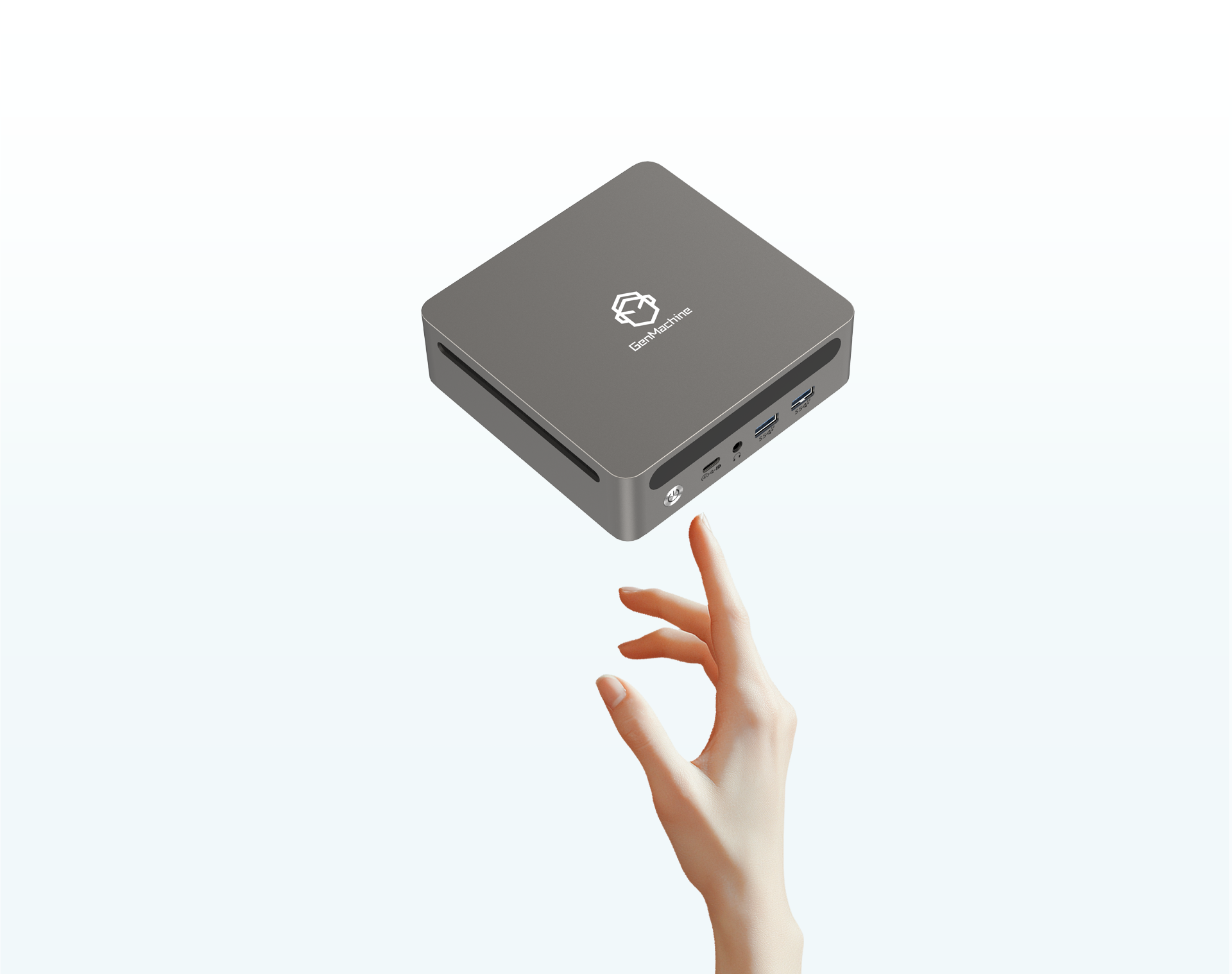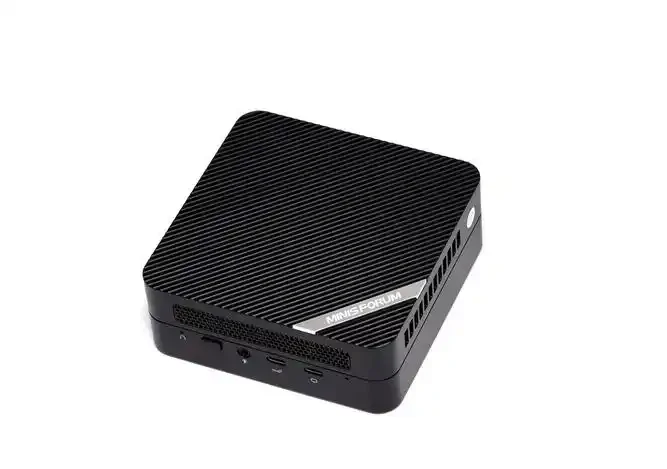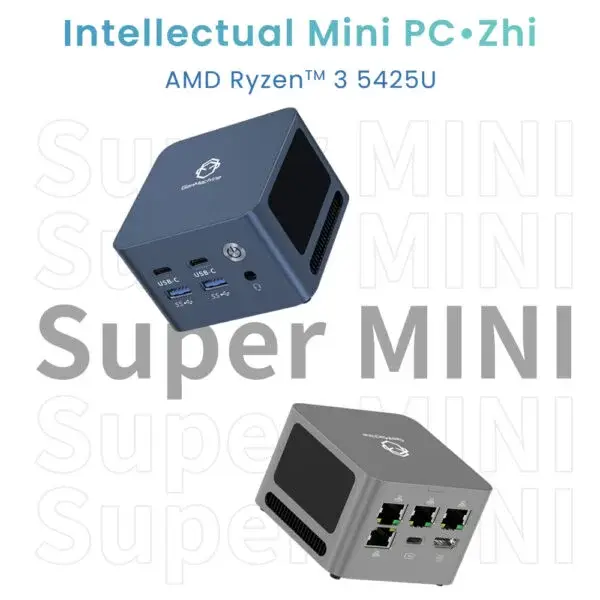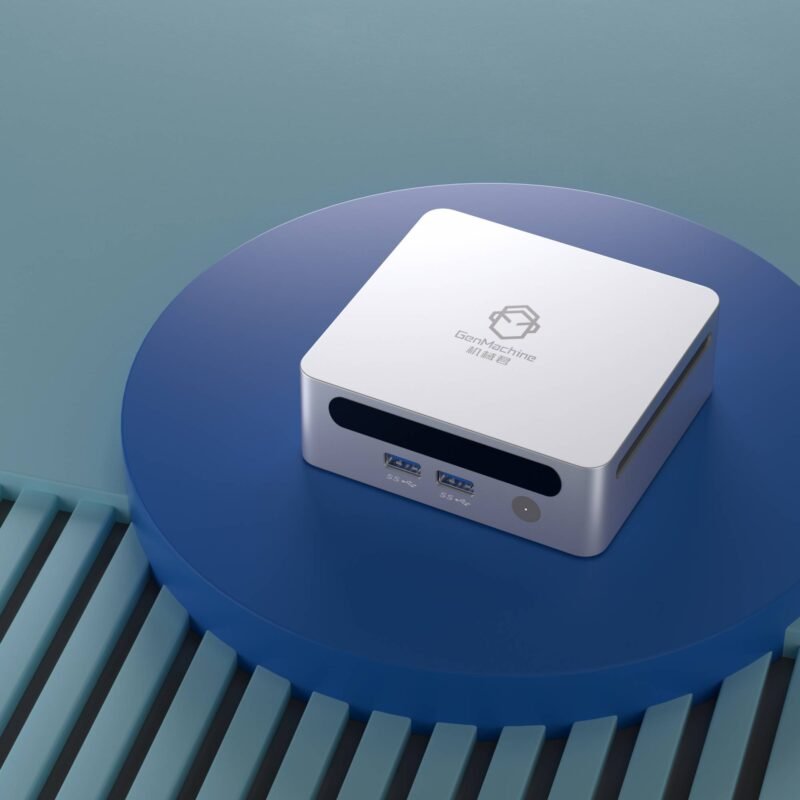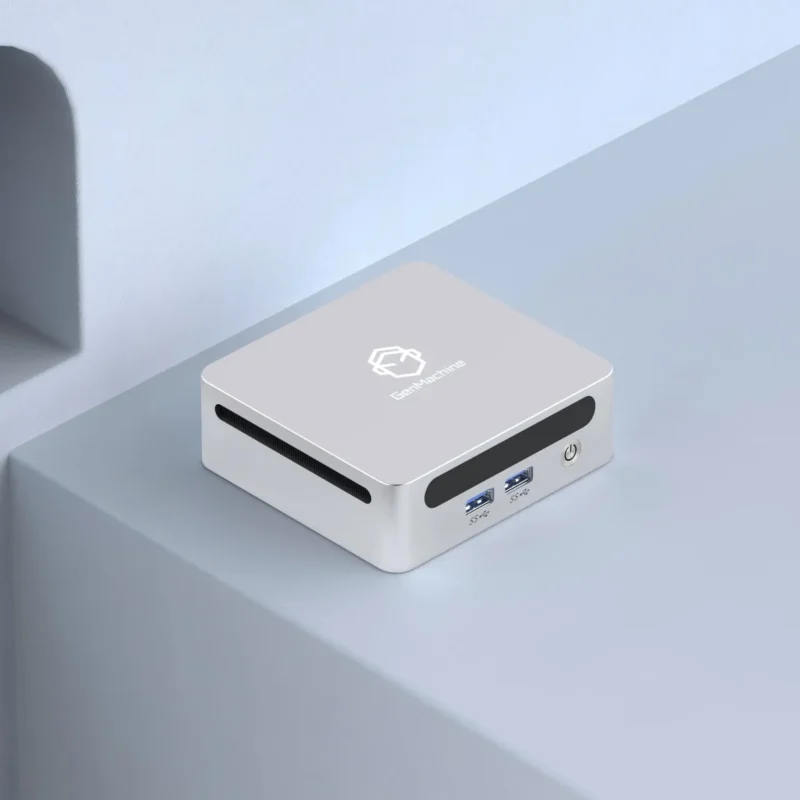
Look at a busy workstation today, and the chaotic mess of giant tower computers is slowly fading away. It is actually kind of crazy how much power fits into the palm of a hand now. For years, trying to run multiple heavy programs on a compact machine was just asking for a frozen screen. But silicon technology sort of took a massive leap forward, specifically with the Ryzen 7 processors. Now, dropping a dedicated mini PC onto the desk completely changes the workflow dynamic. You get this bizarre situation where a device the size of a lunchbox is outperforming massive gaming rigs from just a few years ago. Multitasking—like having dozens of browser tabs open, running a video render, and keeping a massive spreadsheet on a second monitor—used to require a massive heat-generating tower. Now, it just happens quietly in the background on a surprisingly tiny machine.
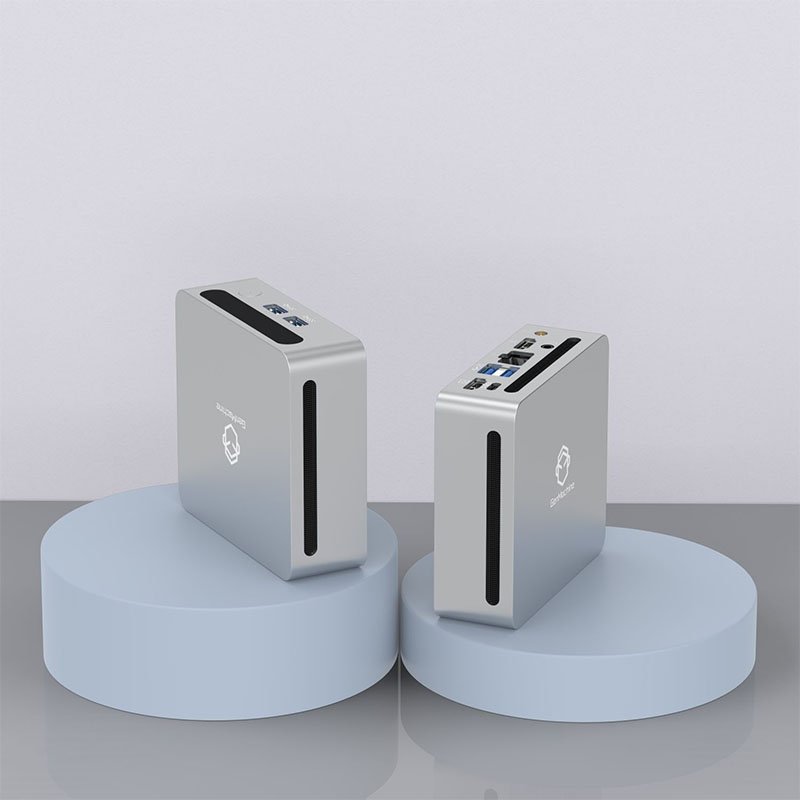
Why a Ryzen 7 Mini PC Handles Heavy Workloads Better
When it comes to jumping between tasks, having enough processing cores is basically the only thing that actually matters. Older tiny computers usually relied on weak dual-core chips that choked the second you opened up a demanding application. But having a modern chip inside a mini PC means there are usually eight high-performance physical cores working at the exact same time. It feels entirely different when a machine just refuses to stutter.
There are a few obvious reasons why this specific combination of hardware is so good for heavy multitasking:
The multi-threading capability splits heavy workloads, so a virus scan running in the background doesn’t ruin the speed of a Zoom call.
Power efficiency is incredibly optimized (meaning the fan doesn’t instantly sound like a jet engine when opening heavy design software).
Built-in Radeon graphics share the load with the main processor, handling multiple video streams smoothly without needing a bulky, separate graphics card.
It is just a very balanced way to compute. There is no waiting for one task to finish before starting another, which is honestly a massive relief for anyone who works fast and expects the hardware to keep up.
Pushing the Mini PC Hardware to the Limit
Observing what happens when you actually stress test these devices is pretty fascinating. Pushing a modern mini PC to its breaking point takes a lot more effort than it used to. It is not just about keeping a few basic word documents open anymore. The real test is having a complicated 4K video timeline rendering while simultaneously participating in a high-definition video conference, all while running a dual-monitor setup.
To really understand the jump in multitasking power, looking at how the hardware handles specific workloads is helpful.
| Workload Scenario |
Legacy Compact Desktop |
Modern Ryzen 7 Setup |
|---|---|---|
40+ Web Browser Tabs |
Severe lagging, frequent page crashes |
Flawless switching, zero memory bottlenecks |
Light Video Rendering |
Completely locks up the system |
Renders quietly in the background while other apps remain highly usable |
Dual 4K Displays |
Stutters badly when dragging windows around |
Fluid mouse movement and perfect media playback |
Seeing a mini PC handle that kind of ridiculous load without melting down is still slightly surprising. The architecture is just built to juggle complex tasks. Of course, pushing it this hard requires enough system memory, but the processor itself handles the traffic beautifully.

Setting Up a Mini PC for Maximum Productivity
Even with a beastly processor like the one inside a 4800H AMD Mini PC, getting the most out of a tiny computer requires a bit of environmental planning. Tossing it on a desk and hooking up a single small monitor kind of defeats the purpose of having all that multi-core power. To actually utilize the multitasking capabilities, the physical workspace needs to support a heavy workflow.
Setting up the ultimate productivity station usually looks something like this:
Connect at least two high-resolution monitors to give all those open applications enough physical screen real estate.
Mount the mini PC on a VESA bracket directly behind one of the monitors to keep the actual desk surface completely clear of annoying cable clutter.
Ensure there is decent airflow around the back of the monitor (shoving it into a tight, dusty corner will eventually cause the chip to throttle its speed).
It really is about creating a clean environment that lets the hardware breathe while expanding the visual workspace to match the processing power.
FAQ
Does a tiny computer get too hot when multitasking?
Generally, they stay surprisingly cool. The mobile architecture of a modern processor is specifically designed to operate within the thermal constraints of a small chassis. While the top of a mini PC might get a little warm to the touch during heavy video rendering, the internal cooling fan and copper heat pipes are usually more than enough to prevent dangerous overheating.
Can it support multiple monitors at once?
Absolutely. Almost every modern mini PC equipped with a higher-end processor features multiple display outputs. It is extremely common to see a combination of HDMI, DisplayPort, and even USB-C ports that can push native 4K resolutions to two or sometimes even three separate monitors simultaneously without any weird screen tearing.
Is it possible to upgrade the RAM later on?
It depends on the exact model, but in most cases, yes. Unlike a lot of ultra-thin laptops where everything is permanently soldered to the motherboard, a typical mini PC usually has two standard memory slots inside. This means swapping out older memory for a massive 32GB or 64GB kit is totally doable, which directly boosts multitasking potential even further down the road.