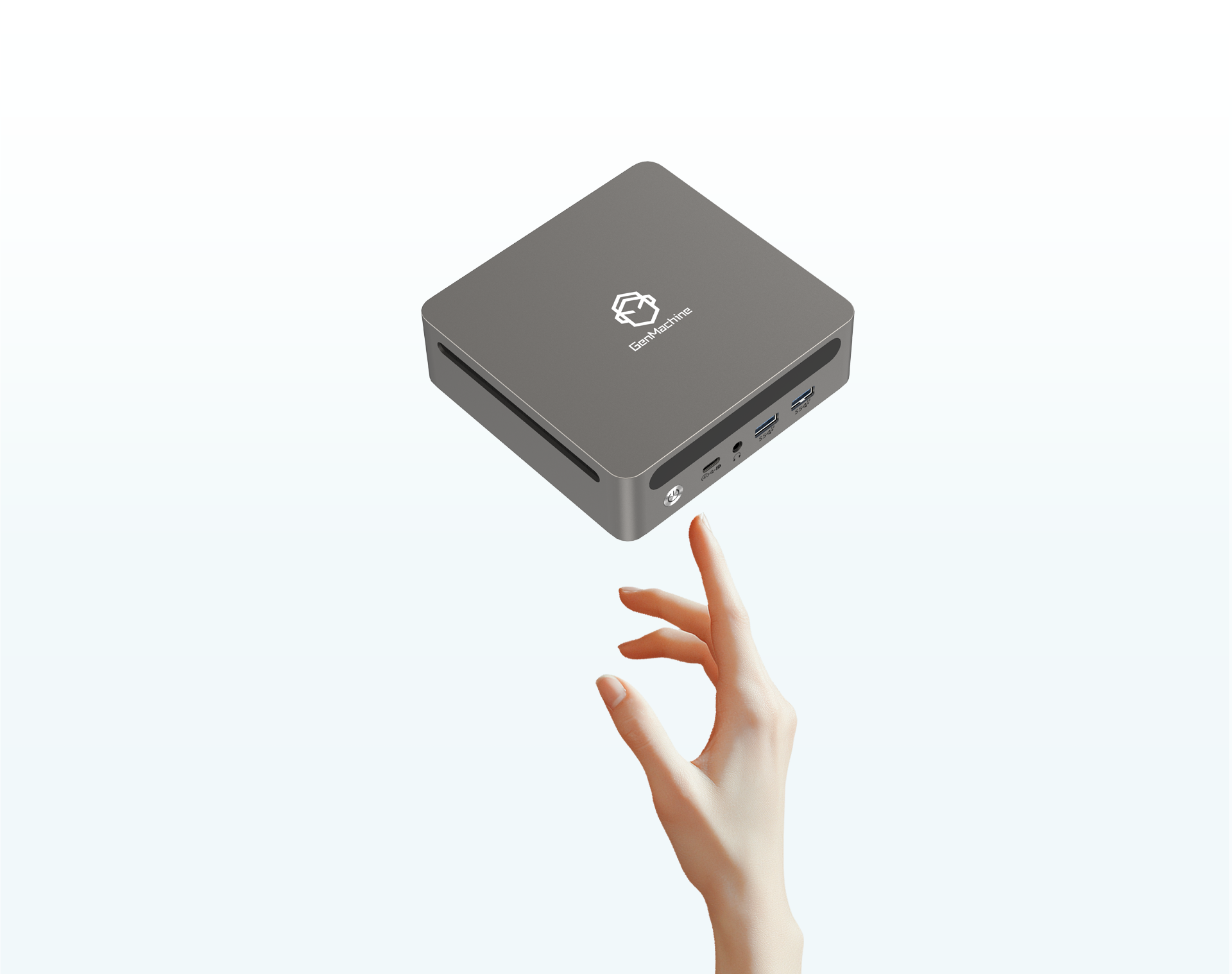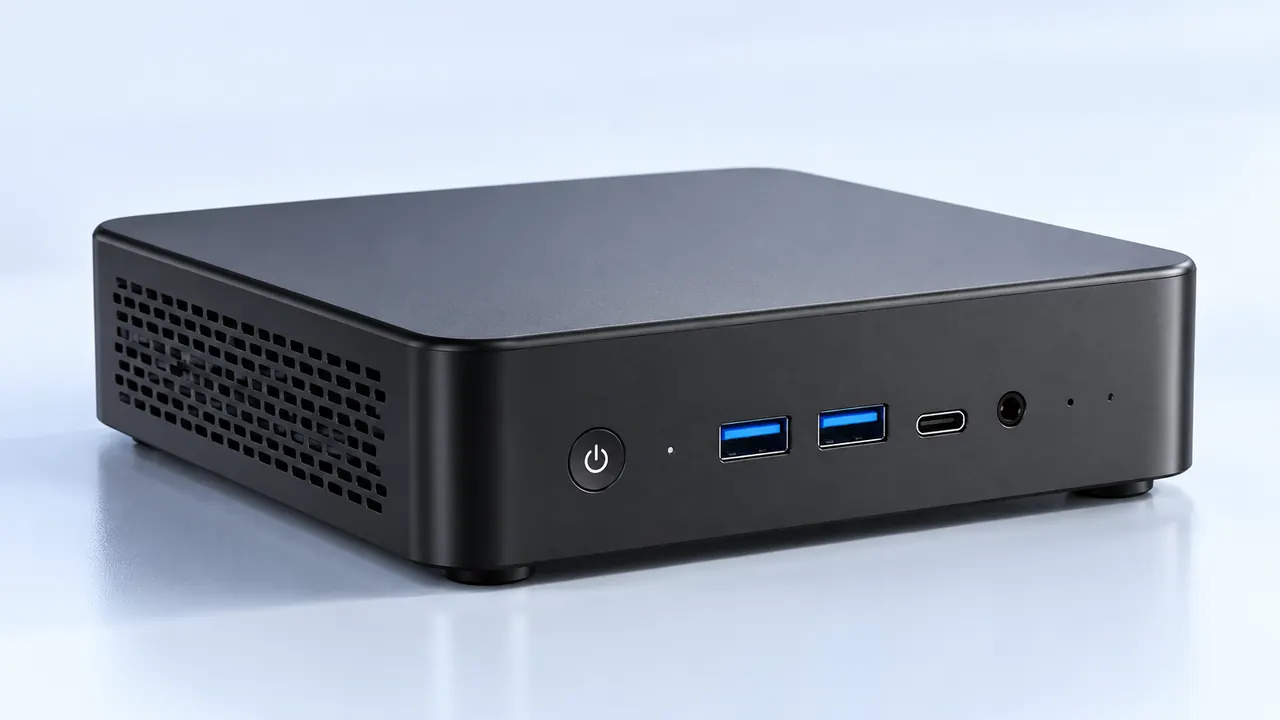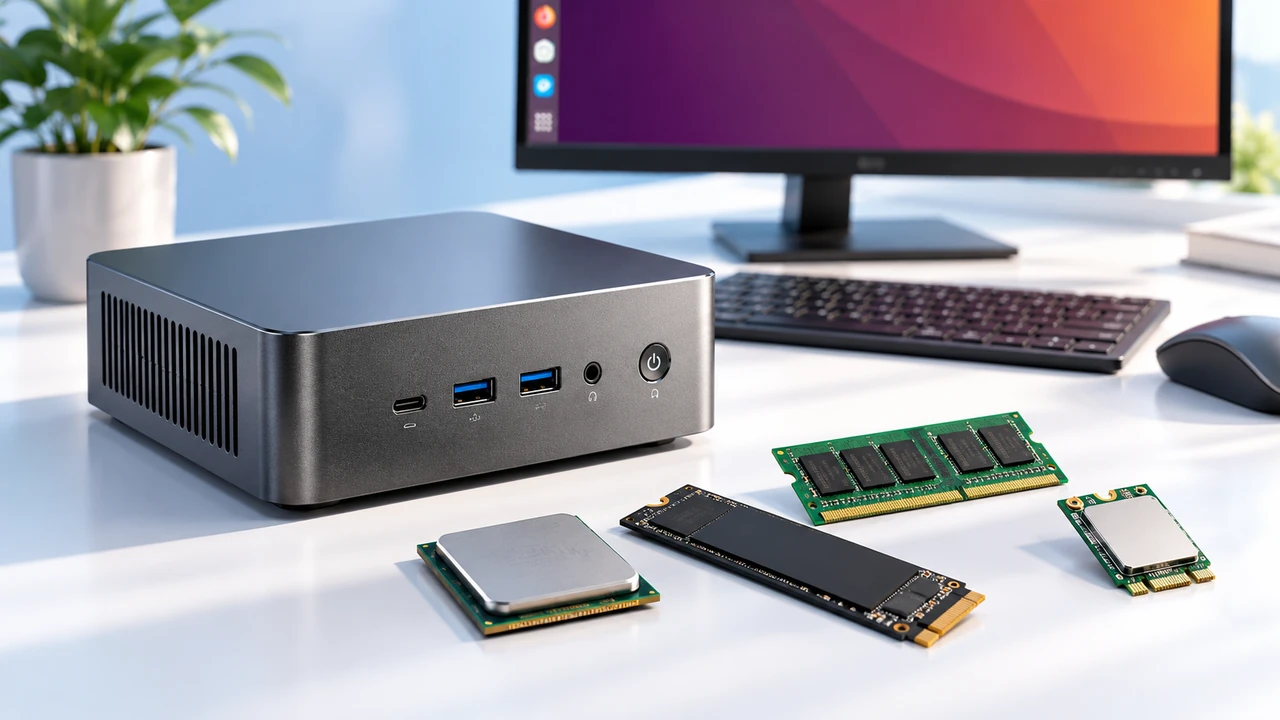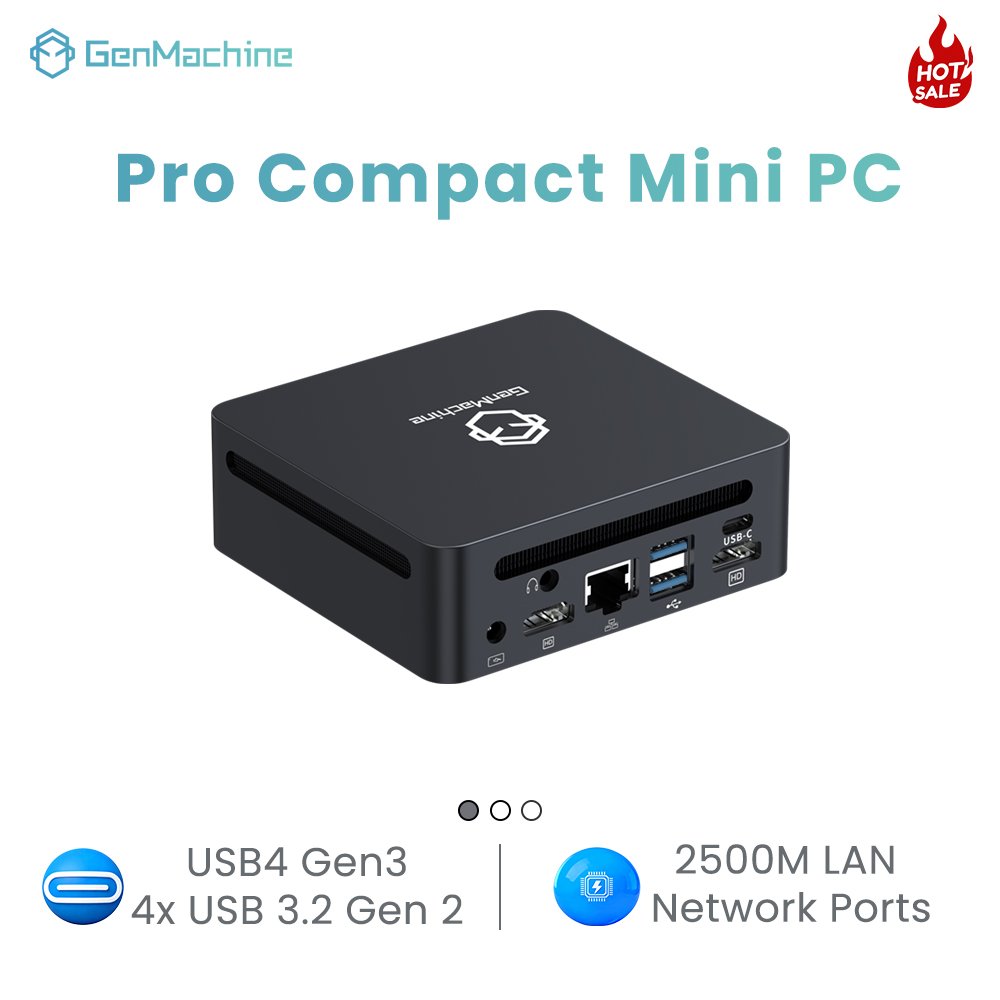
Looking around modern home offices, the bulky desktop tower is pretty much gone. People are shifting to ultra-compact setups, which makes a lot of sense when desk space is highly limited. But working remotely creates this weird, almost invisible layer of anxiety about data security. When sensitive corporate files are sitting on a tiny box on a kitchen table, it inherently feels a little less secure than working in a locked corporate building.
The good news is that modern hardware has adapted to these messy home environments. Looking closely at the current generation of Windows 11 Mini PCs, they actually pack a surprisingly impressive amount of enterprise-grade security right out of the box. The problem, though, is that a lot of people just plug them in, connect to the local Wi-Fi, and completely ignore the settings menu. Taking just a few minutes to dive into the system settings to flip a few specific switches can prevent a total disaster later on.

Core Defenses in Windows 11 Mini PCs
It is actually kind of surprising how much protection is baked directly into the silicon these days. In the past, securing a home computer meant downloading heavy, bloated antivirus software that slowed everything down to a crawl. But modern Windows 11 Mini PCs rely heavily on hardware-based security, specifically something called a TPM 2.0 chip. This tiny component acts like a cryptographic vault for the system, storing passwords and encryption keys safely on the motherboard itself rather than the standard hard drive.
If a device gets compromised remotely, the attacker still cannot easily access those hardware-locked keys. But relying on the TPM alone is not quite enough for remote work. There are a handful of foundational security features that should be verified immediately:
Core Isolation (and specifically the Memory Integrity setting) prevents malicious code from sneaking into high-security background processes.
Secure Boot ensures the system only loads trusted, official software when powering on, which stops rootkit malware from hijacking the boot sequence.
Smart App Control automatically analyzes and blocks untrusted or potentially dangerous applications from running without permission.
Ensuring these baseline settings are active on Windows 11 Mini PCs provides a massive invisible shield against the most common casual cyber threats.
Why Windows 11 Mini PCs Need Local Encryption
Working remotely does not always mean working safely from home. A lot of people toss their tiny computers into a backpack and head to a local coffee shop or a shared coworking space. Because Windows 11 Mini PCs are so incredibly small and lightweight, they are extremely easy to steal. Someone could just grab it off a cafe table when the owner looks away to grab a napkin for five seconds.
If the physical hardware is stolen, a basic login password does almost nothing to stop a determined thief. They can just pull the internal storage drive out, plug it into another machine, and read every single downloaded file. This is exactly why enabling BitLocker device encryption is absolutely non-negotiable. It essentially scrambles the entire drive.
| Security Scenario | Unencrypted Storage Drive | BitLocker Enabled Drive |
|---|---|---|
| Simple Login Bypass | Fails easily against determined thieves | Completely blocks offline access to local files |
| Drive Removed from Case | All company data is fully exposed | Drive reads as unformatted gibberish on other devices |
| Device Sold on Black Market | Huge risk of a corporate data leak | Hardware is practically useless without the decryption key |

Network Defenses for Windows 11 Mini PCs
Home Wi-Fi networks are notoriously insecure. People rarely bother to change their default router passwords, and cheap smart home gadgets (like off-brand security cameras or automated smart plugs) create massive vulnerabilities on the local network. When connecting company devices to these chaotic home environments, adding an extra layer of network defense is pretty much required.
While corporate IT departments usually handle the heavy lifting regarding network access, remote workers should manually verify a few local settings just to be safe. Here is a basic checklist to secure the network side of things:
Navigate to the main security dashboard and ensure the system firewall is actively blocking unprompted incoming connections on public networks.
Set up a reliable, dedicated VPN application to completely encrypt all web traffic (which is especially critical when working from public public transit or hotels).
Disable local file and printer sharing in the network settings, as this prevents other potentially infected devices on the home network from snooping around the work computer.
Applying these steps makes Windows 11 Mini PCs practically invisible to other random devices sitting on the same local network.
FAQ
Does turning on memory integrity slow down the computer?
Generally speaking, no. For basic office tasks, web browsing, and video calls, the performance impact is completely unnoticeable. However, in some highly specific gaming or heavy rendering scenarios, it might cause a slight processing delay, but for standard remote work setups, leaving it enabled is definitely the smart move.
Are Windows 11 Mini PCs actually safe to use on public Wi-Fi?
They can be, but only if the right precautions are taken beforehand. The built-in firewall does a really great job of blocking random network probes from other laptops in the room, but utilizing a trusted VPN is still absolutely necessary to hide browser traffic from whoever else is sitting in the coffee shop.
Is third-party antivirus software still necessary for remote work?
To be honest, the built-in system defenses have gotten incredibly reliable over the last few years. For the vast majority of remote workers, the default security tools on Windows 11 Mini PCs provide more than enough daily protection against standard malware, assuming all the automatic background updates are allowed to run regularly.